Whether it is a mobile phone or a computer system, safety of data is an important factor that can never be ignored. With Lavasoft Digital Lock you get both security & storage of data. With its strong 256-bit encryption technology not only your data is safe but also secure from unauthorized access.
Introduction
Lavasoft Digital Lock is a safety locker where you can store your files safely and in an encrypted form. With its strong 256-bit encryption technology not only your data is safe but also secure from unauthorized access. Without password, no user can access the files not even the owner of the file.
Installation (5 out of 5)
The application is very easy to install and takes less than a minute to install.
Features (3 out of 5)
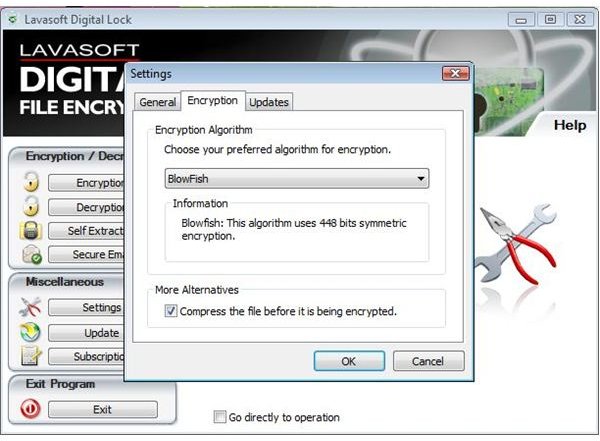
- Strong encryption algorithms: BlowFish, SafeIT, Twofish and Rijndael
- Multiple encryptions. You can encrypt a file more than once using different encryption algorithms.
- Shred or delete original files after encryption.
- Easy to use
- Quick Installation
- Convenient file selection
- Send files safely over the internet
User Interface (5 out of 5)
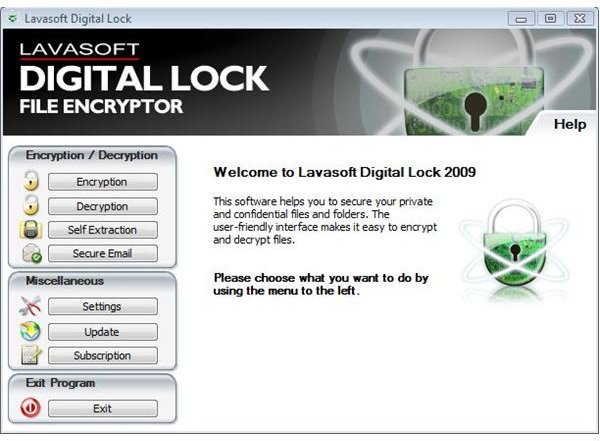
Lavasoft Digital Lock comes with a nice and easy to use user interface. All the options are presented right on the home page for easy access. The major options that you will ever use are:
Encryption
Decryption
Self Extraction
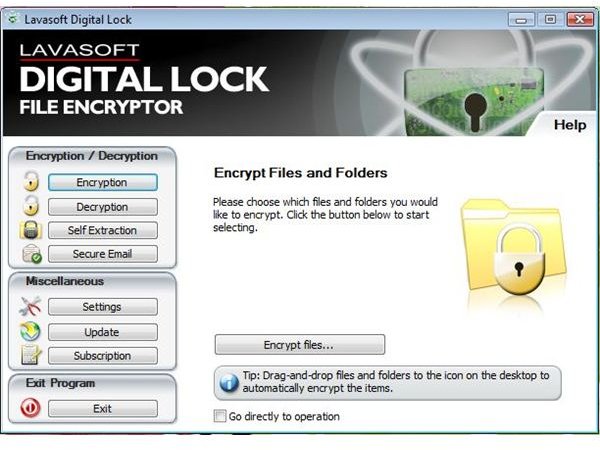
Encryption
To encrypt one or more files, click the encryption button located on the top left corner of the application screen and then click the “Encrypt files…” button. Browse the files or folder that you want to encrypt. You can also choose to shred, delete or leave the original files after the encryption process is finished.
I chose to encrypt the Manual-Digital Lock.pdf file present in the program files->Lavasoft folder. After encryption, the file got renamed to Manual-Digital Lock.pdf.safe
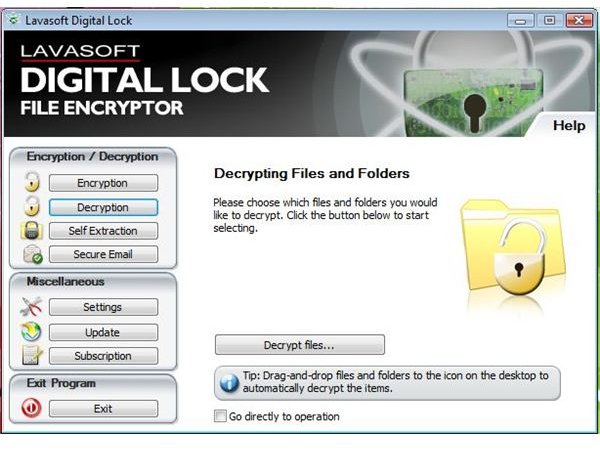
Decryption
To decrypt the files which you have encrypted using the Lavasoft Digital Lock application, open the application and click on the Decryption button located on the left and then click on “Decrypt files…” button. Browse the files or folder that you want to decrypt. You can also choose to shred, delete or leave the original files after the encryption process is finished.
I chose to decrypt the Manual-Digital Lock.pdf.safe file present in the program files->Lavasoft folder. After encryption, the file got renamed to Manual-Digital Lock.pdf.
Self Extraction
With self-extraction option, the files can be sent over the internet after encryption. In other words, the other user doesn’t need to have the software to decrypt the files. The files will appear as an exe file and upon execution, the user will be asked to enter the password after which the file(s) will be successfully decrypted.
Pricing (3 out of 5)
The application can be downloaded for free for a trial period of 30 days after which the user will have to purchase the application. The one year license comes with a price tag of $29.95. Considering the features of the application, the price is quite high.
Handling (4 out of 5)
Handling the application is very easy and requires no efforts on the user’s part.
Weakness (3 out of 5)
The major weakness of the application is that the encrypted files can be deleted. In other words, the software should restrict the user from deleting the file unless and until the file has been decrypted. Because, If a user accidentally deletes the encrypted file, he/she will not be able to recover it. At least on the same operating system, the user should not be able to delete the encrypted file.
Conclusion (3 out of 5)
I will give this application a score of 3 out of 5 because it is no different than any other password application that secures your files with a password. However, the encryption feature is the only feature that I feel is worth mentioning. From user’s point of view, the application is not worth the price.
Images

Images Credit
Lavasoft Digital Lock Screenshots by Lavasoft


