Vanish is a prototype of a new approach to meeting the privacy challenges of sending messages or other information into Web space; you can’t delete all copies which immediately begin circulating. Open-source Vanish makes this possible. It also enables expiration of local documents.
The Concept
A team, consisting of University of Washington students and faculty, have created a solution for those of us who don’t want our messages, documents, or Web posts potentially lingering forever. The solution, Vanish , encrypts content with a key that disappears after a set period. After the timeout, the encrypted information cannot be accessed by anyone, including the owner.
How it Works
Vanish encrypts text and distributes pieces of the key across multiple P2P sites, as shown in Figure 1. (All graphics in this article are from the white paper, Vanish: Increasing Data Privacy with Self-Destructing Data .)The team used the Vuze Bittorrent client as a distribution engine.
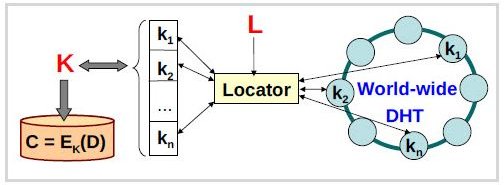
There are two methods for encryption. The first is using the download package available here . Downloads are available for all current versions of Windows and the Mac as well as tested versions of Linux. Once the download package is installed, the only supported application is Gmail. (As I explain later, this didn’t work as expected.) Future support is planned for documents, trash folders, Facebook, and other Web posting sites.
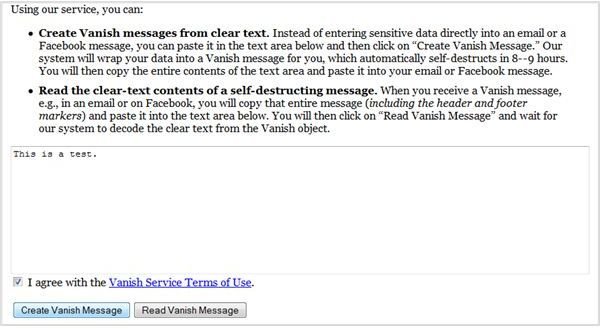
The second method, if you choose not to download and install the prototype package (or you can’t get to work), is use of the online service . Simply type your text in the provided box, accept the user agreement, and click the Create… button.
Now let’s see how this works in practice.
Installing the Download Package (5 out of 5)
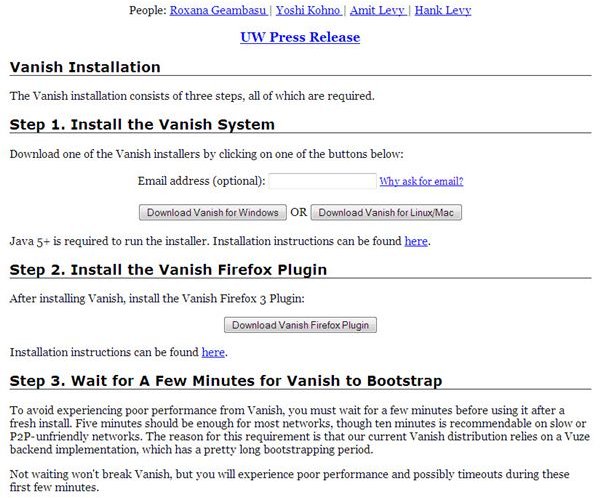
Downloading and installing the client application on my Windows 7 desktop was easy. The download screen, shown below, asked only for my email address–and I didn’t have to provide that. I was provided with an easy to read set of instructions stepping me through the process, as shown in Figure 2.
There are two system requirements listed. First, you much be using Firefox to use the Gmail plugin. Second, the computer must be running Java 5 or later.
Installation was painless and quick. I waited the requisite 10 minutes and jumped right in.
Using the Installed Client (2 out of 5)
I gave functionality of the client a two for concept. Conceptually, it is a great approach. In practice, it didn’t work very well.
First I loaded Gmail with Firefox and typed in a short message. According to the Vanish documentation, all I had to do was highlight the message text and right click to bring up the context menu (shown in Figure 3). When I clicked Create Vanish Message, however, I received an error. There were instructions for dealing with this problem, but none of them worked.
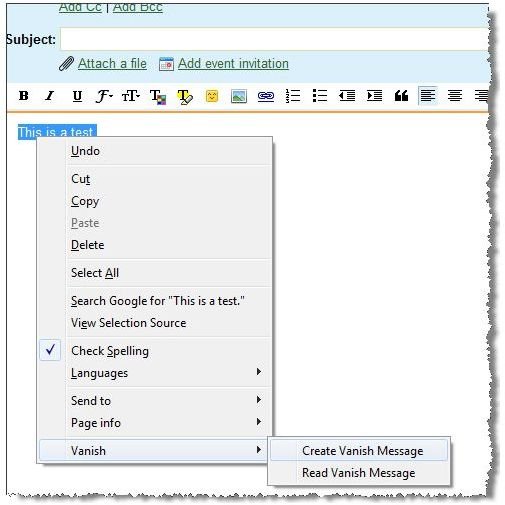
I also tried using my Ubuntu Linux laptop. Different problems, same outcome–no encrypted email
This is a prototype, so I’m not too concerned about this. The concept is interesting, and I hope the team fixes these issues soon.
Using the Online Service (4 out of 5)
I accepted the fact that either the install package was hosed in some way or that I was not understanding something in the documentation. So I moved on to using the online service.
I typed text into the site’s text box and clicked Create Vanish Message, as shown in Figure 4. Figure 5 shows the result. So far, everything was working as advertised.
Before going on, let’s look at the header of the message. The recipient is notified that the message will expire at a specific time and date. The only problem I have with this format is the time zone. When and if this prototype is released for general use, many users will have trouble converting from GMT to local time.
I copied the ciphertext and pasted it into a new Gmail message, using Firefox running in Windows 7. I sent the message to my office account. However, Gmail stripped the message body. I received a messageless message in Outlook. What I did receive was an electronic signature attachment. Hmmm…
Moving to my Linux system, I tried again. Same result.
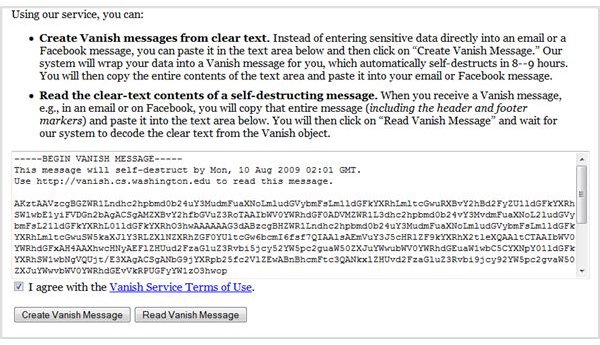
Well, I wasn’t going to accept failure. So I opened Word 2007 and pasted the encrpted message in a new document, saved it, and attached it to a Gmail message. Gmail stripped the attachment when I sent it. However, the document text was readable once I copied it back into the online service window and unencrypted it. At least I got something to work.
Thinking the problem might be with a Firefox add-on, I loaded Gmail using IE 8 and tried again. This time it worked flawlessly. I was able to paste and send encrypted messages using my Gmail account with no issues. I suspect my problem is with the Firefox Gmail S/MIME add-on I use to sign messages. When I used Firefox and my business Yahoo mail account, I was able to post and send encrypted text with no problems.
I also sent my encrypted Word document without issue. This is nice. I wish it worked in my Firefox installation, however.
Security (4 out of 5)
Security surrounding Vanish use is good. It uses distributed hash tables (DHTs) to both obscure the encryption keys and to maintain their availability. Further, it’s the nature of DHTs to continuously refresh, helping to ensure deleted keys are destroyed after the timeout period.
The timeout period of eight hours is an approximation. According to the online documentation, the probability of decrypting the message is high during the first eight hours. From hour eight through hour nine, the key is in an indeterminate state. After passing the nine hour point, however, the probability of decryption becomes increasingly less. I tested key expiration by waiting overnight to once again decrypt the ciphertext pasted into my test Word document. I was denied. This also worked as expected.
Another caveat is ensuring no draft messages are saved. If you use Vanish to prevent both Web privacy and to prevent forensic discovery of message content, keep an eye on draft auto-creation. If possible, turn it off. In any case, don’t keep plaintext drafts of messages you want to Vanish.
Finally, I’m not sure how I feel yet about using peer-to-peer technology to implement this. I don’t believe I have a problem with Vanish as a personal solution. But I also don’t believe I’ll recommend it for exchanging national defense secrets just yet…
Summary
Overall, I really like the concept behind Vanish. I have no doubt the University of Washington team will smooth out the rough edges. As they do, I’ll be right there testing it. I want this to work. It has a lot of potential.
Even though I had some issues, give Vanish a try. You might want to start with a fresh install of Firefox, however. And let the team know about your experience .


