You have your anti-malware, anti-rootkit and firewall programs installed. But do you know that there is still a weak point, a very weak point that can be exploited to compromise your username and passwords? Zemana AntiLogger will be the solution to this vulnerability.
Introduction
You have all your security programs installed and up to date, as your operating system is. Then you type a website address on your browser and enter your credentials to log in. The website is protected with 128-bit SSL encryption, its address begins with https and everything seems secure so far. Is it?
No it is not. Definitely. The SSL (Secure Socket Layer) encryption works when you press the ’log on’ or ‘submit’ button to send your username and password to the website. Meaning that, until you enter your username and password, nothing is safe. It is the weakest point in all the security chain: the time you begin to type your passwords. There are many malware in the wild that is trying to find a computer to settle, just to send whatever is typed to its boss. They are called keyloggers.
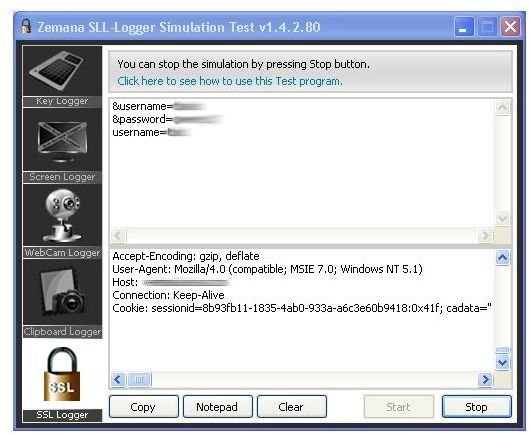
You may, of course think that your anti-malware program should detect such a keylogger and your firewall should detect such an outgoing activity. I will not disclose the details, but I personally compromised one of my web accounts with a similar attack a few days ago.
This is where Zemana Antilogger comes to the scene, with its most important part; the SSL protection. In 2008, 80% of the malware applications targeted online financial transactions (shopping, banking etc..) The recent attacks focus on the point before the data entered in the webform is encrypted. Zemana Antilogger intercepts at this point and blocks the applications which try to record data before the encryption takes place. This is a patented approach and only present in Zemana’s Zemana Antilogger. There is no program similar in the world that come with such a security idea.
This is not all. Zemana Antilogger blocks all the logger activity and makes it safe for you to type with your keyboard. It also safeguards the data in clipboard (which some malware is interested in - you can not imagine how many users copy->paste their passwords to web forms), safeguards your screen (some types of malware takes screenshots from your computer and sends it to its ‘boss’) and it safeguards your camera (recently the attacks to take control of cameras connected to the computer is increasing. Imagine that you are changing your clothes after you come home from work, your computer is open and your camera is compromised.) With Zemana Antilogger’s protection against these threats, you will be really safe.
How Does It Work?
Zemana Antilogger is not solely an antivirus nor an antimalware. Instead, with very strong reactions, it assures security by proactive methods, which watches the malicious processes in real time by their known or predicted actions. If you are infected with some kind of a trojan, virus or keylogger, Zemana Antilogger takes immediate reaction when they try to act and block them. The key point here is that, it is not an antivirus nor an antimalware program per se. It builds its foundation on top of the usual anti-malware applications by providing additional level of security. And this security is important. It is the first of its kind.
Read on for download, installation and ease of use
Download & Installation (5 out of 5)
The download is 4.5 Megabytes in total. The installation is a usual Windows installation routine, but this is one of the very rare programs that the wizard verifies the downloaded file’s integrity. So, before you install, the wizard makes sure that what you have downloaded has not been tempered with.
When the wizard starts, it asks you to select language. In the current version, there are only Turkish and English options, we select English and carry on. Leave everything default, click next in all screens and in the last screen click Finish and reboot.
No problems with download and installation. With especially file integrity verification, Zemana Antilogger deserves 6 points over 5, but I am only allowed to give 5.
Ease of Use (5 out of 5)
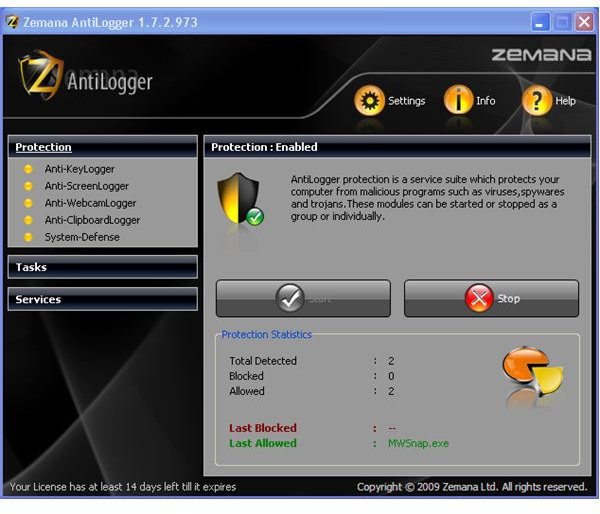
There is no use, really. The program starts with Windows and does its job in the background and it does not require any intervention. It places itself in the taskbar with a shield icon with the letter Z.
The program’s memory usage is 2.1 Megabytes, half of Windows Task Manager, a quarter of Explorer, when the computer is idle. So, we can not speak about memory usage.
The configuration needed is already done. The first time I start using a program, I visit the ‘Options’ or ‘Settings’ section to see what is available. I have checked Zemana Antilogger’s options and saw nothing that I would like to change. Even with the default installation, the program caught, blocked and terminated a DLL-Injector that was running on my virtual Windows XP SP3 computer. And it did it without getting on my way. And still I am using the 15 day licence.
You can enable or disable program’s webcam, clipboard, keyboard and screen logger modules individually. I suggest you to keep them running at all times.
The program automatically finds and downloads updates. To manually check for updates, click ‘Services’ on the left tab and then select ‘Updater’ and press the ‘Check for updates’ button.
Overall the interface is elegant, clutter-free and easy to navigate.
Read on for help and support, price to performance and our overall evaluation.
Help & Support (5 out of 5)
There is no built-in help file. Clicking on the Help link on the top right corner opens up a web browser and takes you to Zemana Antilogger’s help pages on its website. The help section is very well organized and thorough and you can find everything you want to learn. But if this is not still sufficient, there is also a help desk, providing assistance with e-mail, which inquiries are handled in maximum 24 hours or you can go for Technical Support, which is tailored to your specific problem(s). I especially liked the “Are you sure you want to take technical support” section, which tells you to do some certain things -such as updating your software- before heading to the help desk. Of course, by just downloading and installing the newest version, you may be able to solve some of your problems.
I would also prefer an in-built help file for offline access and a chat option that the registered users could instantly get help.
Price to Performance (5 out of 5)
The developers are right in their pricing methods. There is no equivalent protection in the world. Plus, the developers are Intel’s partners and even optimized their code for multi-core processors. Considering an unmatched application and the price, I do not find USD 39.50 a steep price.
The program comes with a price of USD 39.50 per computer. There is no family licence. But for purchases over 1, the price drops step by step: two user licence is USD 34.60 per computer, for 10-19 users USD 22.00 per computer etc.
Overall (5 out of 5)
Zemana Antilogger is neither a complete anti-malware solution nor it is a firewall application. It must be used with an anti-malware program and a firewall application to provide ultimate security. If you have a some spare budget for your computer’s protection, I suggest you to keep your USD 39.50 for Zemana’s Antilogger and spend the remaining in other applications.
I found the program completely delivered on its promises. At a time when malware is increasingly targeting financial transactions, I find this program a must-have.
More Reviews!
Would you like to read more reviews? Look around Bright Hub and you’ll find reviews of numerous other leading security solutions including KeyScrambler Professional , Norton Internet Security , Kaspersky Internet Security , ESET Smart Security , McAfee Total Protection , Blink Professional and ZoneAlarm Internet Security Suite .


