Lavasoft celebrated their 10th year anniversary with a bang. I’m not disappointed to be late in the party for it is never too late to check what they got for home and office users in their 10 years in business – it’s the release of Ad-Aware Pro Anniversary Edition.
Installation (5 out of 5)
I must admit that prior installing Ad-Aware Anniversary Edition (Ad-aware AE), I’m wondering already if the installation will give trouble like the way their older 2008 edition did. I’m happy to see that this is not the case with Ad-Aware AE. I’m impressed with the quick installation process and there is no trouble during and after installation. Similar to Ad-Aware previous editions, there are two methods to install Ad-Aware AE, Custom or SmartSet.
With SmartSet method, you simply allow Ad-Aware AE to install the program using its recommended settings (default installation).
With Custom installation, you’ll have the chance to change the installation of the following:
- Change the destination folder
- Add or remove the program’s shortcut
- To install the driver for Ad-Watch Live!

The custom installation will also allow users to not only proceed and change the installation settings but to cancel the installation. One thing… I’ve seen some anti-virus, anti-malware scanners and firewall software that do not require a reboot after the installation so I’m surprised that a reboot is required before you can start using or configure the settings of the Ad-Aware Anniversary Edition. Ad-Watch Live! of Ad-Aware AE integrates without issue on Windows Security Center as anti-spyware and anti-virus protection:
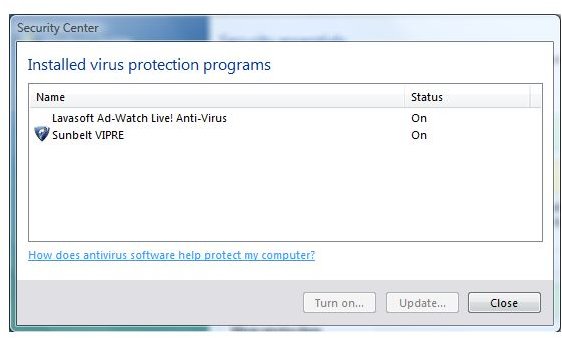
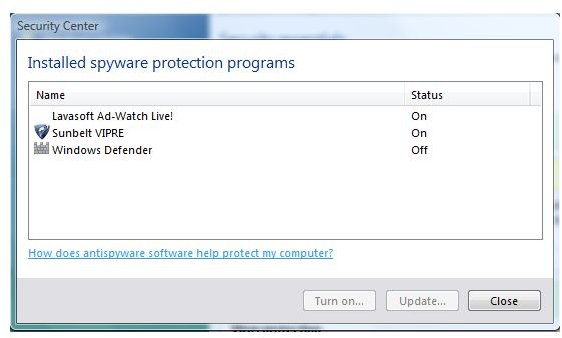
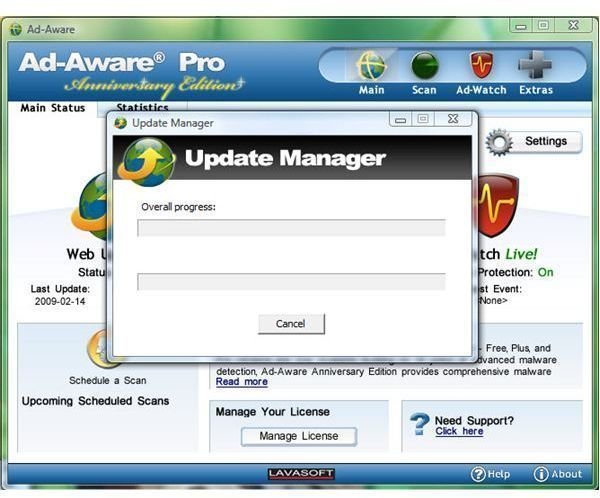
Keeping it Up: Lavasoft understands the importance of keeping the program up-to-date and making sure that the latest components and database is on the system. Ad-Aware AE will launch the Update Manager prior rebooting the system but there was no advanced notice that this will occur. The installer is missing that notice but because the goal is to keep it up-to-date before it will start protecting the system, the missing notice on its Update Manager is not a big deal.
Good to Go with Lavasoft SmartSet (5 out of 5)
I waited for the program to display the main user interface but it did not happen. The Update Manager loaded again to find any updates and it closed automatically when it’s done with its job. No need to interact with it (not even a need to click OK!). I notice the Ad-Aware AE edition’s icon on the notification area in Windows and I was waiting again for Ad-Aware to prompt me in configuring the program’s settings and options but there’s no need simply because the Lavasoft SmartSet dealt with it already. All I have to do is enter the license key to activate the features of the Pro edition. I must say that I agree with Lavasoft that it is a Good to Go malware protection program. I’m curious though on what SmartSet did, so I navigated around the configuration:
- The program is set to auto-download the software and definitions update and you can change this if you like to do it manually.
- It will prompt the user to submit files to Lavasoft ThreatWork (ThreatWork gives you direct access to submit suspicious files for analysis via an alliance of global anti-spyware security volunteers, protecting personal computers and business networks worldwide. You can also bring up ThreatWork via Toolbox or you can simply right-click a file for submission to ThreatWork – it works like VirusTotal uploader). I’ve seen this in action when I run a scan and it somehow detected a file that is not infected but a false positive or suspicious file. When I let Ad-Aware AE ignore the file, the ThreatWork prompted me if I want to submit for further analysis. This is a good function in a scanner for you will allow Lavasoft experts to analyze the file and if they found it as good file; they will release updated definitions to correct the misdetection.
- Ad-Aware file scanners for Rootkits, Spyware Heuristics (this is behavior-based detection on spyware) and Archives are selected. Not all malware scanners in the market offer behavior-based detection so this feature of Ad-Aware AE is a good score for Lavasoft. Behavior-based (heuristic) protection by scanner like what Ad-Aware AE got will help the system to avoid infection by blocking in real-time the installation spyware, Rootkits and other types of malware that is known to its detection definitions.
- The behavior based detection by its anti-virus engine is enabled. Similar to other malware scanners, the default and recommended settings for Ad-Aware AE’s behavior-based detection is set to “Mild”. Choosing “High or Strict” may cause false positives)
- The System Drive is automatically selected by Ad-Aware AE to be scanned. I have external drive that is plug-in during the installation and it’s great to see that Ad-Aware did not pre-select my external drive. I can add its location or path if I want it to scan for malware.
- The default section to be scanned by Ad-Aware AE are the critical area in Windows, the running applications, the Windows registry, LSPs, ADS, Hosts file, MRU, Browser Hijacks and tracking cookies. There is an option to add another Scanner Profile. Quite useful if you have more than one hard-drive.

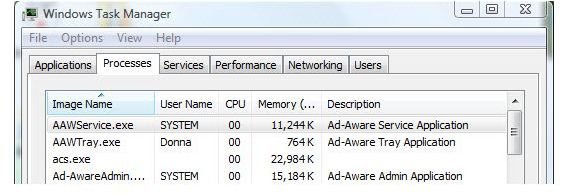
The amount of memory that Ad-Aware AE is using is acceptable while it is monitoring or running a scan. It did not slow down the test machine that is running 3GB of RAM:
Flavors and what’s with Ad-Watch Live!? (5 out of 5)
I was not a fan of Ad-Watch in previous editions and chose to disable it, but this time, I’m going to keep it active or enabled. The reason is because Ad-Watch Live will not only sit to watch for malicious processes and infected applications but will also watch for changes to your registry by any application then it will also monitor the outgoing network traffic and blocks connections to blacklisted IP addresses.
An example is when a user visits a known bad website or rogue site, Ad-Watch Live! Expert will block it so you are protected from such sites:
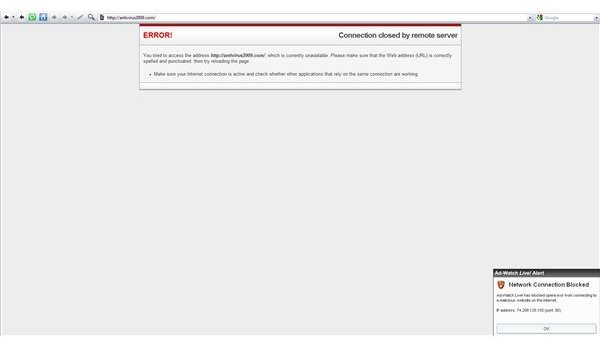
The above is one of features of Ad-Watch Live! Expert by monitoring network traffic to bad sites. That’s similar to free CoU [IP Blocklist](https://www.calendarofupdates.com/updates/index.php?automodule= downloads&req=idx&cmd=viewdetail&f_id=3) for Outpost Firewall users.
Ad-Watch Live comes with different flavors: Basic, Advanced and Expert
- The Ad-Watch Live! Basic is available to the free edition of Ad-Aware AE. It will block malicious processes and infected applications in real-time.
- The Ad-Watch Live! Advanced will offer what the Basic has, Windows Registry protection and the heuristic technology (behavior-based protection).
- The Ad-Watch Live! Expert has all the features found in the above flavors of Ad-Watch and provides additional layer of security by blocking connections to blacklisted IP addresses.
Scan Mode: Smart or Not? (5 out of 5)
There are three scan modes in Ad-Aware AE and these are Smart, Full and Profile modes. The last time I tried Ad-Aware scanners was last year, using the 2008 edition in which it took 15 minutes for the SmartScan to finished and a long 40 minutes for full scan. There’s a huge improvement done by Lavasoft with their new build! The SmartScan finished in less than 2 minutes while the full scan finished in less than 30 minutes.
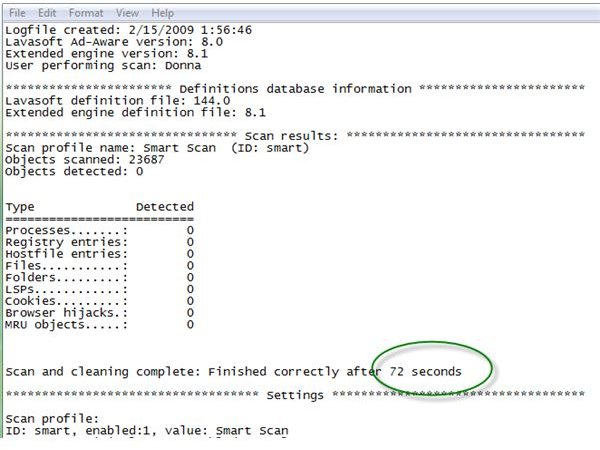
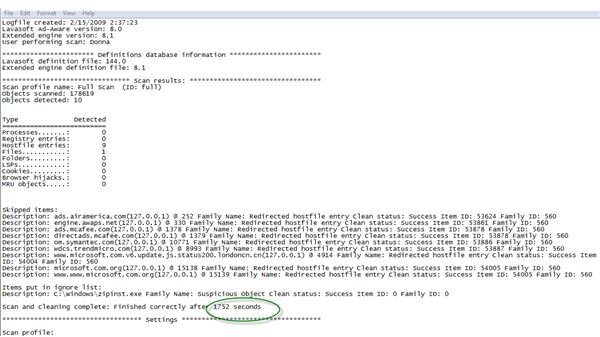
In one of the above log file and below screenshots, you will see that Ad-Aware detected 2 items that are not infected but false positives (a HOSTS file entries and Nirsoft executable that I believed was used by one of the software that I installed many weeks ago). I asked Ad-Aware AE to allow them at once and it was successful.
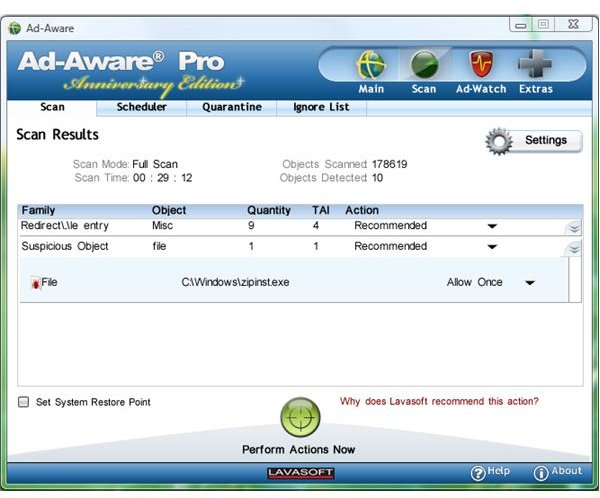
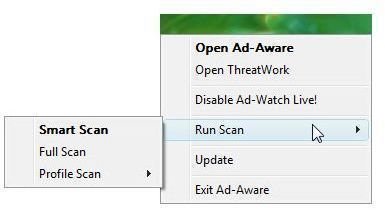
You can also scan a single or folder using Ad-Aware’s right-click scan method. Lavasoft called this method as Pin-Point scanning. In the notification area in Windows, the Ad-Aware AE’s icon also give handy access and task on its program features:
What? When? How to Scan? (5 out of 5)
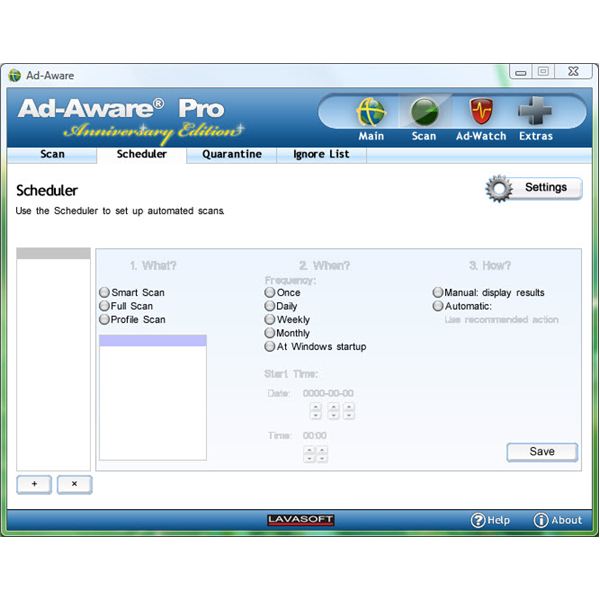
We regularly recommend to scan our system using the latest available definitions and there are users who want to know What, When and How to scan a computer. With the Scheduler in Ad-Aware Anniversary Edition, these questions is done in no time.
Choosing what to scan is simply choosing if you like to run the SmartScan, Full or Profile Scan. Example scenarios:
- You have two hard-disk or partition where disk 1 is your system drive or system partition while disk 2 is your storage. You created a Profile scan in Ad-Aware AE to only scan the system or OS drive/partition. You named this Profile as “System Scan”.
- Some users has USB external and flash drive or their computer is connected to another drive which is networked (network drive) and prefer to have a separate profile scan for it, so you created a “Network or USB Scan”.
- And last but not the least, you want to scan the system using SmartScan each time there’s new definitions or at Windows startup.
When scheduling using Ad-Aware Anniversary Edition, you can simply choose from the available and customized profile scanner to run and then proceed in choosing when to scan. There’s more… you can also choose How the scanner will attend the result of the scan. You’ll choose to automatically handle it using the recommended settings by Ad-Aware AE or you prefer to decide manually on what it should do (to remove, ignore, quarantine or allow once).
Extra! Extra! Features of Ad-Aware Anniversary Edition (5 out of 5)
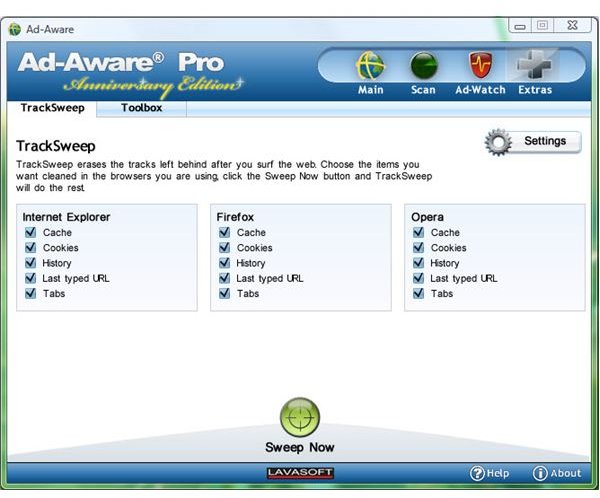
Of course, there is no fun if there are no extra features! Lavasoft understand the need of cleaning the browser for private information that malicious sites or software may use to track you or your browsing activity, Ad-Aware Anniversary Edition offers TrackSweep. TrackSweep will clean-up your favorite browsers: Opera, Firefox or Internet Explorer.
Another cool extra in Ad-Aware AE is the Toolbox. The Toolbox contains standalone tools to manage the start-up applications (using the AutoStart Manager), Process Watch, a Hosts File Editor and the ThreatWork where you can simply browse or drag and drop files to submit suspicious files to Lavasoft.
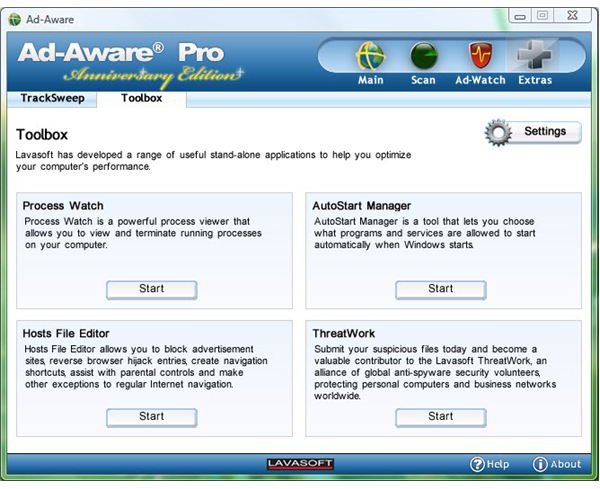
The Hosts file editor in Ad-Aware AE is a simple Hosts File Manager where you can import and export new or existing Hosts file. It also offers write-protection on the hosts file to prevent any malicious software in modifying or hijacking the hosts file.
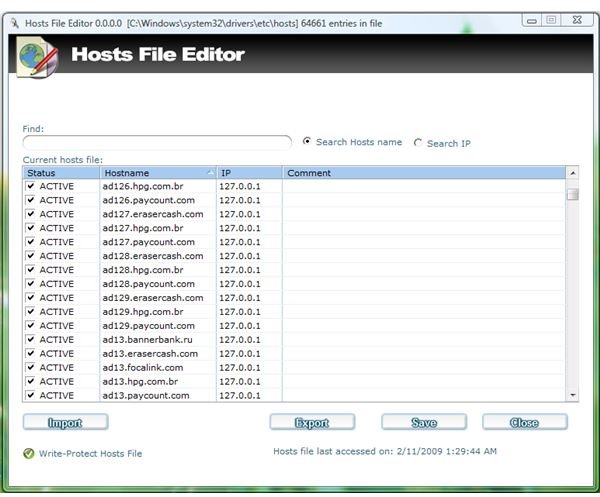
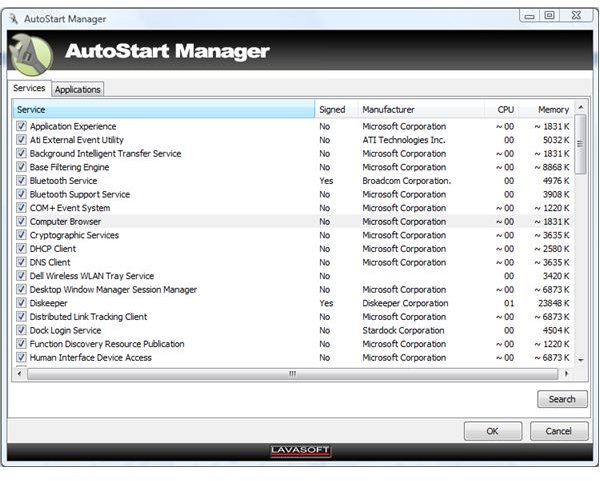
AutoStart Manager is a tool to enable/disable or get detailed information of the startup applications in Windows. The feature is offered for the Windows Services that the AutoStart Manager will display.
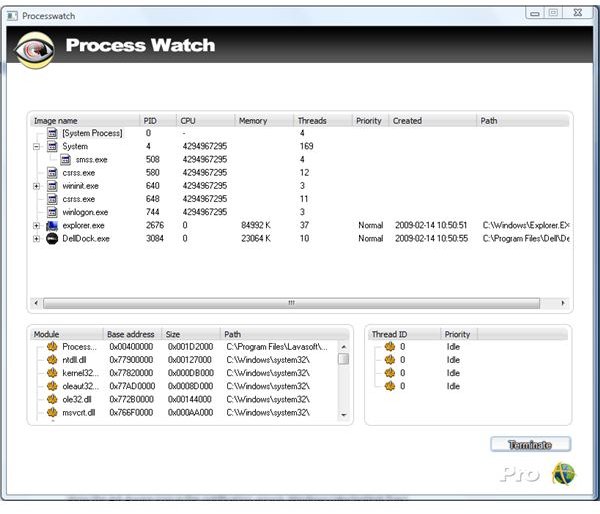
Some malware will disable access to Task Manager so the addition of Process Watch in Ad-Aware AE is handy and useful standalone tool.
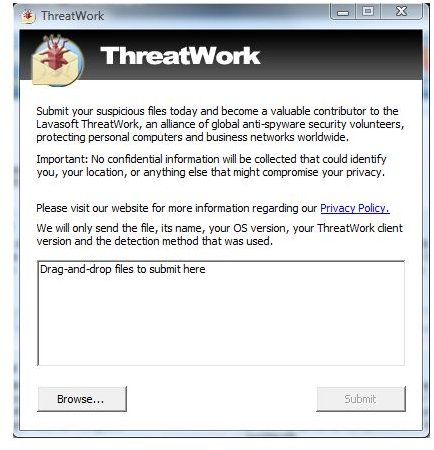
Access to ThreatWork is also in Toolbox. Use this when you want to send suspicious files to Lavasoft. Simply drag and drop or right-click a file to send to ThreatWork:
Appearance matters
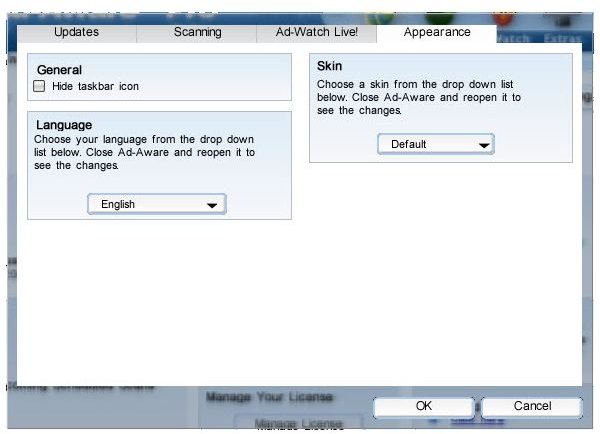
This edition is customizable and users can change the appearance of Ad-Aware AE. Lavasoft let users choose the language, the theme or skin color of the program and last but not least, to hide or show the Ad-Aware icon in the notification area in Windows (aka System Tray).
Price to Value (5 out of 5)
The product in this review is Ad-Aware Pro Anniversary Edition and the price tag is $39.95 for 1 year – Unlike other anti-malware’s real-time protection that only allow paid users to bring up a task (update or scan tasks), Ad-Aware Pro Anniversary Edition is well worth the money if you want take advantage of its real-time protection against malware, the behavior-based protection, Ad-Watch Live! Expert with a very nice feature of blocking the blacklisted IP addresses in communicating to your system or network, standalone and handy tools on its Toolbox, Command Line Support and Network Drive Scanning. Other editions of Ad-Aware Anniversary Edition are Plus ($26.95) and Free editions.
Lavasoft understand also that not all users are ready to renew as soon as the subscription expires, so the product simply reverts to the Free edition once the subscription has ended. Users can renew anytime after the program reverted to Free edition as long as you let them know of your hardware fingerprint and license information.
Conclusion: Does Lavasoft deserve to celebrate their Anniversary Edition?
Lavasoft deserve to celebrate the release of Ad-Aware Anniversary edition for it offers a very impressive speed in loading and scanning. The real-time protection by Ad-Aware Pro Anniversary Edition using its Ad-Watch Live Expert, its behavior-based (heuristic) and an anti-rootkit engine will make it easy for users to secure their systems against security risks. The anti-virus protection that Lavasoft have added is a smart decision. The product use the Avira antivirus engine which is often at the top in any certification and testing by independent security labs and researchers. The claim by Lavasoft is “Ad-Aware Anniversary Edition provides advanced threat protection, and is significantly lighter and faster than our previous versions ”. I agree. This edition by Ad-Aware is far better than previous editions. It’s not the same old Ad-Aware that disappointed many of its supporters and customers.
I’m giving Lavasoft a 7 out of 7 rating because they did not only listen to their customers but they also understand the need of the users in defending the system from malware infections by releasing an improved, fast and feature-packed anti-malware program. The Ad-Aware Pro Anniversary Edition is ready to face modern malware and it is really a Good to Go anti-malware!
Need a free alternative? Be sure to check out Ad-Aware Free , Lavasoft’s no-cost, on-demand scanner.
More Reviews!
Would you like to read more reviews? Look around Bright Hub and you’ll find reviews of numerous other leading security solutions including Norton Internet Security , Kaspersky Internet Security , ESET Smart Security , McAfee Total Protection , Blink Professional and ZoneAlarm Internet Security Suite .


