TrueCrypt 6.1a Review
Protecting data on mobile devices is not an option. Every security manager knows this can be a hole in an organization’s defenses. The best way to protect data on the move is encryption. However, providing the right tools is not easy–especially when cost is an issue. Any tool must be easy to use and one most, if not all, users are willing to integrate into their daily routines. TrueCrypt fulfills these basic requirements, and then some.
I installed and tested TrueCrypt 6.1a (released December 2008) from the perspective of user and SMB security manager.
Feature Set (5 out of 5)
TruecCrypt is an open-source encryption solution provided by the TrueCrypt Foundation. It isn’t new to the encryption market. Version 1 was released in February of 2004. According to the Web site, the following are the product’s main features:
- Creates a virtual encrypted disk within a file and mounts it as a real disk.
- Encrypts an entire partition or storage device such as USB flash drive or hard drive.
- Encrypts a partition or drive where Windows is installed (pre-boot authentication).
- Encryption is automatic, real-time (on-the-fly) and transparent.
- Provides two levels of plausible deniability, in case an adversary forces you to reveal the password:
- Hidden volume (steganography) and hidden operating system.
- No TrueCrypt volume can be identified (volumes cannot be distinguished from random data).
- Encryption algorithms: AES-256, Serpent, and Twofish. Mode of operation: XTS.
TrueCrypt also supports security tokens and smart cards.
Users can encrypt entire USB drives or create encrypted areas for storage, called containers. Encrypted volumes can be auto-mounted via the TrueCrypt interface or via a script using command line capabilities.
Another great feature is TrueCrypt’s requirement to backup the master boot record (MBR) before encrypting a laptop system disk. There is no way around it. No backup, no encryption. The backup disk provides a means to recover if the TrueCrypt MBR is corrupted.
Ease of Use (4 out of 5)
I was unsure about how to rate TrueCrypt for ease of use. For anyone with any experience managing systems, the rating is a 5. For those less knowledgeable, the rating is a 3. On the other hand, support personnel can configure TrueCrypt to auto-mount pre-configured volumes, including hard drives. So I settled on a 4. I’ll let you decide where it falls for your organization.
To demonstrate how easy it is to configure an encrypted volume, I stepped through creating a container on a network drive and mounting it for use.
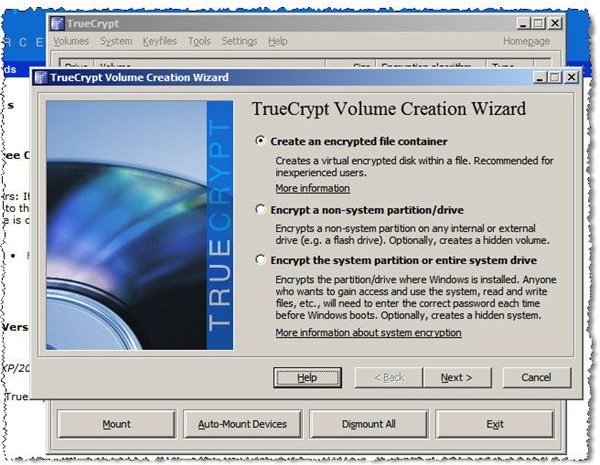
Step 1: Launch TrueCrypt and click the Create Volume button. Select the type of volume you want to encrypt, as shown in the image below.
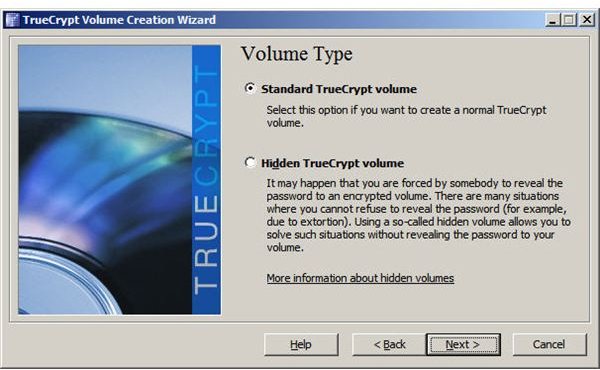
Step 2: Select volume type, standard or hidden.
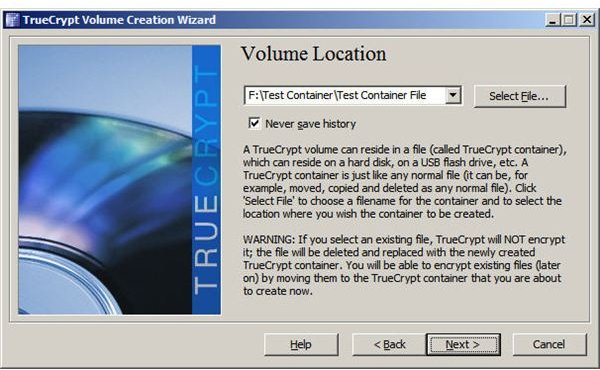
Step 3: Specify the folder and file to be used as an encrypted container. Although TrueCrypt refers to the container as a file, it can contain other files when mounted.
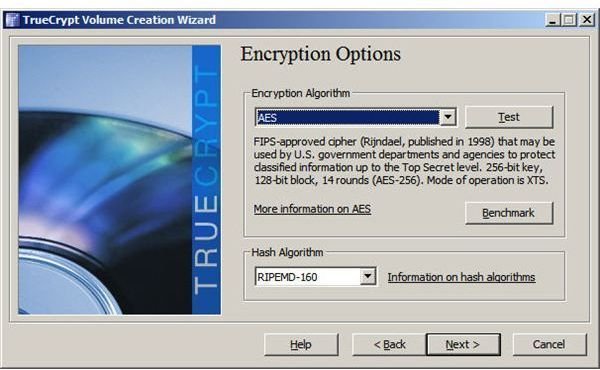
Step 4: Select encryption and hash types.
Step 5: Specify the size of the container.
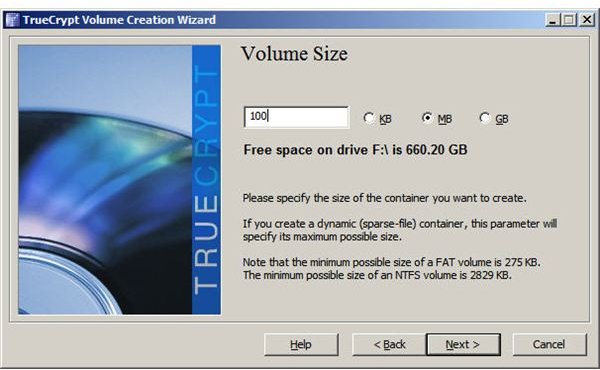
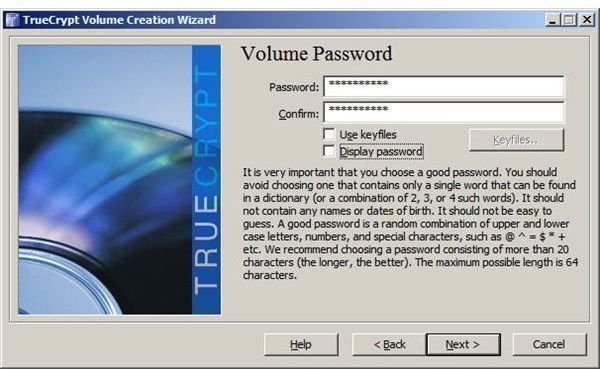
Step 6: Enter a container password. TrueCrypt presents a message recommending a longer password if the one you enter is less than 20 characters. Be sure to remember this password. If you forget it, any files you place into the container will be inaccessible.
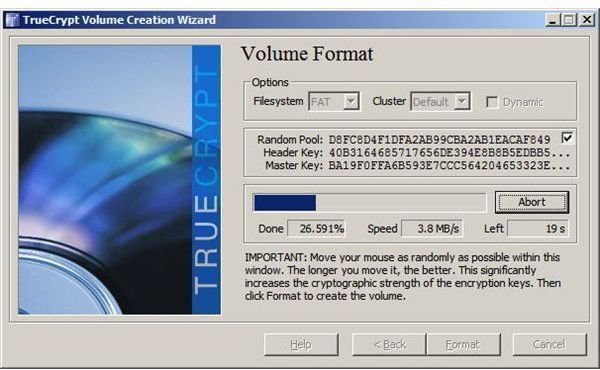
Step 7: Format the container. This is the final step in the volume creation process.
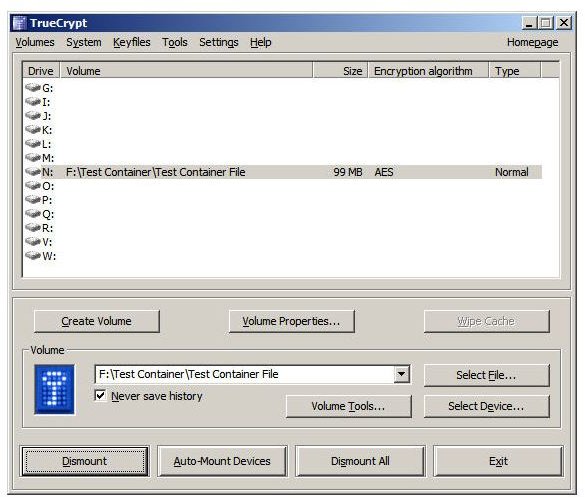
Once the container/volume is created, it must be mounted. Manually mounting the container we created is easy. From the TrueCrypt window, select or enter the name of the container file to be mounted. Then click the Mount button. TrueCrypt prompts for the container password, as shown below, and the container is mounted as a system drive.
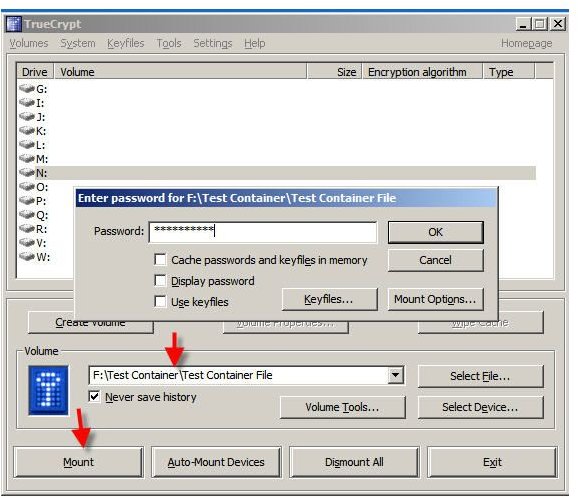
When I mounted the test container, I accepted TrueCrypt’s recommendation of N:. The following image shows how the mounted container appears in Windows Explorer. Any files written to this drive will be encrypted, accessible only when mounted with the assigned password.
If you want volumes to mount automatically, this can be done either via a button in the TrueCrypt window or via a script. The following are command line strings, saved in a .BAT file, to mount a TrueCrypt encrypted flash drive as drive G. The first line mounts the flash drive and the second line mounts a container nested in the mounted drive.

As I wrote at the beginning of thiis review, this is pretty simple for the initiated. However, normal users might have some rough spots to overcome.
Manageability (2 out of 5)
Although full disk encryption backup disks can be stored locally, there is no administrative system to centrally manage TrueCrypt on multiple user systems. The management which does exist requires a backup of the TrueCrypt MBR and retention of the password used to ensure administrative recovery when an encrypted device user is no longer with the company.
There is no way to manage/force encryption of removable storage. There is no way to ensure systems for which encryption is required are actually encrypted. In general, if you need an enterprise encryption solution, this is probably not it.
Cost vs. Value (5 out of 5)
There isn’t much to say in this category. The product works as advertised, providing excellent protection for single user or small business environments–and it’s free.
The final word
TrueCrypt is an excellent product. I use it for the systems I use at home. It is very easy to use, but then I’ve got more than a little experience with managing systems. For organizations with a small number of users at a single location, this is not a bad solution. However, distributed or large network environments need a product with central management capability.
More Reviews!
Would you like to read more reviews? Look around Bright Hub and you’ll find reviews of numerous other leading security solutions including SpamTitan, GFI MailEssentials, GFI LANguard, Norton Internet Security, Kaspersky Internet Security, ESET Smart Security, McAfee Total Protection, Blink Professional and ZoneAlarm Internet Security Suite.
