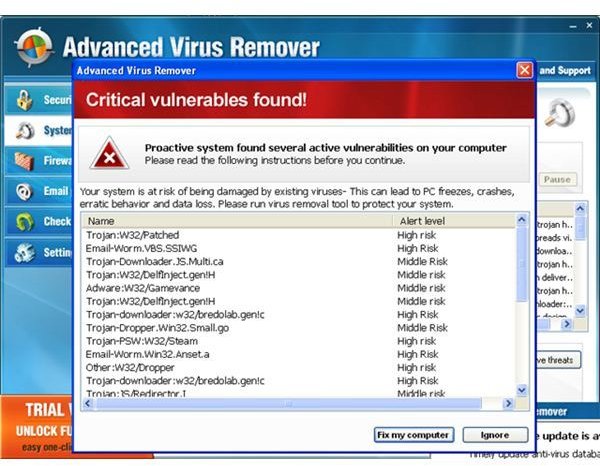
Advance Virus Removal Tool is a rogue software designed by a team that aims to earn money by presenting false alerts that ask you to buy the software. This article helps you remove the tool in case you downloaded this fake AV software to your computer.
Advance Virus Removal Tool – Does It Work?
Advance Virus Removal Tool, also called Advanced Virus Remover, calls itself an effective antivirus and antispyware. However, the truth is that Advance Virus Removal Tool is just a rogue software designed by a team (unknown) that presents false alerts about your computer being infected. When you click on the Clean button, it asks you to purchase the software instead of helping you clean the infection. Even the infections it presents are false. The Advance Virus Removal Tool is in no way capable of scanning and detecting any viruses or spyware. All it does is show you that it is scanning your computer and presents you with a bogus result that lists several virus infections that you don’t actually have.
As for how the rogue software comes into your computer, if you try to download anti virus programs from websites that offer free downloads, you may end up downloading the rogue software. It appears in the search results when you search for anti virus. Once you click to download, it auto-installs on your machine and is very hard to get rid of. The reason why it is hard to remove such programs is that the software stores its copies at different places on your computer. Even if you remove it using some removal tool, the rogue software reinstalls itself when you reboot.
Normally, the Advance Virus Removal Tool would not appear in Add/Remove Programs of Control Panel. You have to use trusted software, such as Microsoft Security Products , to remove the software. Sometimes, these programs too fail to remove the rogue antivirus. In such cases, the only option left is to remove the rogue software by removing registry entries so that it can’t reinstall itself once you delete the associated files.
How to Remove Advance Virus Removal Tool
To remove Advance Virus Removal tool, proceed with the following steps:
- Locate the file PAVRM.EXE. To locate the file, press Windows key + F. This will open up the Search dialog box. In the Filename box, type PAVRM.EXE. Scroll down and in the Advanced Search Options, check Search Hidden Files and Folders and also Search System Folders. Click on Search. This will present you with one or more instances of the file.
- Once you have the search results, delete each instance of PAVRM.EXE. To do this, right click on the file and select Delete in resulting context menu. You may get a message saying “Access Denied”. This is because the file is in use. Unlocker helps in such cases. Unlocker is a freeware that helps you delete files that are in use. You can download Unlocker from CNET . Some antivirus programs, including Microsoft Security Essentials , mark Unlocker as a malicious program. However, that’s just a false alarm – you can be sure that Unlocker is not malicious in any way.
- After deleting PAVRM.EXE, you need to remove some registry entries. Open the Registry Editor by typing Regedit in the Run Dialog box (Windows Key + R). Look for the following entries and delete them:
HKEY_CURRENT_USER\Software\AVR
HKEY_CURRENT_USER\software\avr virlist
HKEY_CURRENT_USER\software\avr lastvfc
HKEY_CURRENT_USER\Software\Microsoft\Internet Explorer\International\CpMRU
HKEY_CURRENT_USER\software\avr lastscan
HKEY_CURRENT_USER\software\avr lasted
HKEY_LOCAL_MACHINE\software\microsoft\windows\currentversion\run advanced virus remover
4. Now you need to delete the file, Advanced Virus Remover.lnk. Search for it using the Search Dialog and delete it. This makes sure that the Advance Virus Removal Tool does not reinstall with the reboot.
5. Finally, look for the folder named AdvancedVirusRemover in Program Files and delete it. If necessary, use Unlocker to delete the folder.
This helps you remove Advance Virus Removal Tool from your computer. If you face problems in removing the rogue software using this method, please let us know using the comments section.


