In this review, I take a look at Child Control from Hidetools - a web filter aimed for protecting your family from unsavory sites and files.
Overview and Features
Hidetools Child Control allows parents to control their PCs in an attempt to stop their children from accessing inappropriate web sites, block them from running programs and review computer activity. Below is a list of the features included in the Child Control program.
- Block web sites: block inappropriate web sites based on a provided list or by your inclusion in the list.
- Block access to programs: Child Control allows you to block access to internet based programs such as Skype, browsers or instant messaging platforms as well as any other programs installed.
- Block access to files and folders
- Logging: Child Control will log programs, websites and files accessed
- Invisible mode: hide Child Control so your child will not know it is present
Child Control is supported on Windows 98 through Vista.
Hidetools Child Control is available direct from the Hidetools website .
Installation and Usage
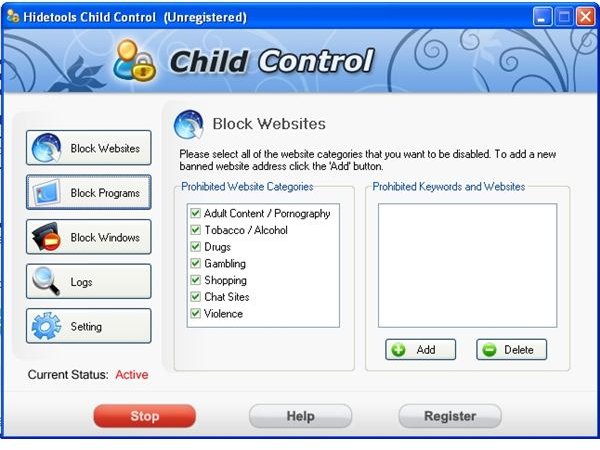
Child Control’s download and install was about as easy as it gets. The installer is less than 1.5MB large and the install took less than a minute. After the install completes, Child Control pops up and is ready for you to start configuring and enabling features (Figure 1).
Blocking Websites – this feature allows you to select from a list of seven categories of inappropriate sites to block such as Violence, Gambling, Pornography and Drugs. You can also add your own list of sites to block if you wish.
I found the blocking to work pretty well. If a site is caught, Child Control will just close the browser. Do a search for an a blocked topic and even the search results will be blocked. Child Control was able to successfully block well known sites but tended to miss some sites off the beaten path (just to note – there is no such thing as a filter that will work 100% perfect). So far so good.
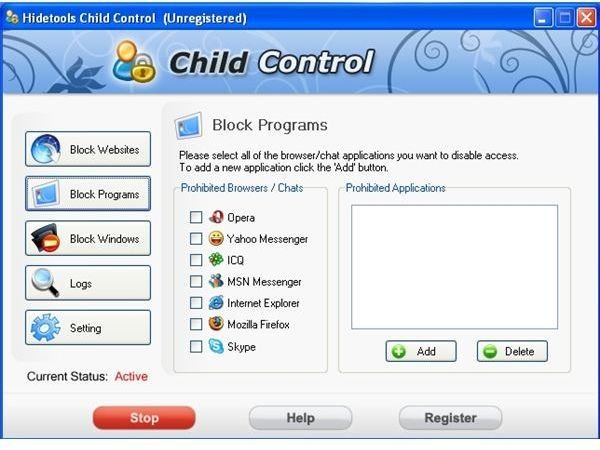
Block Access to Programs – this feature does just what it says. It gives you a short list of applications (that may or may not be installed) you can choose to block. You can also add other applications to your block list by browsing for and choosing the correct executable file. When one of these programs is started, it will instantly close. Again, this feature worked well. It would be nice if the program performed a scan of all installed applications so you didn’t have to search for the right executable (Figure 2).
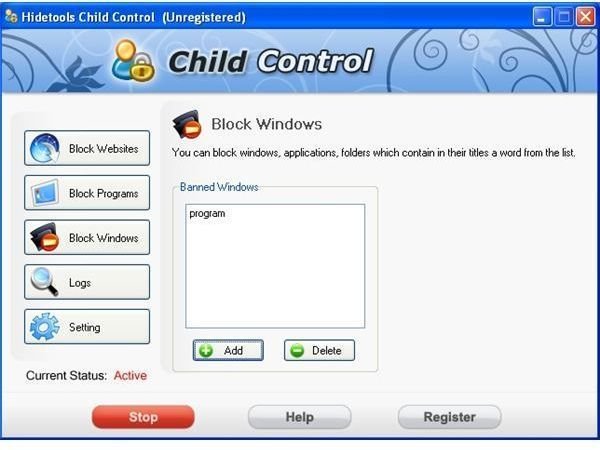
Block Windows – this feature allows you to block access to files or folders which contain specified keywords (Figure 3). Again, this feature worked as advertised, instantly closing any file or folder with my specified keywords.
Logs – the logs section allows you to see any items blocked, whether it was a blocked site, file, folder or program. I would like to see some more functionality as you aren’t able to see all of the places a person went while using the computer. This would be useful for parents trying to determine if any other sites or areas of the computer should be blocked.
Pricing, and Overall Score (4 out of 5)
Overall, I was happy with Hidetools Child Control. It’s a light-weight application and it worked as advertised. The interface is simple and easy enough to use. There could be some minor user interface tweaks that could really increase the power of the tool – such as increased logging functionality and better application listing, but considering the price and features, I’d recommend this product.
Hidetools Child Control is available for $29.95 direct from the Hidetools website.
Images