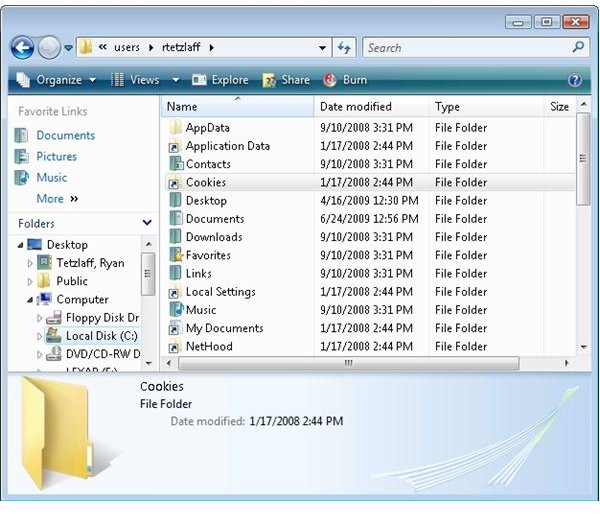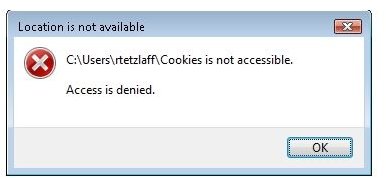
You’re an admin yet when you try to go into the Vista cookie folder you get an Access is Denied error…. How can this be? Keep reading to find out.
Overview
When in Windows XP, you could easily get to your directory of cookies by going to Start, Run, typing “Cookies” in the window and hitting ENTER. You’d be instantly taken to the cookie folder for your account. It’s a useful feature as you didn’t need to go digging around within Internet Explorer looking for your cookies.
Trying this in Vista comes up with a friendly “C:\users\
You can manually open up My Computer and browse to C:\users\
The Whole Story
Windows Vista moved user profiles under C:\Users getting rid of the Documents and Users directory. In addition to this, some XP folders were moved into new locations. In order to preserve backwards compatibility with some applications, Vista introduced a new type of “shortcut” called a Junction Point – a symbolic link pointing to the new location. By default, these shortcuts have no read access to the contents of the link – thus you aren’t able to just double click on the folder.
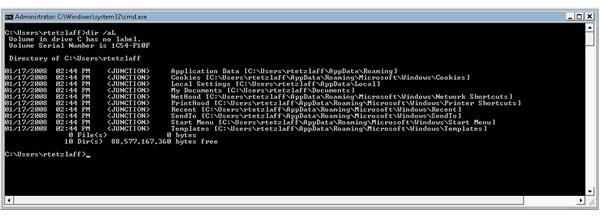
To see where the Junction Point is pointing to, you can go to a command prompt and cd to c:\users. Type “dir /aL” and you will see the Junction Points and their locations (Figure 3).
The real location for the Cookie folder in vista is C:\Users\
So, how do you conveniently get to the Cookies directory now? Unfortunately there isn’t an easy way to go back to the old system. You could create a batch file calling explorer to open the proper Cookie directory and then put that batch file in your PATH so you could call the batch file from the Start, Run line or you could just create a shortcut from Explorer. I’d probably just create the shortcut by right clicking on the Cookies folder, dragging it out to your desktop or Start menu and selecting Create Shortcut.
Additional information on Junction Points can be found on the MSDN site here: “Windows Junction Points”
Images