Creating Firewall Rules in Windows 7 Firewall
Using and Creating Firewall Rules in Windows 7
Using Firewall software depends on what type of computer user are you, where you connects and to which you want to make a connection. It is also depends on whether you have programs that requires full internet access on any opened ports or just few ports only.
To use Windows Firewall in your home or work group, you will need to trust the computer in your network if you want full access to and from the networked computers. If this is the case, the feature in Windows called File and Printing Sharing should be allowed by Windows Firewall in your Private network but not in Public Networks.
You need to review the default settings and make adjustments if you have to. For greater security, allow only the applications and features in Windows to be allowed by Windows Firewall if you need those services.
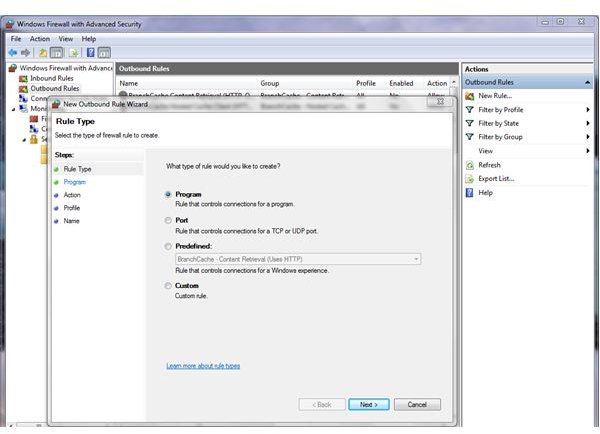
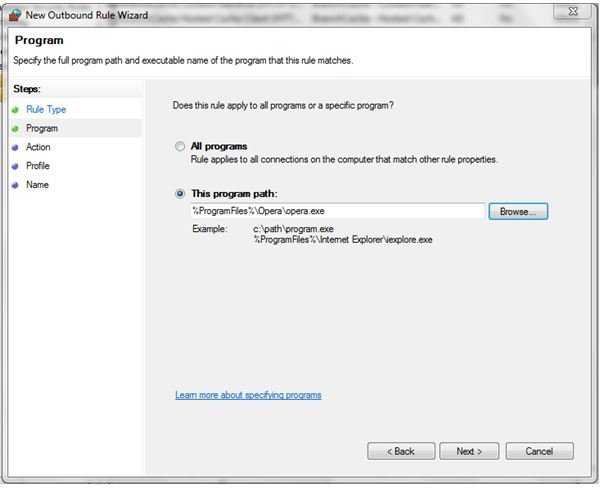
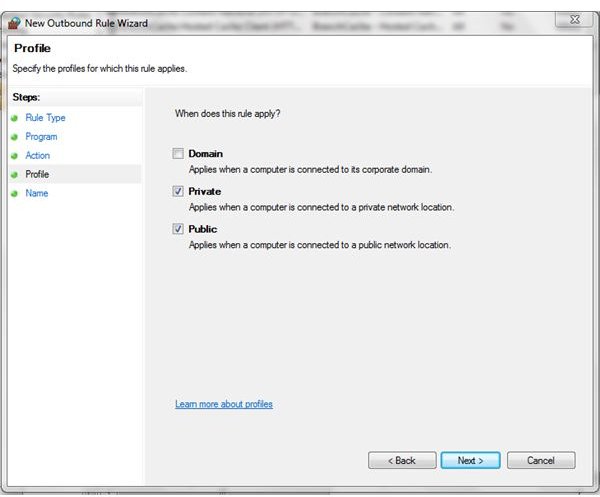
Creating firewall rules with Windows Firewall requires you to open the Advanced Security option. An example below is a scenario of creating Outbound Firewall rules for a browser.
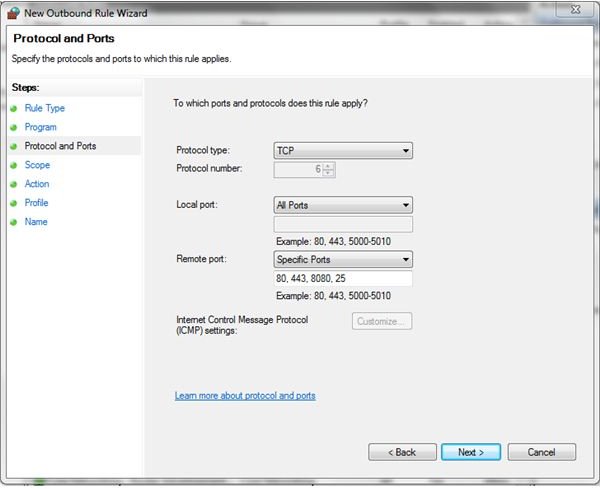
The figures below will allow Opera browser to make an outgoing connection without limitation while the figure at the left will allow Opera browser to only use specific protocol and ports for its outgoing connection. This is called “Custom Firewall Rules” in Windows 7 Firewall.
Creating Firewall Rules with Windows 7

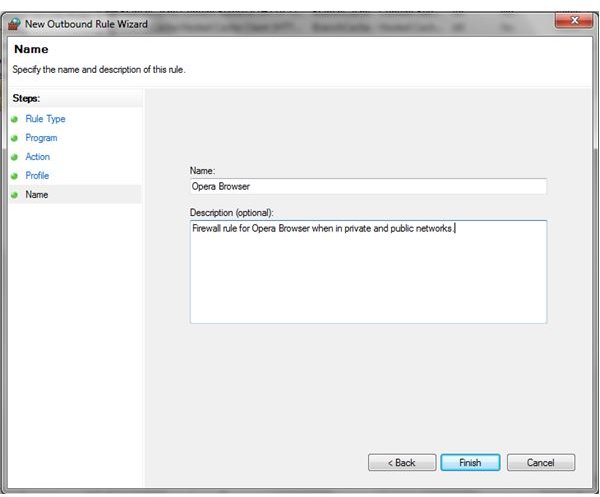
Full Access or Limited Access
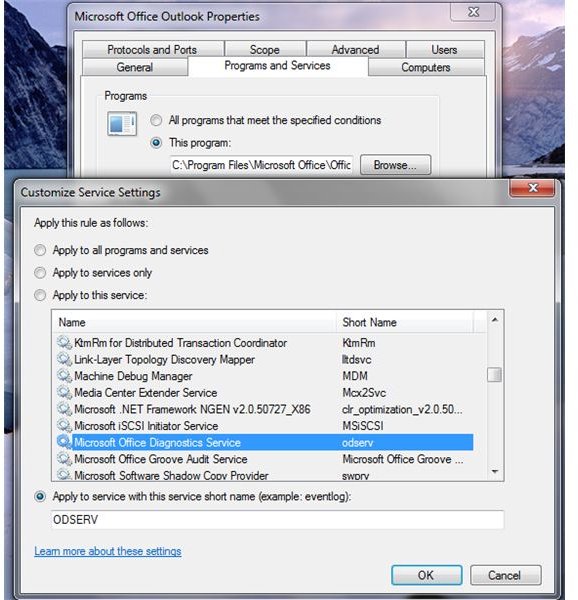
Windows Firewall allows you control specific program or features in Windows to have full internet access or limit its use of ports and protocol. In the above example, we allow Opera to use limited ports and also full access to the internet. If a program requires another service in Windows or its own services, you can use Windows Firewall to allow or block a particular service or another program to have internet access together with program’s firewall rules. An example is the screenshot at the left, where Windows Firewall will allow particular ports and protocol to be use by Microsoft Outlook. In addition, the service that the Firewall will allow together with Outlook is the Microsoft Office Diagnostics Service.
Using any type of Firewall software requires a proper configuration to enjoy the security and protection that is offering. If you will use third party or the free Firewall software in Windows 7, take advantage of the options and make sure that you are in control to which programs is allowed or blocked.
This post is part of the series: How To Set Windows 7 Firewall Rules?
In this series of articles, we will discuss about Windows Firewall in Windows 7. In Part 2 and 3, we will touch topics if you need third party firewall in Windows 7 and how to use Windows Firewall and create firewall rules on the new operating system.
