Steps To Secure Mozilla Firefox for Safe Internet Browsing
Introduction
Mozilla’s Firefox browser is a popular alternative to Window’s Internet Explorer as it is free, in addition to running on multiple platforms. Firefox is also very popular due to its lightweight nature and the multitude of extensions that it has to add functionality and enhance the browsing experience.
Firefox has the ability to regulate a great amount of dynamic website functionality. Additionally, the browser automatically disables a number of technologies to facilitate security. The add-ons can also be enabled and disabled at will from the extension manager, depending on the user’s preferences.
The pop-up blocker is one of the best in any web browser, as it gets the job done without being intrusive or impeding user experience in any way.
However there is one particular disadvantage when working with Firefox, and that is the lack of security detail. With Internet Explorer, there were security zones some of which had a list of accepted or trusted sites, or conversely a list of known malicious websites. It was possible to define an overall security system, and specify which websites were exceptions to these rules. This increased the user’s control over security, and therefore tighter security could be used without the inconvenience of encountering security stops when browsing known safe sites.
Security settings – Getting started
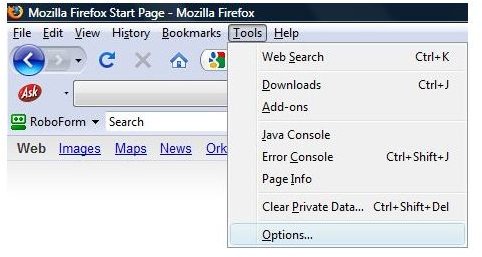
The easiest way to secure the web browser without getting into the minute details of programming is through the Options window,
located under the Tools menu button. Advanced users can type in about:config in the address bar to bring up the list of values that can be modified. It is a very detailed view, and requires expert knowledge and handling.
As mentioned earlier, the security settings are somewhat similar to the ones in Internet Explorer. The tabs are similarly marked, with a few differences here and there.
Sometimes it is quite possible to overlook small options that would make the system more secure just because they are not obvious options. On the Main tab, there is a checkbox for enabling user acceptance when saving files. If this feature is enabled, the web browser will confirm with the user before saving any file. With this feature, no website can save any software onto the system in question without the user’s knowledge and permission, effectively stopping websites from surreptitiously saving anything on the system.
History and cookie settings
Under the Privacy tab, there are configurable settings for security. The first part of the tab deals with history and saved user
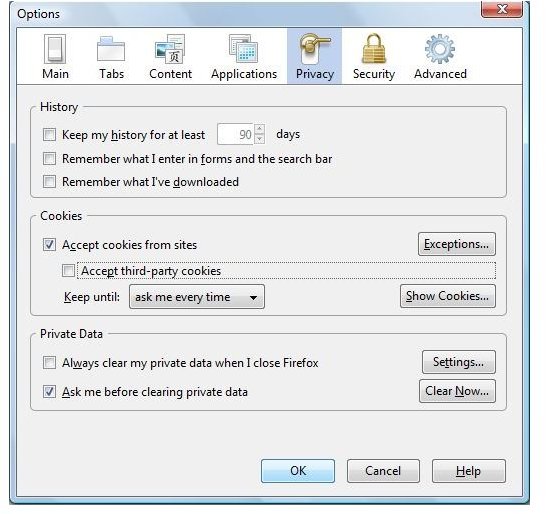
information. Granted that remembering multiple usernames and passwords for different websites and Internet services is cumbersome, however it is better than leaving this information where it can be accessed by unauthorized individuals. It is therefore best to uncheck the options for saving history and the auto-fill feature for forms.
The second part of the tab has the cookie handling functionality. Previous versions of Firefox had a blanket approval for cookies, not taking into consideration whether they were cookies from a site, or from the third-party elements on a site.
The ‘Keep until’ option allows the user to specify that they require a prompt before a website saves a cookie on their system. The Exceptions window contains a list of all the exempt websites. It is also possible to set this option to ‘I close Firefox’ thereby emptying the cookie cache every time the browser is restarted, disabling persistent cookies altogether.
There is also the Show Cookies option, where the user can view all the cookies that are currently stored on the machine. The user can review each set of cookies, with all the metadata in the bottom pane. Additionally, the user can delete whichever cookies they feel are not necessary or violate their privacy.
The last pane has to do with the user’s private data, broadly encompassing items like browsing history, search terms and details from forms. It is best to clear this data on a regular basis, or enable the option to clear the data every time the web browser is closed.
Security settings
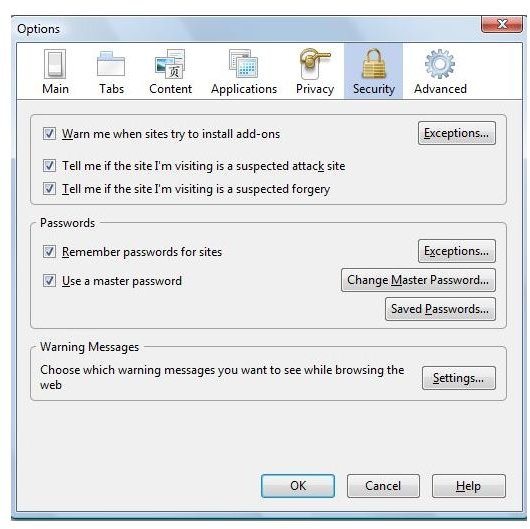
The first pane of the security tab is fairly straightforward, and it is sensible to check all three of the options there. Apart from Mozilla’s websites, there will be no exceptions in the list next to the add-ons option. The user can choose to add in few more trusted websites, but it is advisable to leave that list entirely blank.
There is a section for remembering passwords, and while this is not an advisable option, the latest version of Firefox allows a user to set a master password. The password system is highly configurable, where the user can specify which websites should not have stored passwords. There is a list of saved passwords as well, if these settings need to be altered at a later stage.
Adjusting dynamic content
Firefox does not have the multiple options that Internet Explorer has: the user can enable or disable Java and JavaScript, if
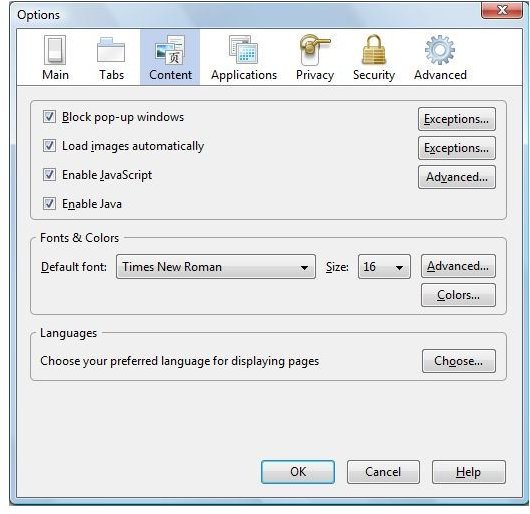
they choose. JavaScript can remain enabled, as Firefox translates that code into native machine code using TraceMonkey. The options provided for JavaScript significantly reduce the user’s control on the web browser, so it is advisable to uncheck all of those.
It is best to disable Java, till the user comes across a trusted site that specifically requires it. In which case, it can be enabled for that time period. Java is a fully-fledged programming language, therefore much more powerful than scripting languages. Sites that use Java invariably run applets on the host machine, some of which can cause problems, although applets are not allowed to access system functions.
Conclusion
There are a number of third-party add-ons that extend the functionality of Firefox security. However, these add-ons need to be from trusted sources, otherwise the purpose of installing them would be defeated altogether.
While Firefox does not have the detailed options like Internet Explorer, it does hold its own as a secure browser.
Security Extensions for Firefox
To find out about the best security extensions for Firefox, be sure to read our article Top 5 Security Add-ons for Firefox.
More Web Security Tips!
For more web security tips, see our articles How to Secure Internet Explorer, How to Control Cookies in Internet Explorer, How to Block Third Party Cookies in Internet Explorer 7, How To Check If a Website Is Safe, and Using ZonedOut to Manage Internet Explorer Security Zones.
