How to use Windows Internet Explorer’s Phishing Filter
Enabling the Phishing Filter
Phishing describes an attempt to steal financial or other personal information by leading a user to believe they are entering information on a legitimate site when in reality they are entering information on a malicious site.
Before you get started, you will want to ensure you have Internet Explorer 7 (IE7) installed (for XP or Vista). You can find it here if you don’t.
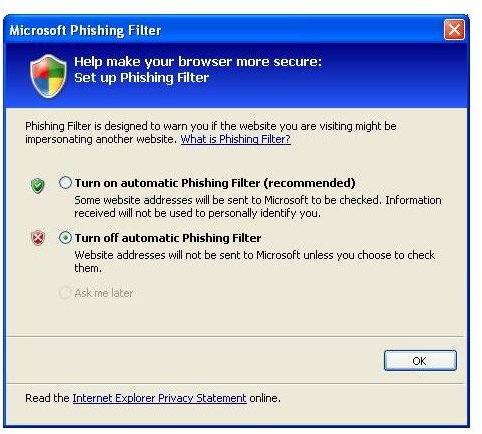
The first time you open IE7 you will be presented with the Microsoft Phishing Filter window. From here, it is strongly recommended that you select the “Turn on automatic Phishing filter” option and click OK.
If for some reason the Phishing Filter window doesn’t open as expected, you can manually turn on the Phishing filter by following the steps below:
- Open Internet Explorer
-
Go to Tools–>Phishing Filter–>Turn on Automatic Website Checking… (if it says “Turn off Automatic Website Checking”, it means the filter is already enabled.)
-
The Phishing Filter window as shown above will appear. Ensure the “Turn on” option is selected and click OK.
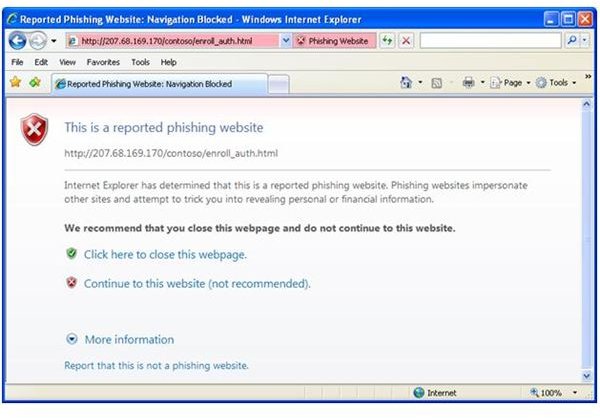
With the filter enabled, whenever you attempt to access a suspected Phishing site, you will see something like the following image warning you of the status of this site. If you are sure this is an error, you can click the “Continue to this website” link to continue.
Manually Checking a Site
If you do not have the Phishing Filter enabled, you may want to do manual checks when you come across a site that is suspicious. You can do this in one of two ways –
The first way is to go under the Tools menu, select Phishing Filter–>Check This Website. In the following dialog box, you will see a response stating whether or not Microsoft has classified the site as a phishing site.
The second option is to use the icon on the IE status bar. Left click on the icon as highlighted in the image below and select “Check This Website”.

Reporting a Suspected Site
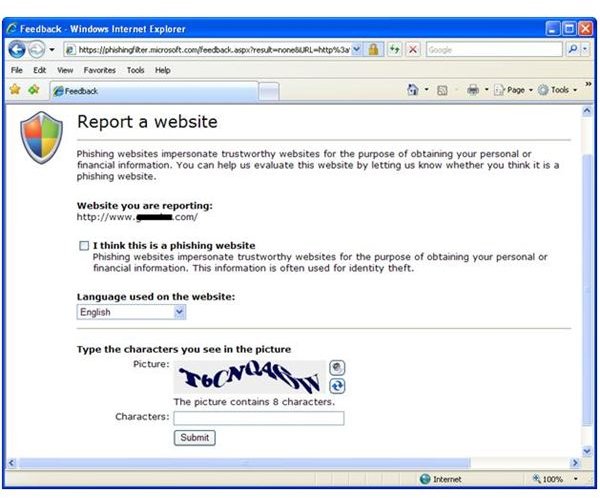
If you come across a site you feel may be a phishing site, but the Phishing Filter does not report it as such, you can submit the site to Microsoft for further review.
- Browse to the site you wish to report
-
From the Tools menu, select Phishing Filter–>Report This Website
-
You will be taken to Microsoft’s Phishing Filter site where you can enter in additional information and submit the report