Have you heard of Norton Utilities? Do you know that you can get a free version of this software from the internet? What’s more, you can also do a lot of useful things with it to keep your computer in a better shape.
Overview of the Program
Norton Utilities software, one of the oldest and quite established computer maintenance toolbox program, is now available on a 30-day trial version for free. This means that you have complete access to all the functions it offers for a whole month before you decide whether to purchase it or not.
Although the minimalistic design of the program may give the impression of a rather simplistic piece of software, Norton Utilities offers a lot of advanced functions as well. That’s not to say that you have to be a computer expert in order to use it. The program was designed for the average (even the novice) computer user, although it may appeal to the advanced user too, since it is very diverse.
Unlike other computer tune-up programs, this one offers a lot of different functions, ranging from simple optimization, to system maintenance, data recovery, Windows tools, and even administration. But before you start feeling overwhelmed by this plethora of options, let us guide you through the highlights of the program. Afterwards, you may use these as a basis to explore the program further, learning its more esoteric aspects.
System Optimization Tools
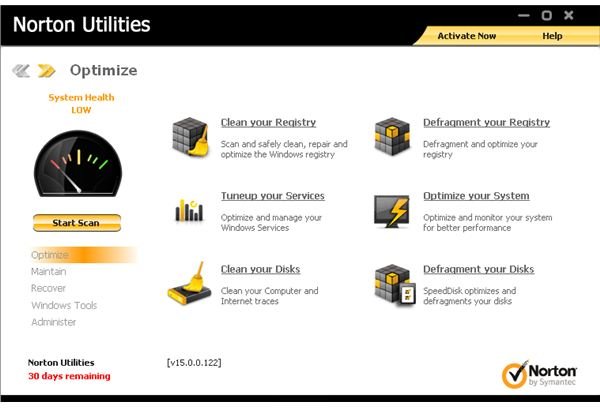
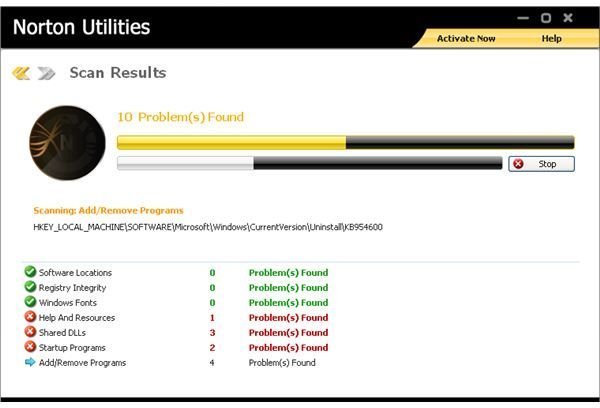
First of all, if you are a very busy user, or one who just doesn’t want to spend a lot of time learning the software, you can employ the Scan Now function, right below the program icon, on the left side of the main screen (see image on the left). Basically this does a relatively quick overhaul of your system, focusing on the most vital aspects that need to be checked and repaired. You still have some control over what the program changes and what not, so it’s not 100% automated. It is recommended that you use this option if you have read the quick start guide first, in the program’s help section.
Another thing that you might want to use in this piece of software is the Registry Cleaner. This can be found in the Optimize menu (first option in the menu on the left). What this does is check the Windows registry for inconsistencies that it will repair afterwards. The process is not fool-proof and as the system gathers clutter over time, you need to do this regularly, to ensure good performance on your PC. There are specialized programs that do just that, but this one is good too.
The Optimize Your System option is an interesting function of the Norton Utilities. It takes longer than a fast check-up mentioned earlier, as it requires your input too, but it can improve your system’s performance more. Through this option you can do a one-by-one check on the running processes of your system (and eliminate the ones you find unnecessary), perform some pre-set tweaks to improve performance in general, or check some statistics of your systems. You can find this function in the same menu as the Registry Cleaner. Again, there are specialized program that undertake this task, but if you want to keep things simple, this program is a good alternative.
The Clean Your Disks and Defragment Your Disks are two more optimization functions that are equally useful. As you use your computer, your hard disk drives accumulate a lot of clutter (useless files), plus all the stuff written on them become a bit messy (fragmented). This makes your computer run slower and sometimes can create problems in the system’s normal function. These two functions (which should be performed in this order for best results) take care of that.
System Maintenance & Security Tools
System maintenance is one of the specialties of this program, and also a very important strategy for prolonging the life of your computer. This section of the program is on the second menu option and also includes a security-related method: Shred your Files. This is not something you would use every day, but if you have some files that contain financial information or entries of your personal journal, you might want to employ this function to make sure that no one accesses these files.
Another option in this section is the Health Report function. This provides you with an overview of your system’s “health” and allows you to improve specific aspects of it, if you wish. A very handy and quite intuitive function that can tweak your systems in ways that other programs cannot.
The Manage your Startup function is also very useful and can speed up your system significantly, if you restart or turn on/off your computer often. What this does is show you which programs (applications as well as hidden programs) are run on your computer when you start your system, and allow you to remove the ones you don’t want. This is very handy if you have a lot of programs that you don’t use running on your system.
Recovery Tool
In this section there are only a couple of functions of the program. The one that’s recommended here is the Recover deleted files one. As the name suggests, this allows you to unerase files that you have deleted from your system, and which are not on the recycle bin. A very handy function if you have accidentally deleted this photo you downloaded and that you don’t know where you can find it again. Keep in mind though that not all deleted files can be recovered successfully, as often they have been overwritten by newer ones.
Windows Tool
The Windows Tools section is nice, but it doesn’t offer you something that you can’t find yourself from your operating system. From all these functions, the one that somewhat stands out is the first one: Computer Management. This is basically a shortcut to your computer’s dashboard that allows you to see all of the devices and system programs that your computer has. It is more of an advanced tool, but it doesn’t hurt to implore it a bit so that you familiarize yourself more with your machine.
Final Words
These ten things that we have just seen briefly are the recommended functions of Norton Utilities for the average user. Of course, depending on your expectations and on your level of expertise, you may find that other functions appeal to you more, or that you want to stick to the first one, which is completely hustle-free. Whatever your choice, take your time to evaluate this program.
Note: The author of this article has tested dozens of similar programs and has written a whole book on the topic of computer maintenance. He hasn’t seen many programs though that have more to offer than this piece of software, which is worth learning, even if you decide to use it for the trial period only.
References
All the material used in this article is based on the author’s experience with this program.
All the images used are screenshots taken by the author and processed with IrfanView 3.2


