All About Mac Activity Monitor Part One - The CPU Readings

About Activity Monitor
Activity Monitor very well may be the most useful built-in utility of OS X. To start with, you can access Activity Monitor on your Mac by navigating the path: Finder - Applications - Utilities - Activity Monitor. Activity Monitor consists of five major regions: CPU, System Memory, Disk Activity, Disk Usage, and Network. Each one of these regions allows you to adjust and view many different readings about your Mac. In this two part series, we will go over each of the five regions of Activity Monitor and detail the information as well as how it can be used.
CPU Tab
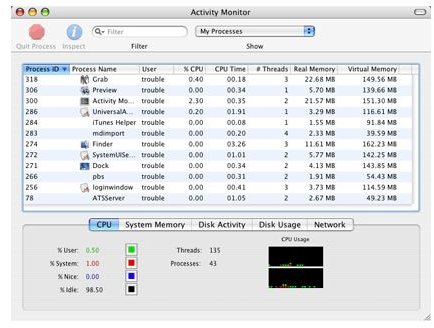
The CPU tab is the very first thing that you see when you launch Activity Monitor. The top portion of the CPU tab window is a list, displaying all of the processes that are currently running on your Mac. For a PC user who is switching to Mac, this window is similar to the Windows task manager. Every process in the list is clickable, meaning that you can click once to select it or double click to view details about it. If you want to end a process, you can simply select it from the list, and click the quit process button, which looks like a stop sign. This is much like the “end task” button within Windows task manager. It will stop a process immediately. If you suspect any type of virus, or “bad” program running on your Mac, you can stop it right away using this method. Take note of the drop down menu located in the upper right-hand corner. This menu allows you to switch between viewing all processes, user processes, system processes, etc…
Within the lower portion of the CPU tab you will find three main readings and a graph. The three readings are: % User, % System, and % Idle. These readings simply tell a Mac user what the processor is doing and how hard the CPU is working. If you were to open up some CPU intensive applications, or play a game, these readings would go much higher.
Part 2
New to Mac computers?… or just want to learn more in-depth details about how to use Activity Monitor? Be sure to continue on to Part 2 of the series.
This post is part of the series: Mac Basics - Activity Monitor
Activity monitor is a very useful built-in utility of OS X. Much of the time, Activity Monitor can be used to perform actions as well as view network readings about your Mac. This series details Activity Monitor, and explains all aspects of Activity monitor in detail.
