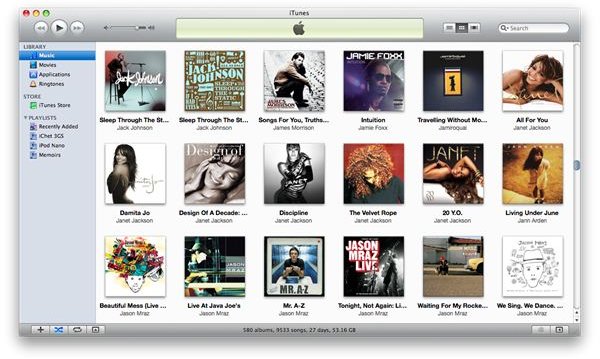
In the roll out of iTunes 9, significant visual enhancements were applied in iTunes, like the redesigned store and better Grid View and List View. And the Grid View changed from a dark backdrop to a white one. With iTunes’ latest 9.0.2 update, you now have the option to use a light or dark back.
iTunes 9: Too Much White
iTunes Grid View was a new option introduced in iTunes 8. As of this writing, iTunes is now on version 9.0.2 and many enhancements have been introduced here and there in its latest iteration.
It may sound too meticulous, but there’s a degree of user uproar when iTunes 9 changed the Grid View background from black to white . Long time iTunes users were scrummaging for ways to bring it back in various modes of hacks and workarounds to make it look the way it did before iTunes 9. Obviously, this caused quite a commotion for many iTunes users that preferred a darker backdrop for the new Grid View feature. Fortunately, Apple listened enough to allow users to switch to the backdrop they preferred when browsing their libraries in Grid View.
iTunes came out with an update last Oct 29, 2009 to address bug fixes and also introduced a new small feature to bring back the dark backdrop in Grid View. So if you don’t exactly favor the white back drop in iTunes 9…
…this quick tip can ease your eyes and you can quickly tweak iTunes to suit your own liking.
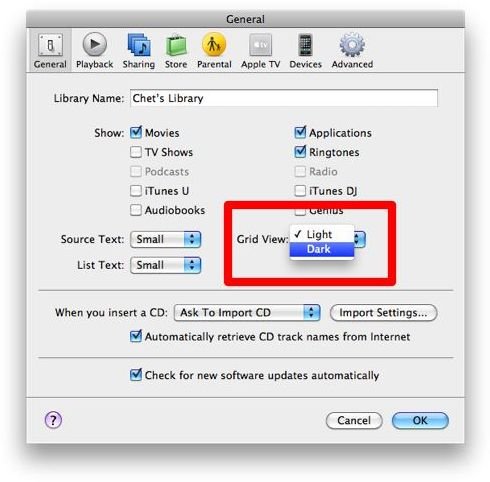
Simply go to iTunes’ preference pane. Under the General Tab, look at the middle right part and check out the Grid View drop down. You can choose here what you like the backdrop to be, either Light or Dark. Make your choice and hit OK.
Once you’ve hit the OK button, iTunes will show a darker backdrop, the way it initially looked when Grid View was first introduced in iTunes and your eye for consistency and your nostalgic need will be fulfilled. No more disconcerting white on your iTunes.
So the next time you browse through your library on Grid View, and want to view them in the dark, you can do so with this handy, “now built-in right into iTunes preferences” tweak so you won’t have to work with unstable hacks to get it just the way you like it.
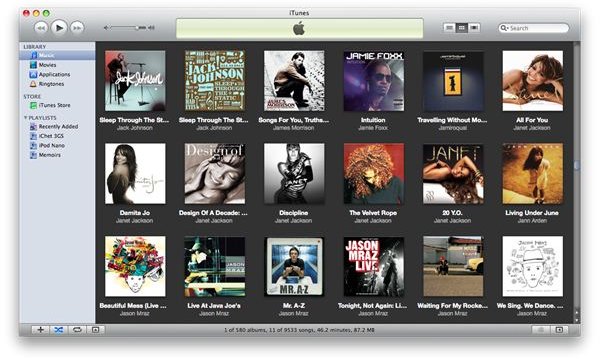
So whether you prefer a light back drop or a darker one, you now have an option on iTunes 9.0.2 to switch to and fro on how you want iTunes to display your beautiful album art.
Enjoy!


