If you want to open a specific type of file in a particular Mac program, you have to tell your Mac what program you want to use and when. You do this be configuring a “file association” for the file type.
What are File Associations?
When you click to open a file, something specific happens. For instance, if you click a .jpg picture file, it’s highly likely that it will open in Preview, an application that came installed on your Mac. This is the default. You may not want Preview to open your picture files though; you might want some version of Photoshop to open.
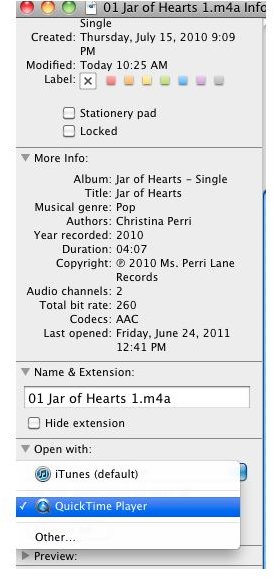
In another example, when you click an m4a file, iTunes likely opens to play it. If you want to use another program you’ve installed, you’ll have to tell your Mac that’s what you prefer. Here you can see that it’s possible to open an m4a file with QuickTime Player instead of iTunes (using a right-click). You may see additional choices.

Although you might want to change the program a particular file type is associated with to choose a program you like better, the opposite scenario could be playing itself out. Let’s say once or twice a week your mom sends you pictures of her dog doing tricks or sporting a new hairdo and you’re supposed to ooh and ah over her by writing back and stating how cute she looked in her new winter outfit (the dog, not your mom). Those doggie files used to open automatically in Preview and opened in about a second. Unfortunately, since you installed Photoshop, every time you open one of your mom’s pictures, Photoshop opens, quite slowly, and to the dismay of your poor, hard-working Mac, reluctantly pulls up the picture for your viewing (dis)pleasure. In this scenario, you want to choose a program that you used to use, versus one you now want to use.
Select a Program for Opening a File
As you learned earlier, you can right-click a file and choose an application to open it with. However, you may want to make a permanent change. For instance, perhaps you’d give anything if you could just make those JPGs open in Preview again. You can – and here’s how to do it on just about any Mac imaginable:
- Open Finder and locate any file that’s opening in the wrong program. This might be an RTF file that opens in TextEdit instead of Word, or a JPG that opens in Photoshop instead of Preview. Select the file by clicking once, but do not open the file itself.
-
Choose File>Get Info, or if you’ve added that command to your Finder window as detailed in the previous section, click the Get Info icon. (You can also right-click the file.)
Advertisement -
In the Info dialog box, expand Open With by clicking the triangle, and from the Open With choice, select the new program you want this particular file to open with. (We’ll stick with our m4a file here.)
-
If you want all other files of this type to open with this same program, click Change All. Verify your choice by selecting Continue in the resulting dialog box.
Advertisement -
Close the information dialog box.
References
The author took all of these screen shots herself, using her Mac.
It is the author’s experience that changing file associations is a simple and productive task, well worth any time it takes to perform for all of the file types you use often. For most people, there will only be four or five types to deal with. They usually are document files, picture files, movie files, music files, and files associated with digital movie cameras, scanners, or digital still cameras.


