RightZoom is a free Mac utility from BlazingTools Software that changes the behavior of the green Zoom button to always expand windows to full screen instead of resizing to best fit.
The Zoom Button
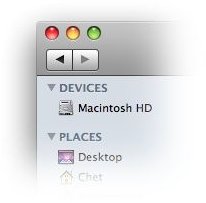
The zoom button is the green orb on the upper left hand of windows in Macs. The zoom button behaves differently depending on the app - Finder and Safari sizes to best fit, iTunes’ zoom button switches between the mini player and the normal window, Mail goes full screen. Often times, the behavior differs from one app to another and many Mac users find this behavior inconsistent, unpredictable and disorienting to use. New switchers from PC to Mac might even find it a shortcoming of the operating system.
Part of the design philosophy of Apple’s Human Interface guideline , windows that are blown full screen is inherently inefficient, making dragging of content between one window to another rather cumbersome. Also, an apps window size is not always efficient on all kinds of display screens when blown full screen. Therefore, the zoom button’s behavior acts differently from one app to another, implementing a “best fit” behavior instead of just maximizing full screen.
In theory, this is a sensible philosophy. However, in practice - and in every day computing - this can be a crippling philosophy to adhere to, and sometimes maximizing windows manually to fit full screen when you need it can feel somewhat of a hassle.
Thankfully, RightZoom has come into the picture to automate this basic task for you in Mac OS X.
The RightZoom Way

RightZoom provides a quick and easy solution for a common woe in Mac OS X - the zoom button’s inconsistent behavior. It enables you to make the zoom button maximize to full screen when you click the green orb.
By default, RightZoom makes a number of apps blow full screen when hitting the green orb. You can add or remove specific apps if you wish on this white list. But upon a fresh install, here is the list of apps that work with RightZoom:
• Finder
• Safari
• Microsoft Word
• Microsoft Excel
• Microsoft PowerPoint
• Pages
• Numbers
• Keynote
There is also a list of exceptions where RightZoom will not change the zoom button’s behavior - working like a blacklist for your apps so RightZoom doesn’t change their behavior. By default, RightZoom does not apply to iTunes, for example. iTunes’ zoom button is a toggle between the normal window and the mini player window. If you don’t want RightZoom to change this default behavior in Mac OS X, the exceptions list is the solution. Also, you can add or remove entries in the exceptions list if you wish.
Preference Pane - White List and Black List
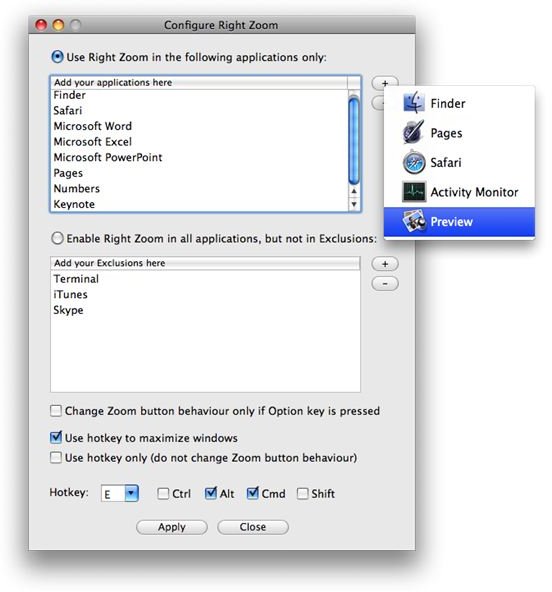
In its latest 1.61 version, holding the command key before running the app will bring up the preference pane where you can customize RightZoom. This is where you can add or remove entries from your white or black list. Clicking on the plus button will list all your running apps that aren’t already added to the list, while clicking on the minus button will remove an entry currently selected in the list.
Here, you can also specify how RightZoom behaves. You can allow full screen maximization only when the Option/Alt key is pressed, allow the usage of a customizable hotkey, or disable RightZoom altogether and make it function only when a hotkey is pressed. Furthermore, the default Option/Alt + Command + E hotkey can be customized.
RightZoom comes with a guide as a PDF file explaining how the app works, its limitations and its bugs and other additional details.
Lightweight and Convenient
RightZoom is a background process utility and runs using very minimal resources. It does not slow your system down at all when you have it running.
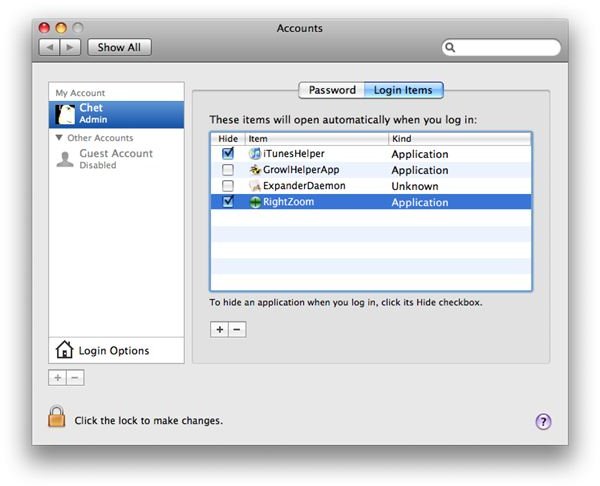
Whenever you wish to quit the process once you’ve already run it, you can simply launch Activity Monitor and quit the process or type killall RightZoom in Terminal. Also, if you want RightZoom to load every time you turn on your Mac, you can simply drag the application in your Login Items list and you should be set.
RightZoom is free and distributed by BlazingTools Software . It can also be found in MacUpdate.com . Its last update was March 27, 2009, and it requires Mac OS X 10.4 (Tiger) or later. Its file size is a small 416KB download. Just drag the app to your Applications folder to install, and drag the app to your trash (or your favorite app uninstaller) should you wish to uninstall.


