Organize Your Mac’s Email Address Book, Messages, and Contact Information
Taking Inventory
The Address Book can become disorganized quite quickly, especially if you have a lot of contacts. Cleaning out your Address Book files is a great task to take on. An organized Address Book will make it easier for you to find the addresses you want quickly, and it will reduce the chances you’ll send an e-mail to an old account that isn’t checked much or a non-working account that will bounce back your e-mail.
Think about the various types of contact information you need to deal with:
· A contact has gotten a new e-mail address and you still have the old one.
· You no longer need to communicate with a contact and want to delete them.
· You’ve had a major life change and no longer want anything to do with your boss, spouse, or ex-friend. You don’t want to accidentally send them a note later on.
· A contact has a new phone number or address and you want to edit their contact information so you can retrieve the correct information when needed.
· You often forward jokes to the same group of people, or each person in the group of people you work with needs to see the e-mails you write to other members of the group. You want to create a group with those people in it so you only have to pick the group instead of having to add the names one by one.
Your Address Book will be much easier to navigate if you delete those addresses that are no longer wanted or that no longer work. It will also be much more useful if you update your contacts’ information and much more efficient if you create groups for the people you send e-mail to most often.
Delete Unnecessary Addresses
Deleting unnecessary addresses is the fastest and easiest way to get rid of Address Book clutter:
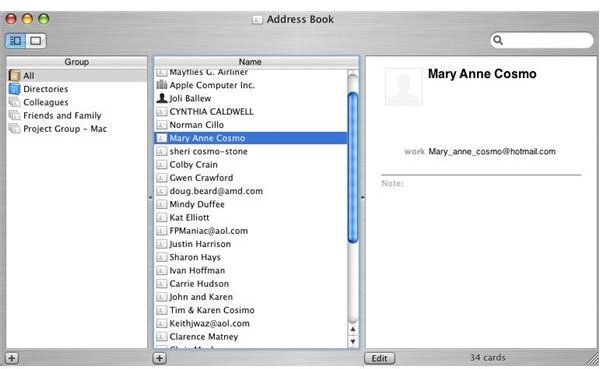
1. Open the Finder, and choose Applications>Address Book. You’ll see something similar to what is shown here. [See Image 1]
2. Select a contact to delete.
3. Press Delete on the keyboard and then choose Yes in the resulting verification box.
Tip: If you have created groups and placed contacts in them and you delete a contact from the All folder that is also in another group, that contact will be deleted from the All folder and from any other group it’s been added to.
Edit Contact Information
Editing contact information for contacts you want to keep is another extremely fast and easy way to get rid of Address Book gunk:
1. Open the Finder, and choose Applications>Address Book.
1. Control+click any contact name and select Edit Card from the resulting list, or click the Edit button in the Address Book interface.
2. Use the Tab key to move among the available information areas. Add information as desired.
3. When finished, click the Edit button in the Address Book interface to apply the changes.
Create Address Groups
If you send e-mail to groups of people–for instance, jokes to friends and family, project files to all members of a committee, or requests to senators and congressmen–you can create groups that contain those people. The next time you need to send an e-mail to everyone in that group, simply choose the group instead of typing in the names individually.
To create a group and add contacts to it, follow these steps:
1. Open the Finder, and choose Applications>Address Book.
2. Under the Group pane, click the + sign.
3. Type a name for the new group.
4. Select the All folder.
5. Drag contact names from the Name pane to the new folder you just created. The names will not be moved from this pane, only added to the new group.
The next time you need to send an e-mail to the people in the group, simply choose the group from the list when selecting the recipients of the e-mail or type the group name. Now that your Address Book is straightened out, let’s take a look at all of that e-mail you’ve got hanging around.
