Growl for Mac OS X could very well be one of the most essential apps every Mac user should have. It is a customizable system-wide notification app. This article discusses how you can maximize the use of Growl and take advantage of the often overlooked features this great app offers.
What Is Growl?
Growl Mac OS adds notifications unobtrusively on your screen for various activities your applications are performing, such as finishing unzipping of compressed files (.zip / .rar), receiving instant messages, incoming mail, and finishing downloads from your browser’s download manager.
Most apps are supported by Growl, while some apps like Apple’s Mail and Safari require installing additional Growl components to make them work. Growl is by default configured to just work with many of your third party apps, like Mozilla’s Firefox or Adium, and many others.
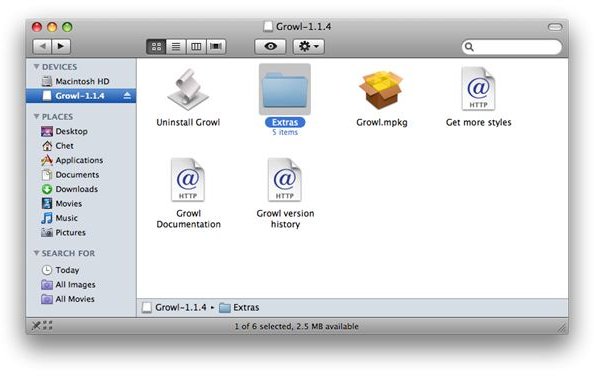
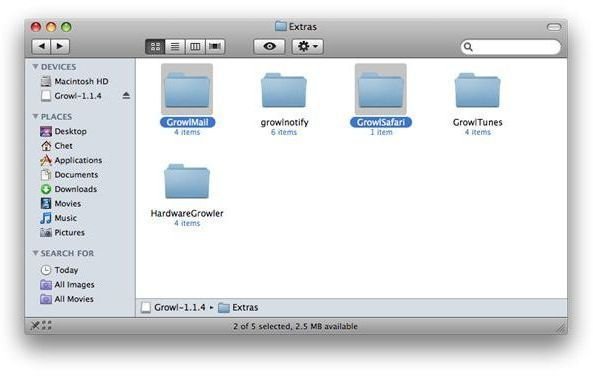
Download and install Growl if you don’t already have it on your Mac. Take note though, when you load the DMG file, you’ll find a folder inside named Extras. These Extras will be discussed later on in detail, especially GrowlMail and GrowlSafari.
Installing Growl
When you open Growl’s disk image, the first thing you need to install is Growl.mpkg. This is the package that will launch an installer wizard to guide you through the step by step process to install the app.
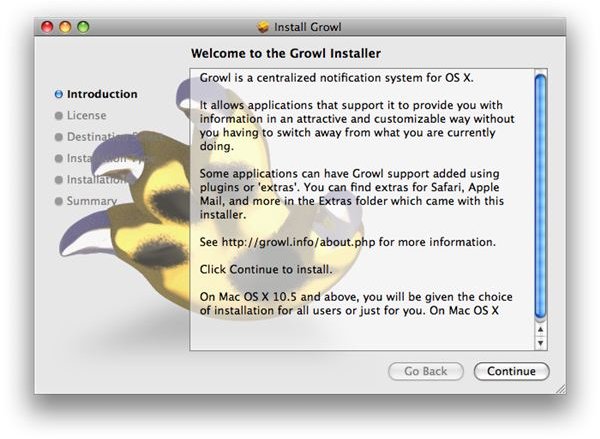
Once done, you’ll find a new entry in the
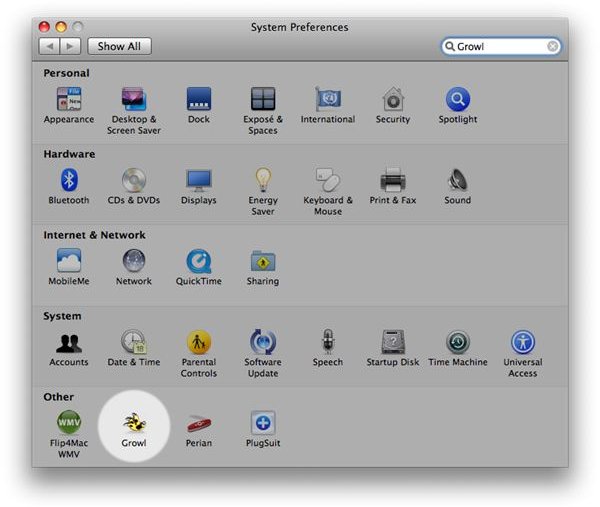
. Clicking on Growl’s PrefPane will take you to its
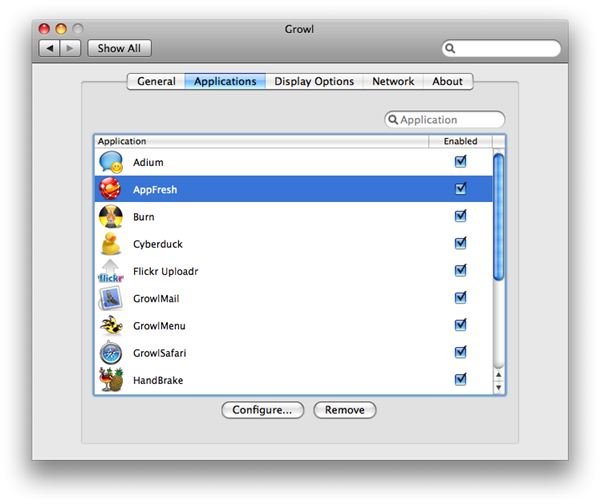
, where you can configure Growl’s behavior in the “General” tab, how it handles events per application in the “Applications” tab, how notifications are displayed in the “Display Options” tab, network settings in the “Network” tab, and read the developer’s details in the “About” tab.
We can leave the current settings as they are at this moment. On its initial set up, Growl just works. And most people settle for this default setting. As you install more apps in your Mac, Growl will continually add the third party apps it supports and will apply the functionalities for newly installed apps. Later on in this article, we will discuss how to tweak Growl further so it handles event notifications better - unobtrusive pop up messages with sound events.
Installing Growl Extras
The most useful Growl Extras I personally recommend installing are just two out of five things from the Extra’s folder: GrowlMail and GrowlSafari. But feel free to install more extras if you wish.
GrowlMail
Apple’s Mail app is a great desktop client to handle your emails. But I often times miss the bouncing icons and badge numbers in the dock because they’re simply too short an animation and too small a badge for me to notice. As a result, I often times overlook important emails that need prompt replies while I surf the web, or busy with another app.
With GrowlMail, Growl will be able to handle events for received emails and even RSS feeds.
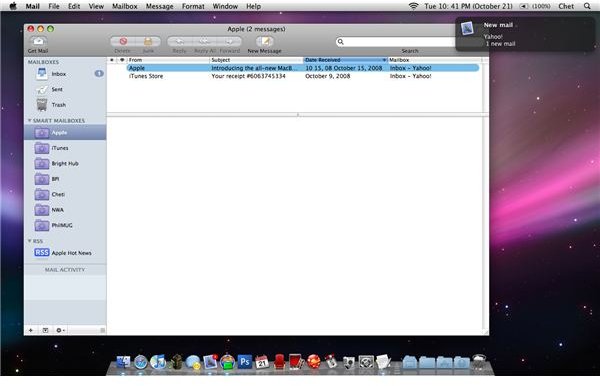
To install GrowlMail, follow the GrowlMail Installation.rtf file or just double click GrowlMail.mpkg to start the installation wizard. Once done, a
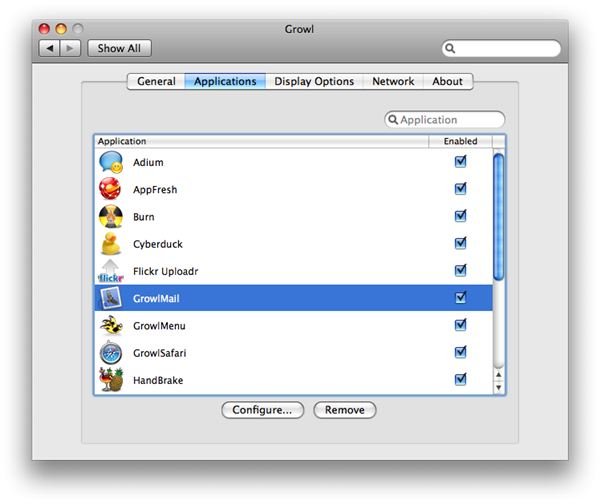
. We will configure this entry later on in this article to show you how you can customize Growl further by specifying additional sound events on top of Growl’s display notifications.
GrowlSafari
Next, we will be installing GrowlSafari.
Safari, Apple’s internet browser app, is another great app built into Mac OS X that can handle all your surfing needs. And it’s a common occasion for every internet user to download content from the web - PDFs, installers, photos, office documents and the like. Safari provides its users a dedicated download manager window so users can have a centralized location to monitor downloaded media.
All of these downloads go straight to Mac OS X’s download folder. Once a data transfer from the net to your computer is completed, the file is saved in the Downloads folder. Although Mac OS X has its own way of notifying the user that a download is completed where the Download folder bounces in the dock, I still tend to miss this animation since I most of the time continue surfing the web while waiting for a download to complete.
With GrowlSafari, Growl will be able to notify me unobtrusively that a download has completed when using Safari. The GrowlSafari extra adds Safari to be part of the Growl notification system.
The installation is pretty much the same with GrowlMail. Just double click on GrowlSafari.pkg and an installer wizard will guide you through the process.
The Growl Preference Pane
Now that we’ve installed Growl, GrowlMail, and GrowlSafari, we can now proceed configuring Growl to make it work for you.
You can position notifications in either of the four corners of the screen, set the length of notifications and change its appearance. What most Growl users are not aware of, is that you can extend growl even further by configuring events per application.
For discussion’s sake, let’s play around with a third party app named StuffIt Expander that opens up compressed files like .rar.
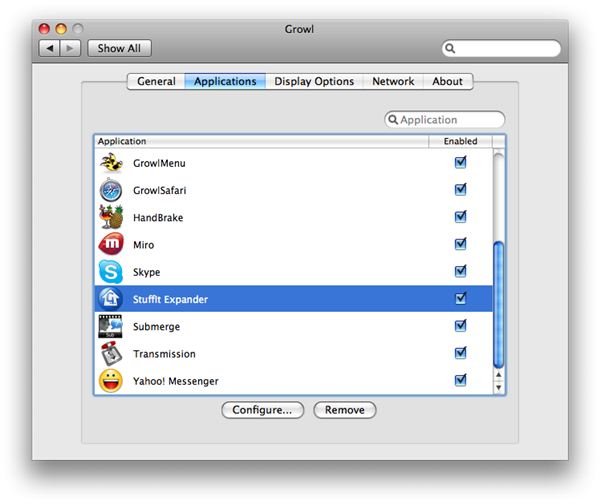
In this example, I went to System Preferences->Growl->Applications tab. I select StuffIt Expander in the list and click on “Configure…”. Under the application’s Notifcations tab, click on the drop down to select an event from the list (Failure, NewVersion, Password, Ready, Segment, Success), and choose Password.
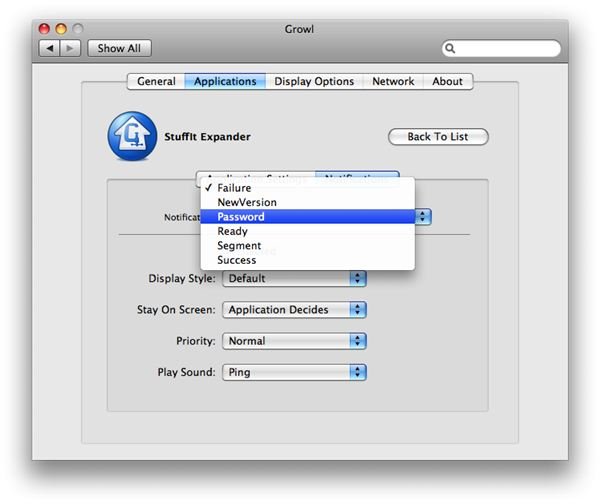
I want StuffIt Expander to play a sound when I’m prompted for a password for .rar files I usually exchange with my colleagues. So under “Play Sound”, select a sound event you wish to set. In my example,
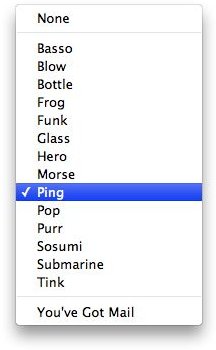
.
Keep repeating this step as you see fit for apps that are listed in Growl’s Applications list. You can also go as far as setting a special display style for a particular event for an app and specify the length of time the notification on screen is displayed and its priority. However you configure this - and to what app to perform this advanced configuration for - is completely up to you.
What I’d like to highlight for advanced configurations though, is for GrowlMail and GrowlSafari.
Configuring GrowlMail
Go to
. Click on “Configure…” and select the Notifications tab. From the drop down, select New mail and make sure the Enabled checkbox is ticked.
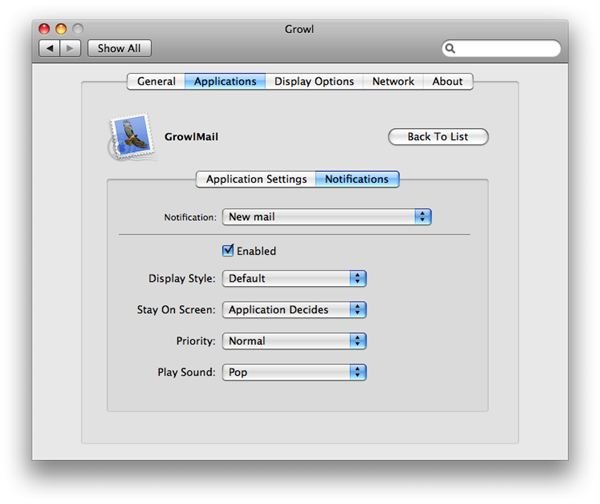
For every email I receive, I want Growl to alert me with a notification accompanied by a sound event. So in the Play Sound dropdown, I will select a soft Pop sound clip so even if I’m not in front of the computer I can hear something came in my Inbox.
It’s also important to note, that from Mail’s Preferences itself, you can access GrowlMail settings as well

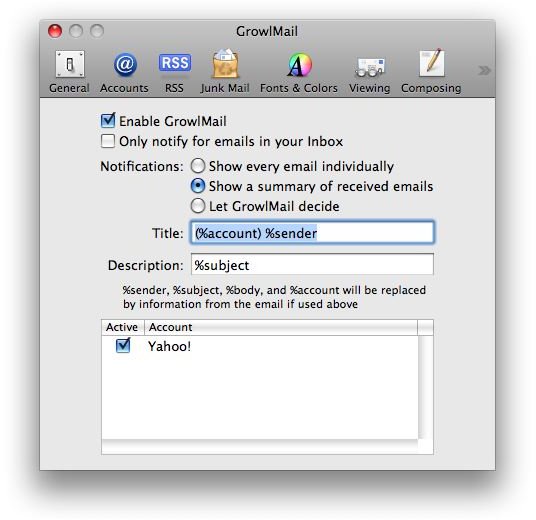
Once you’re done setting up GrowlMail, we can now move on to GrowlSafari.
Configuring GrowlSafari
You can go back to Growl’s Application’s list,
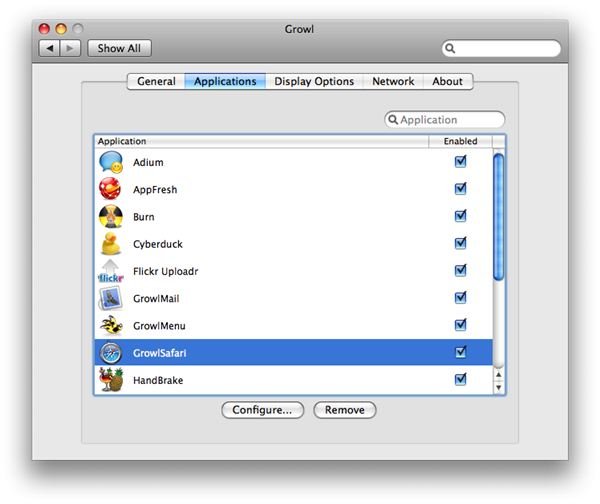
, and click on “Configure…” and make sure you are on the Notifications tab.
This time, I want GrowlSafari to notify me with a display message and sound event whenever my download from Safari is complete. In the Notification dropdown, select Download Complete, tick the Enabled checkbox and select Glass from the Play Sound dropdown. I prefer using a louder sound clip this time so even if I’m away form my computer, I’d be able to hear from afar when my download is completed.
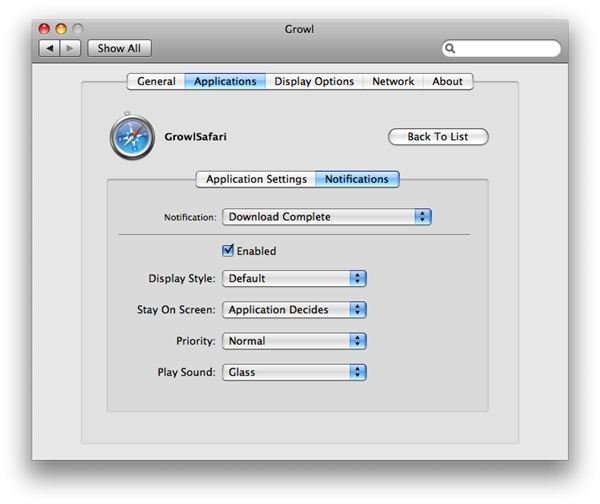
Once this is all done, Mail and Safari should now be part of the Growl notification system. By now, you know your way around Growl. You can now utilize Growl to its full potential by setting it up per application and specifying notification events for it as you see fit.
Feel free to explore Growl and customize it further to fit your needs whenever you’re using Mac OS X.


