
No one can question iChat’s innovative and unique user interface. But when it comes to being connected to a wider span of clients, iChat falls short. Adium on the other hand, is a great multi-protocol alternative to iChat. But can you have both iChat’s look and use Adium’s features? Here’s how.
IM with Adium, iChat Style
Because of the number of my contacts on unsupported IM clients (such as Yahoo! Messenger), iChat personally became an itch I couldn’t scratch.
Although one can Jabber their way around iChat to be able to speak to a wider span of clients , (of which I’ve tried), the process is just too complex and the result is too unrewarding in the end. And yes, there is Yahoo! Messenger for Mac , but I’m itching for an iChat style, bubble conversation interface.
So here’s the situation: iChat that can’t connect to Yahoo! and other messenger protocols, while Adium can. But I long for iChat’s interface. So how do we marry the eye-candy aesthetics of one, and the multi-protocol functionality feature of the other, together in one app? And I found that Adium makes this possible.
Adium is the leading freeware, multi-protocol IM app that can connect
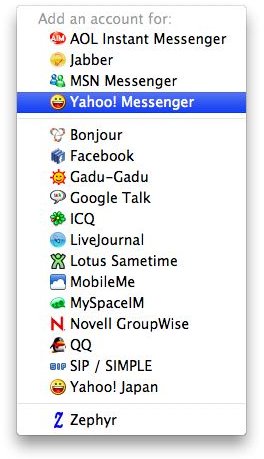
. On top of that, Adium is allowed to be as extensible as it can possibly be, giving users control over how they can make Adium look and behave as they see fit.
For this guide, we will be customizing Adium to look like iChat. So go ahead and download Adium by clicking here if you don’t already have it in your system. Once installed, create a user account and run the app.
After this is done, we will be heading over to Adium Xtras to customize and mimic iChat’s appearance as close as possible.
The items we will be skinning are:
- Message Styles
- Menu Bar Icons
- Emoticons
- Dock Icon
We will also set Adium’s contact list’s Color Theme and List layout using Adium’s iChat-ish style scheme built-in to Adium, which will be discussed later on in this article.
Install The Skins
The Adium Xtras page is set up to be so user friendly that you can install whatever you wish right from the web page.
All the links in this section will take you to the Xtra’s detail box where you can install just by clicking from the page itself. We will be installing all of the _Xtra_s first, then configure them later on.
Message Styles
Message Styles is Adium’s way of displaying sent and received messages in the conversation window. iChadium provides the bubble conversation styles just like iChat. Click here to go directly to its page.
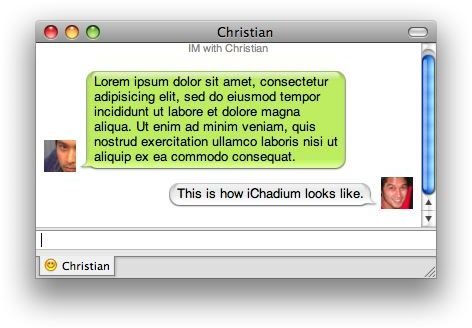
In each Xtra’s page, there is an
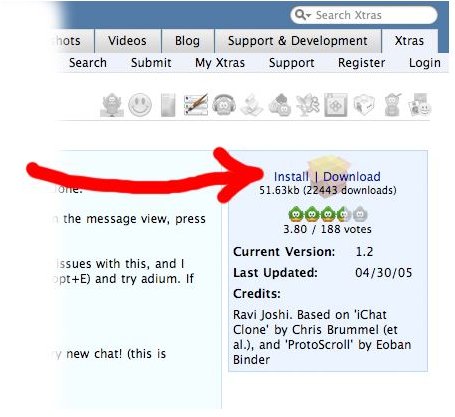
. Click on it and your browser will install the Xtra for you.
Menu Bar Icons
The Menu Bar icon gives quick access to the app’s functionalities, like preferences, status messages, and so on. Adium adds a
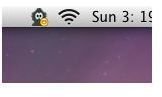
in the form of it’s default duck app icon. This element may be changed as well to look just like iChat’s menu bar icon.
Click here and install the iChat 4 menu bar.
Emoticons
Adium comes with it’s own set of emoticons by default, but to complete that iChat look, you can install Emoticons so Adium displays the same graphics as iChat does whenever your contacts sends you a colon and closing parenthesis.
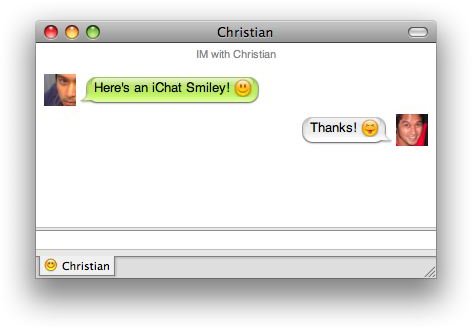
Click here and install the iChat Complete emoticons.
Dock Icon
If you want to go as far as changing Adium’s duck mascot icon into iChat’s, you can even do that as well. This icon also serves as an at-a-glance guide in the dock to indicate whether your status is set to Available, Away (shaded icon), or Offline (grayed out icon). We can use a dock icon named iChatisation that looks exactly like iChat’s.
Click here and install the iChatisation icon.
Setting It All Up
At this point, we’ve installed everything we need to install to make Adium look like iChat.
Let’s go ahead and go to iChat’s preference pane. We’ll be configuring the Message Style called iChadium first, so select the Messages tab.
In the Message Style dropdown, select iChadium. And in the Variant, select your color of choice for incoming instant messages. (Note: to randomize the color received in conversation windows, select Incoming Purple).
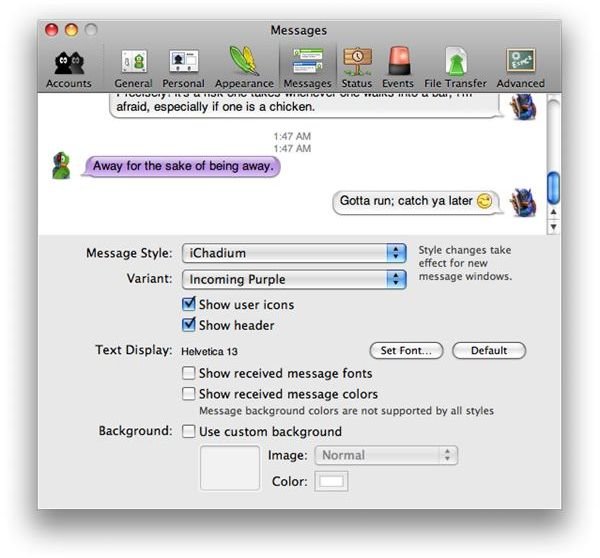
Next, select the Appearance tabs to set the Menu Bar Icons, Emoticons and Dock Icons, the Color Theme and List Layout. Select iChat 4 menu bar, the iChat emoticons, then the iChatisation icon from their respective drop downs. In the Contact list section, select iChat-ish for the Color Theme and List Layout and make sure the Window Style is set to Regular Window.
You can also go to the Events tab, and create sound effects for certain events, like messages received, sent, and so on. From the Sound set dropdown, you can specify iChat sounds to make Adium sound just like iChat.
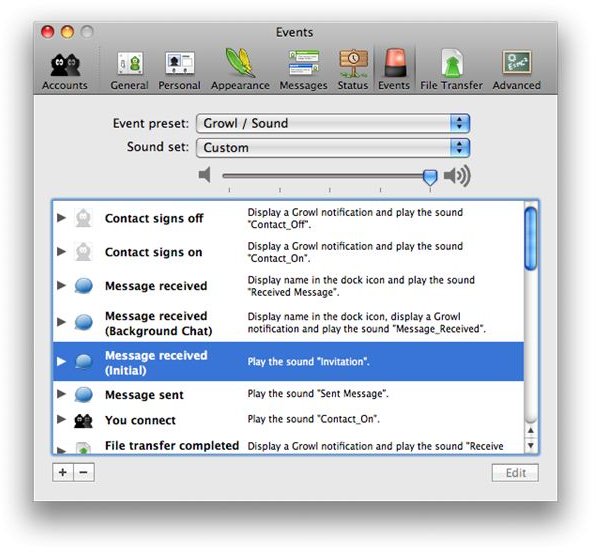
After these configurations, your Adium now looks and sounds like iChat. You now have all the aesthetics of iChat together with the ability to converse with a wider span of contacts that iChat doesn’t cover by default.
Adium And Beyond
The beauty of Adium is that it allows you to configure it to your liking. There is a wide array of choices in Adium Xtras, enough to cater to your personal needs. In this article, we were able to customize Adium to resemble iChat. For further customization, you can go ahead and browse Adium Xtra ’s site to expand your tweaking and make it work for you.


