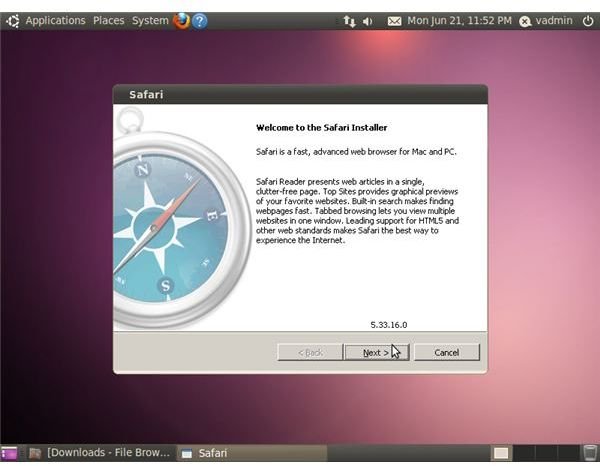
Whether you’re a web developer that wants to run Safari in Linux or just a curious Linux user that would like to explore Apple’s Safari Web browser, you can install and run Safari using the Wine Windows compatibility layer on Linux.
Installing Wine
While Apple hasn’t released an official version of Safari for Linux, the Windows version runs in Wine. Wine is a Windows compatibility layer that lets supported Windows applications run on Linux, and it’s constantly being updated.
First, you’ll need to install the Wine package for your Linux distribution. Use your distribution’s package manager.
On Ubuntu, click “Applications” and “Ubuntu Software Center.” Type “wine” into the search box at the top-right corner of the Ubuntu Software Center window. Click “Wine Microsoft Windows Compatibility Layer,” then click “Install.” Authenticate yourself by typing your password when prompted and pressing “Enter.”
Fedora users need to click “System,” “Administration” and “Add/Remove Software.” If you’re using another Linux distribution, look under the “Programs” or “System -> Administration” menus for the software installation tool.
Installing Safari
Open Apple’s Safari for Windows Download site. Click the option for the download without Quicktime, click “Download Now,” then click “Save” in your Web browser when prompted.
Open the folder Safari was downloaded to. For example, open the default Downloads folder by clicking “Places” and “Downloads.”
Enable execution privileges for the downloaded Safari Setup program by right-clicking it, clicking “Properties,” clicking the “Permissions” tab, checking the “Allow Executing File as Program” box and clicking “Close.”
Run the Safari installer by right-clicking the “SafariSetup.exe” file and click “Run with Wine Windows Program Loader.” Wine will take longer than normal to start the first time as it creates a virtual Windows directory for you.
Install Safari using the installer just as you would in Windows. As far as Safari is concerned, it’s installing on Windows.
Using Safari
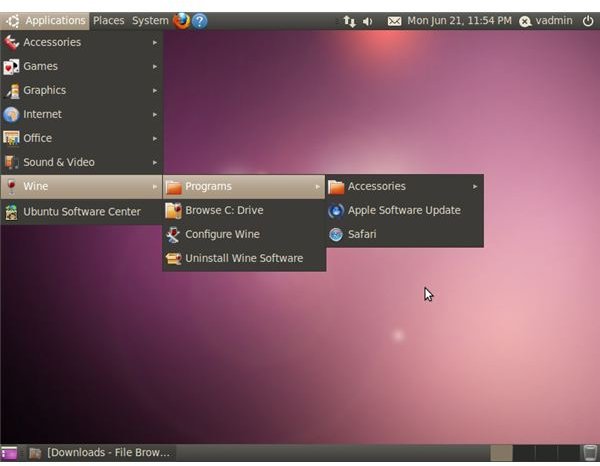
Open Safari on Linux by clicking “Applications,” “Wine,” “Programs” and “Safari.”
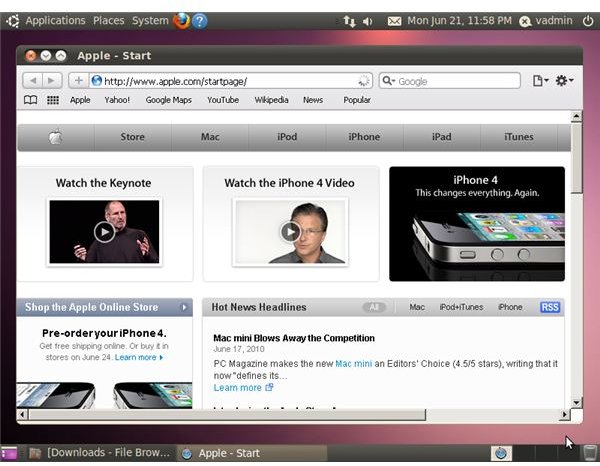
This is a great way to play with Safari and test it with your websites, but, unfortunately, you can’t yet rely on it for day-to-day Web browsing because it isn’t completely stable.
Newer versions of Wine will eventually increase Safari’s stability - hopefully. In the short term, they might even make it more unstable. Rewriting the Windows API is hard, complicated work! If you’re interested in trying a newer version of Wine on Ubuntu, Wine hosts a repository with newer beta versions of Wine . Bear in mind that these may have stability regressions in the short term. Users of other Linux distributions can check out Wine’s download site for their particular distribution.
More About Wine
If you’re a Web developer that wants to test your web sites in all the Web browsers, you may also be interested in installing Internet Explorer on Linux with Wine .
You can also install many other Windows applications on Linux with Wine, including games. See Wine’s Application Database for information about your favorite applications.
References
- Apple: Download Safari; https://www.apple.com/safari/download/
- WineHQ: Wine for Ubuntu and Ubuntu Derivatives; https://www.winehq.org/download/ubuntu
- WineHQ: Wine Downloads; https://www.winehq.org/download
- WineHQ: Wine Application Database; https://appdb.winehq.org/
Screenshots provided by writer.


