Linux user who owns an Apple iPod? Tired of having to settle for a MP3 version of your audiobook? Well, look no further! In this article I will show you how to convert those MP3 audiobooks to M4B!
Quicklinks
Introduction
I admit it. I’m an audiobook fanatic. I have to have a audiobook in my ears at all times; when I work, when I exercise, and when I sleep! No exceptions! In this guide I will show you how to rip your audiobook CD, combine the MP3 files, convert the MP3 files to PCM and finally convert the PCM files to M4B. The best part about this? We will do it all from the command line ! You may be wondering “Why from the command line!”. The answer to that is simple, because we can! Lets get started.
Tools You Will Need
For the purposes of this guide you will need a number of readily available packages installed. In this guide I will assume you are using Ubuntu Linux but all distributions should offer these tools through their package manager.
sudo apt-get install cdparanoia lame mp3wrap mplayer faac
This will make sure you have all the tools we need installed so we can move on to the next section, “Ripping Your Audiobook CD”.
Ripping Your Audiobook CD
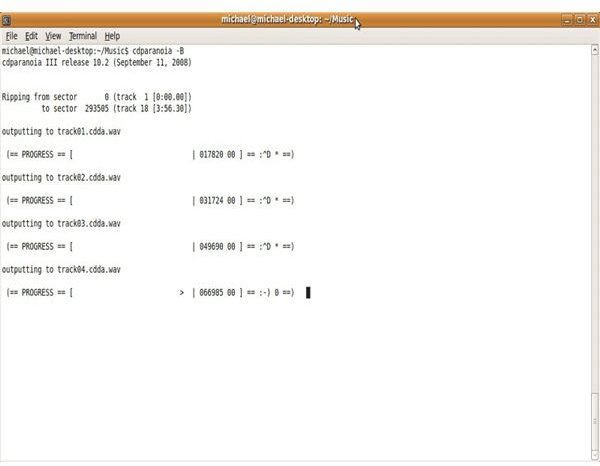
The first step in creating your iPod compatible M4B file on Linux is to rip your audiobook CD. We will use a handy little Linux command line tool called cdparanoia to accomplish this. Insert your audiobook CD into your optical drive and issue the following command:
sudo cdparanoia -B
This will rip your audiobook CD, into the current directory, splitting each track into it’s own WAV file.
Now that we have the tracks ripped to the current directory lets convert them to MP3.
Convert WAV to MP3
In order to convert our WAV files, created by cdparanoia, we will use the LAME mp3 encoder. To begin converting your files from WAV to MP3 you will issue the following command:
lame -b 64
This will convert your WAV files into MP3 files with a CBR (Constant BitRate) of 64kbps.
Combining the MP3 Files
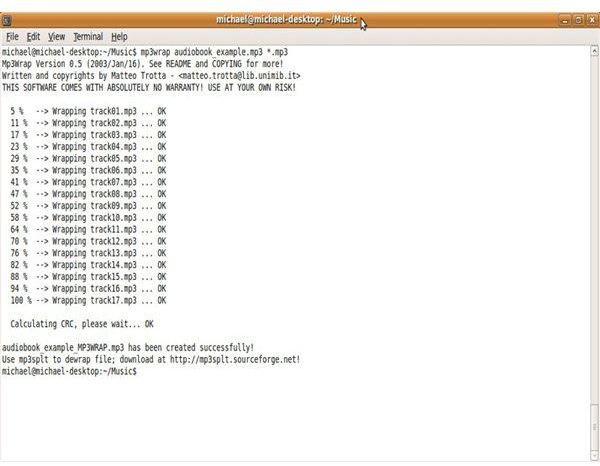
Here we are going to use the Linux command line tool mp3wrap to combine our multiple MP3 tracks into one large MP3 track. To do this, still in the same directory, issue the command:
mp3wrap
One very important thing to keep in mind is that the multiple tracks must be named sequentially. This should not be an issue if you used cdparanoia to rip your audiobook CD, however, if you already had the tracks ripped and they are not named sequentially be sure to rename them before trying to combine them. For example, track01.mp3, track02,.mp3, track03.mp3, and so on.
We now have the one large MP3 file that we want. Lets convert this file to PCM.
Convert to PCM
The next step will require a fair amount of space. Make sure you have roughly 7 times the disk space of the MP3 you created in the last section available to you. To convert our MP3 file to PCM we will use mplayer from the command line, issuing the following command:
mplayer -vc null -vo null -ao pcm:nowaveheader:fast:file=
This command will take a fair amount of time to complete so be patient. Once it completes we will have the PCM file we need and can move onto the last step, converting the PCM file to a iPod compatible M4B file.
Convert to M4B
The final step of this process is to convert our PCM file to an iPod compatible M4B file. To do this we will use the Linux command line tool faac:
faac -R 44100 -B 16 -C 2 -X -w -q 80 –artist “authorname” –album “audiobookname” –track “1” –genre “Audiobooks” –year “year” -o
That’s it! This audiobook should show up in the Audiobooks section and be fully iPod compatible. Until next time, keep it Open Source!
References
- Author’s own experience.


