Specto is designed to watch configurable events (websites, syndication feeds, images, and more) and notify you when it detects activity. This has the potential to change the way you work, informing you of updates as they happen instead of you manually looking for them.
Introduction
Specto can monitor a website for changes and inform you when there is activity. This has the potential to change the way you use the web, because you can be notified of events instead of having to hunt for them. If you are watching a website, like your Facebook account for new posts on your wall, Specto grabs the file size of that site at intervals and compares it with the previous version. If there is a change, it will let you know via a popup at the corner of the system taskbar. To stop Specto informing you of small changes to the site (such as rotating ads) you can set an error margin.
Installation
Specto is in the software repository of most Linux distros, so you shouldn’t have much trouble installing it.
To install Specto in Ubuntu use the following command in the Terminal:
sudo apt-get install specto
Using Specto
You can either launch Specto from the command line with the command specto or from the Applications » Accessories menu. Specto will display the notificatios window when launched.
Specto refers to all sites that are monitored as “watches”. Before adding watches, click Edit » Preferences, click Always show the icon in the notification area. You can also set Specto to play a sound when any watch is updated. As well as this you can control the duration for which the pop-up is displayed.
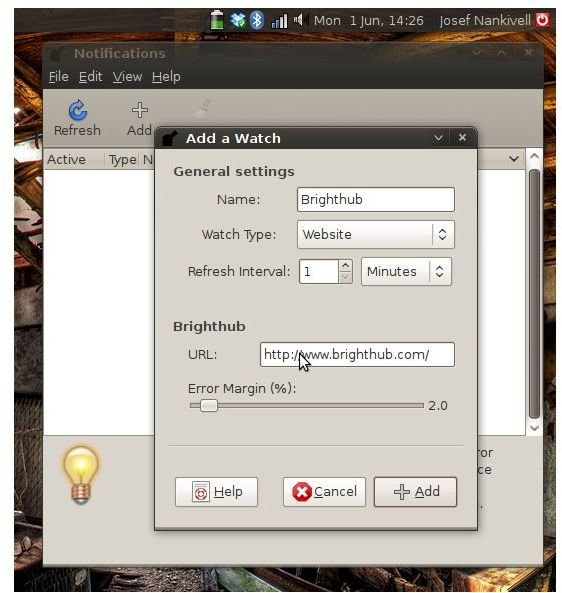
In the notifications window, click the Add button to open the Add a Watch window. If you want to watch a website, Brighthub for example, enter Brighthub in the Name field and choose Website from the Watch Type drop-down list. You can then determine how often Specto should check for updates, using the Refresh Interval. Next, enter the URL of the web page in the URL field and specify the Error Margin. The error margin is important on sites where ads change often, making Specto believe the content has been changed. The default error margin is two percent. An error margin of zero percent makes Specto consider every small change an update. Click Add and Specto will begin monitoring the web page for updates.
Autostarting Specto is simple. In GNOME, just add the command “specto” in your sessions. With KDE, you can add a shortcut to the auto-start folder.
Export/Import
Specto comes with the import/export feature allowing you to quickly and easily export your configuration file on one machine and import it on another machine. This allows you to use Specto on several computers while keeping the same settings and “watches”.
Conclusion
Who should try Specto? This application will benefit anyone not interested in dealing with RSS feeds full of adverts but would still like to be able to keep an eye on their favorite websites or e-mail accounts.
There is also plenty of extra functionality for advanced users. For example, monitoring log files for changes, watching a folder being shared over a VPN and looking for comments on your blog, the list is endless!


