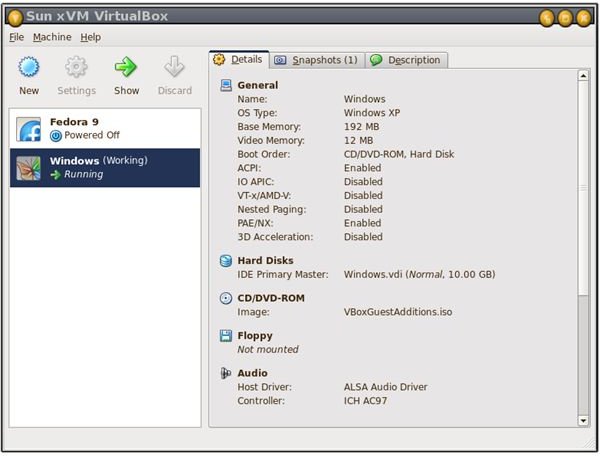
Sun VirtualBox is a virtualisation program that allows one operating system to run ‘inside’ another. Here I describe some of the benefits of using VirtualBox to run Windows XP on an Ubuntu system.
Virtualization under Ubuntu
A virtualization program creates a kind of ‘sealed box’ which simulates a normal computer, but runs completely within the software environment of an existing operating system. Into that ‘sealed box’, the user can install another operating system, which then ’thinks’ it’s running on an ordinary PC. When the virtualized system is shut down, all the information and settings it contains is saved in a single large file on disk. There are several virtualization systems available for Ubuntu, but the best-known is VirtualBox (formerly VBox), a free program from Sun Microsystems (https://www.virtualbox.org ). VirtualBox can be installed via the Add/Remove option on the Applications menu.
VirtualBox files are stored in the user’s home directory in a hidden folder called .virtualbox. Apart from the basic setup information, this consists of two folders called HardDisks and Machines. The Machines folder contains the settings used by VirtualBox when starting and running a virtualized system; the HardDisks folder contains the actual information file which makes up each virtualized system.
Creating a new system image
Users creating a new virtualized system are taken through a wizard where they specify the settings. Popular systems like Windows XP have their own predefined settings which should need very little tweaking to work on the user’s system. They will need to create a new ‘hard disk’ file which will be used to store the system; this can be either a fixed size, or a dynamic file which will be resized up to a fixed limit as files are added to the system. A 10Gb maximum should be enough for just about any operating system. Once the file is created it can be copied and moved around like any other file: so your completed Windows XP installation can be transferred via network, memory stick or hard drive to any PC running VirtualBox.
Tweaking your virtualized XP
The resulting image is equivalent to a new PC with a blank hard disk, so you now need to install Windows XP on to it. Check the settings under CD/DVD-ROM and make sure that a CD is mounted. This can either be the real CD drive or a link to a drive image (ISO) file. For a legal Windows XP installation you will normally need the original XP CD, and you will need to input the installation code. With the CD inserted, start the virtualized system. It should ‘boot’ from the CD-ROM in the same way as an actual PC, and you can then go on to install Windows XP as you normally would.
Once the system is up and running it will appear in a panel within a VirtualBox window. (The original VirtualBox window will still be open underneath.) You can then go to the Devices menu and install the VirtualBox Guest Additions. These will then appear as a ‘D’ drive within Windows which can be double-clicked to install them. The Guest Additions are not essential, but they provide much more control over the Windows screen display and make it much easier to interact with the virtualized system.
After rebooting the system you should be looking at Windows XP running within VirtualBox. Take careful note of the name of the key shown at the bottom right of the screen. This is the Host Key, which provides you with an ’escape route’ from Windows XP back to your Ubuntu system. Pressed in combination with other keys it can change to a full-screen display, adjust the window size, or shut down the system if it gets stuck – see the details under the Machine menu.
Windows XP in VirtualBox
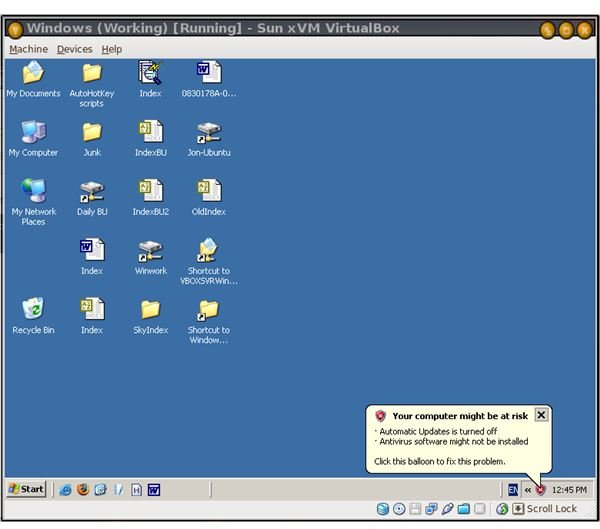
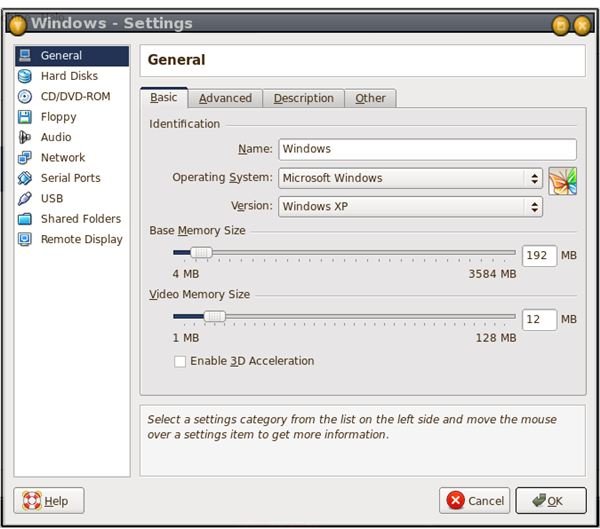
Windows XP in VirtualBox
Now there are a few things you need to check about your new Windows system:
- How fast is it? It won’t be quite as fast as a ‘genuine’ installation but it should be quite adequate for anything other than graphic-intensive games. Very slow operations can sometimes be speeded up a little by things like turning off the wallpaper display and other fancy graphics. Obviously if you are doing something in both Ubuntu and Windows at the same time, that will slow down both systems.
- Can you access the Internet? You may need to run the Network Wizard, but with luck you should be able to set up the installation as if it was just another Windows machine on your network. This will give you access to any Samba shares on the host PC as well as on other connected computers. If the real network is unavailable you can still share files with the host computer via a Shared Folder, which appears on the Windows system as a network location called VBOXSVRWindowsShared on VirtualBox Shared Folders – a bit of a mouthful. but it works. You can set up shared folders when the virtual system is switched off via the VirtualBox Settings options.
- Can you install and access a local or network printer?
- Do you have sound? If not you may need to shut down and select the ALSA audio driver from the VirtualBox settings.
- Can you access CDs and USB devices? Again, this can be tweaked through the settings in VirtualBox when the system is shut down. I have had no problem accessing CDs under Ubuntu, but so far my attempts to access USB memory sticks (other than through the network) have all failed. You may have better luck.
- Can you run in Seamless mode? This attempts to treat the currently running Windows program as if it were just another Linux application. If it works for you you should be able to bounce back and forth between Linux and Windows programs like a tennis ball. Mine never quite made it. Even without this, you should still be able to switch between Windows and other applications running on the same desktop with Alt-Tab.
What next?
What can you do with Windows now that you have it? That’s up to you. If your Internet connection is working you can bring it up to date with downloads and add-ons, and install all the Windows programs that you are unable or unwilling to live without. Because it’s virtualized you can also save a ‘snapshot’ at any time. This will copy the current state of the system into a new ‘hard disk’ file. You can then go back to that file and start from there if any subsequent changes destroy data or disrupt the system. As mentioned above, you can carry it with you on a USB stick or external hard drive and run it on other PCs with VirtualBox. The sky is the limit!


