Open Office Microsoft Word conversion: A User Guide to MS Office Compatibility with Open Source OOO
In the first part of this series which explored the compatibility of Open Office Writer and Microsoft Word, I looked at the basic functions such as font style and inserting page numbers. There are many software alternatives to MS Word which will also do fine on simple documents, but what if you need to edit a file with a table or pictures? And, can you still collaborate with a co-worker who uses MS Word by using track changes and inserting comments?
Tables
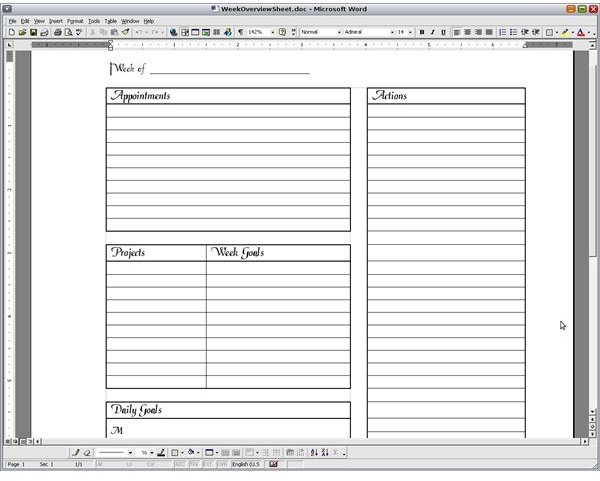
Given their advanced nature and variety of options, it is not surprising that tables do not always translate well between the two office suites. Out of everything I tested, the compatibility of tables was the poorest. However, basic tables were fine. A simple table created with equally-sized rows and columns worked just fine. The trouble comes from having some cells in a row or column having different dimensions than the rest.
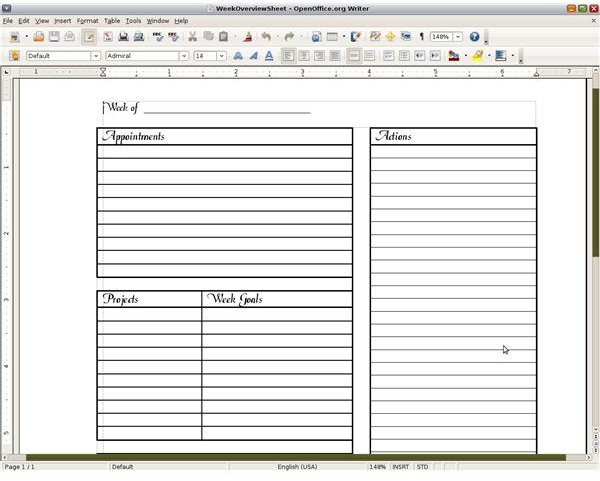
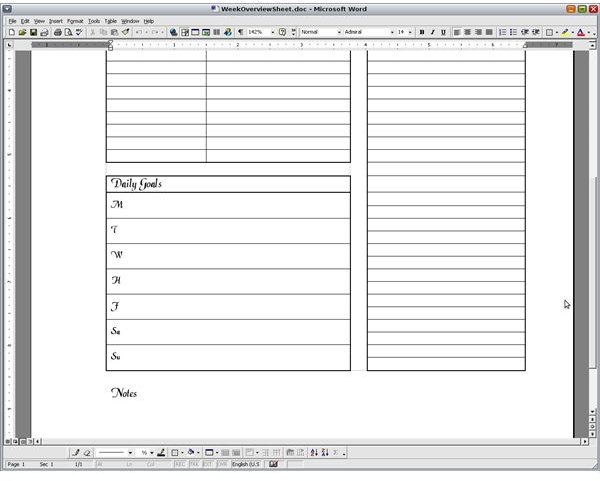
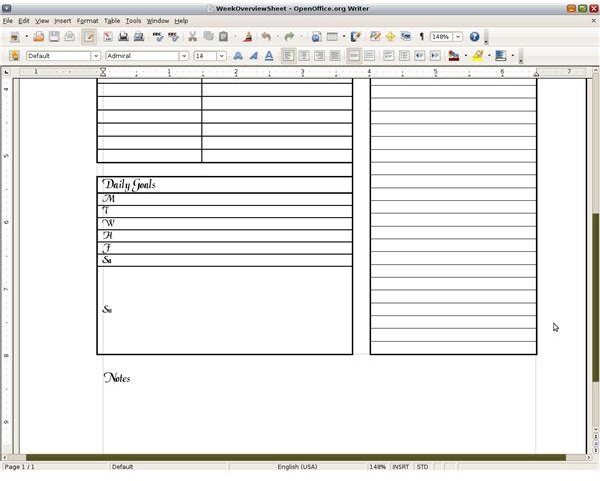
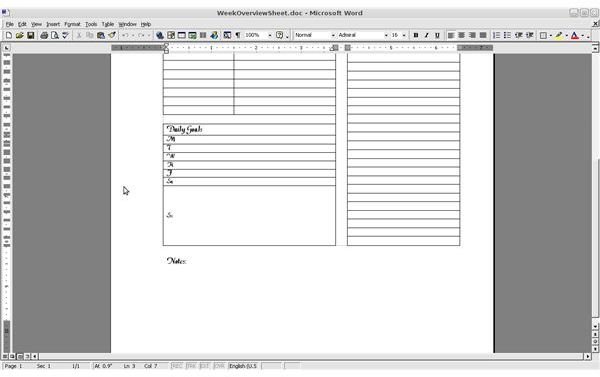
Formulas also didn’t work. The sum functions I added in the original table in MS Word turned into regular text when I opened the file in Open Office. Worse, if I then saved the document in OOO, the formulas were permanently removed even if I didn’t edit the table. The same thing happened in the table with differing row heights. For this reason, make a backup when working on a complex document with tables in Open Office that was originally created in MS Word.
Images
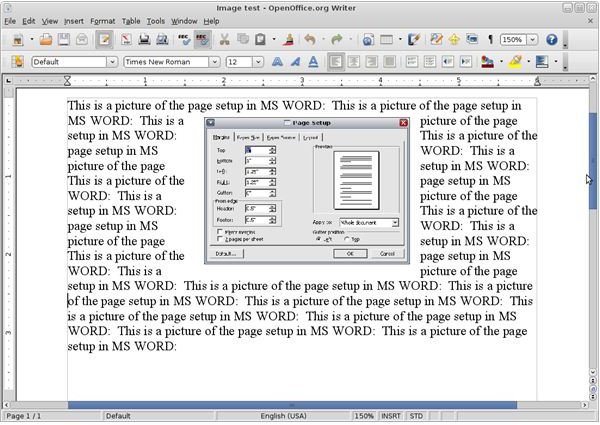
Images were preserved in Open Office much better than tables were. I ran into no problems here. Images stayed where I had inserted them and captions remained under the image where I had placed them. Even wrapping a paragraph of text around the image in MS Word opened fine in Open Office.
Breaks
Both word processors use breaks to indicate style and formatting changes, as well as forcing a page break. Open Office seems to make even more use of breaks by having them do jobs such as denoting different types of headers and footers. The page break which forces a new page, even if the text doesn’t fill it, worked without a problem. The column and section breaks I inserted were like-wise OK.
Columns
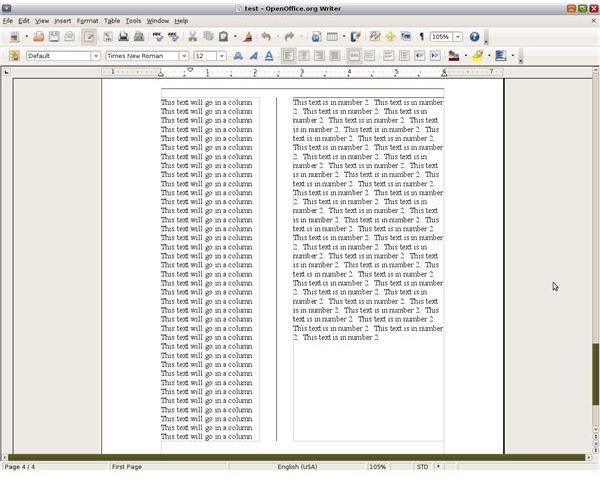
Columns can be an important tool for creating newsletters and booklets. Text can either overflow into the next column or a column break can force text into the next one. I first tried a basic layout with two columns of equal width. No problem here. Adding a line between the columns, using column breaks, changing the widths, and adding more columns were all compatible with Open Office.
Track Changes
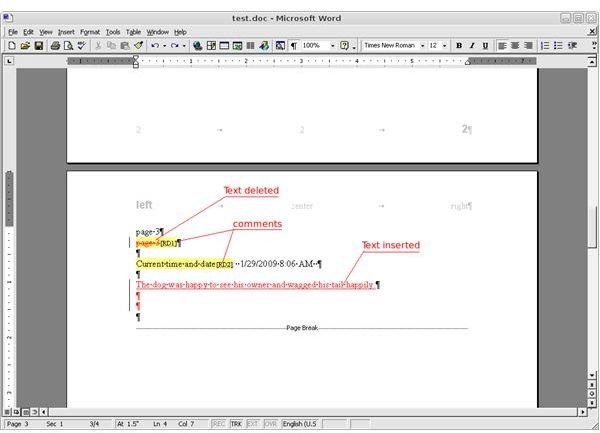
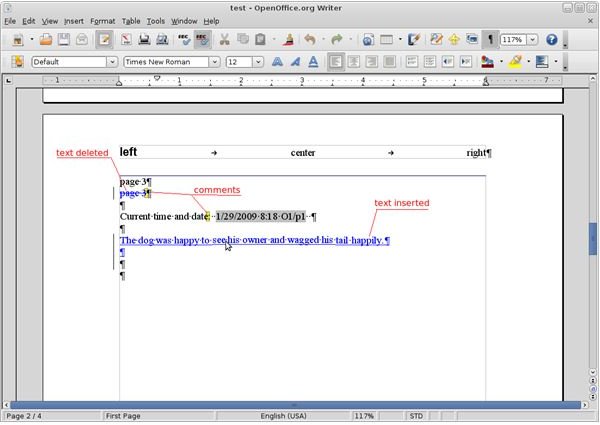
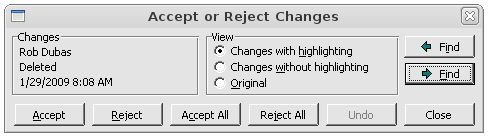
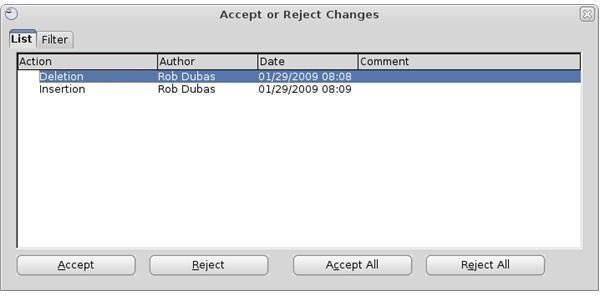
I have worked for some companies that religiously used the track changes and comments functions when editing documents among different people. Happily, I can say there seems to be no reason you can’t get right in the group editing frenzy and still use Open Office. Text changes were all preserved between the two rival systems as were comments. I could even see who had made the edits based on their user’s initials (which are setup in the program itself), another neat feature that worked well in both. The colors used for the changes was different, but this is customizable in Options under the Tools menu . The comments were also preserved. However, unlike MS Word, a comment in OOO is only shown as one space instead of being able to select a whole range of text. Functionally, the comments work the same, though.
Conclusion
There are a lot of functions and features that work in both of these mighty office suites. Yet, there is still some room for improvement in Open Office’s compatibility with Microsoft Word and the .doc file format. I have successfully collaborated with others who used MS Word while I stuck with my OOO. However, there are still times when the only way to work with a file is to fire up my trusty Word 2000 in Wine. Because there are still potential problems between the two suites, I highly recommend backing up a complex document before making substantial edits in Open Office.
This post is part of the series: Open Office Microsoft Word Conversion: Checking the compatibility of these two monster Office suites
Microsoft Word and Open Office are the two benchmark word processing suites used worldwide today. Here we look at the compatibility of the two, looking at each different part of functionality from Fonts and Margins to Tables and Track Changes.
