How to Install OpenOffice.org on a Debian-based Linux Distribution - A Newbie's Guide
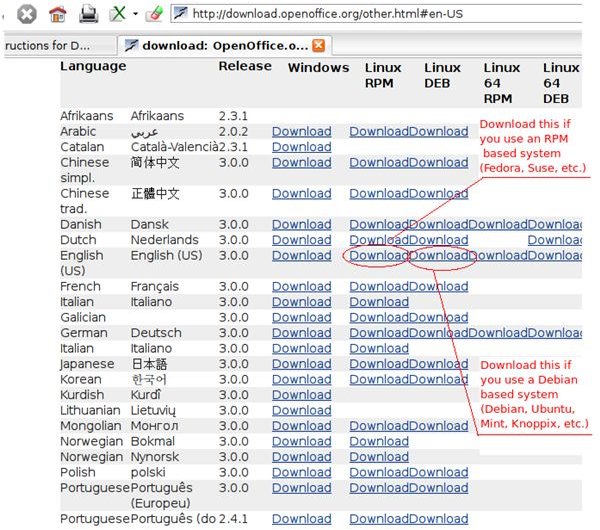
Installing software in most Linux systems is as simple as opening the package manager, selecting what you want, and hitting the Install button. Unfortunately, sometimes the application you want isn’t in your distribution’s repositories. It could be because the distro hasn’t yet packaged the newest version of the application, or they supply their own version. Such is the case with the Microsoft Office rival, the Open Office.org suite. Many distributions choose to use a custom version, either a fork or disto-native release of Open Office. The popular Ubuntu uses the Go-OOO version, which at the time of this article has not been updated to 3.0, which is the official version of Open Office. However, on a system which uses .deb packages (Debian, Ubuntu, Mint, Mepis, gOS, Freespire, and many more) it is very simple to install the latest version of Open Office. You also will first want to remove any earlier versions of Open Office that are installed.
Download Package Files
First thing is to check the OOO system requirements to make sure your computer is ready for Open Office 3. Once you’re sure it will run, it’s time to download the package file. On a Debian-based system, you’ll want to bypass the “Download Now” and instead click “more platforms and other.” Here’s a direct link to the downloads. Find your language and system type, then click the appropriate link.
Uncompress the Files
The file that you download should end in .tar.gz and is actually a compressed archive of a number of package files. We’ll need to decompress this either by using the terminal command or with the file archiver. To use the terminal, move into the folder with your download then type (without quotes) “tar -xvzf OOo_3.0.0_LinuxIntel_install_en-US_deb.tar.gz” Replace the file name with that of your specific download. If you’re curious, which I was, about those options after the tar command, “x” means extract (decompress) a file, “v” outputs a verbose list of what the process is doing, “z” tells tar that we are using a gzip archive (.tz), and “f” indicates that a file name follows, in this case our OOO archive. Typing “info command” in the terminal will give you all these options for that command.
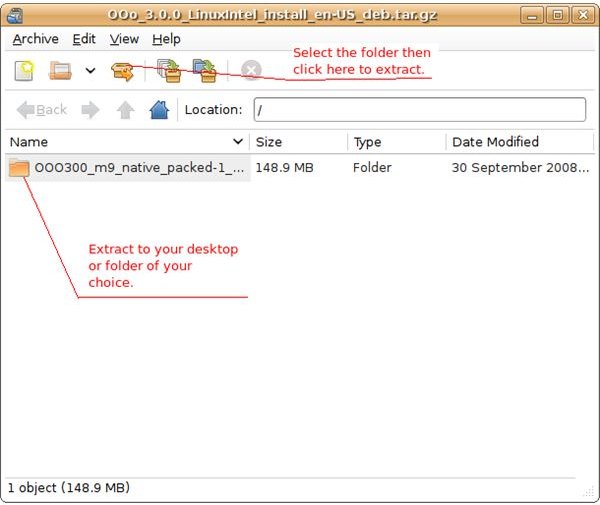
Now that you have the download unpacked, you should have three folders and a file. The “DEBS” folder holds the install files and the “readmes” folder has a lists some program changes, system requirements, and other information. We’ll be using the “DEBS” folder to install Open Office.
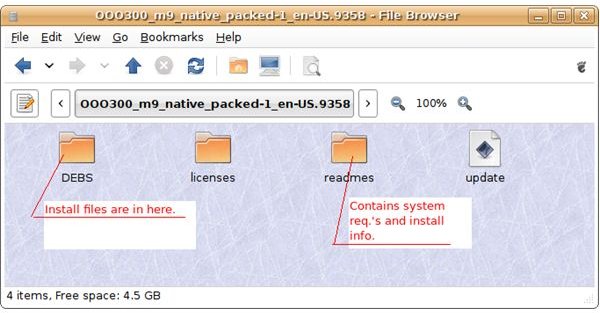
Installing the Core Program Files
Open up the “DEBS” folder. Wow, that’s a lot of files! Don’t worry. By using a simple terminal command, we’ll install everything except the folder “desktop-integration,” which is for later.
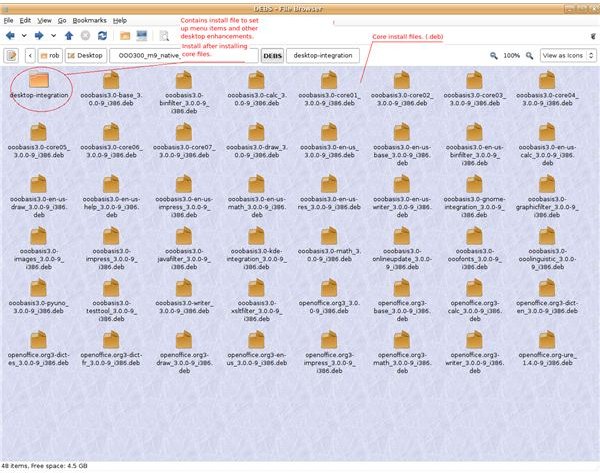
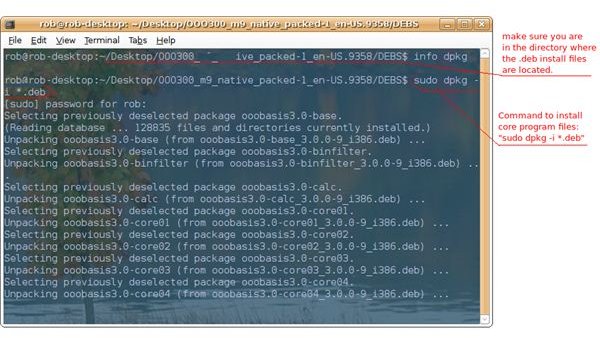
To install the core files for Open Office, open up the terminal and move to the “DEBS” folder. Type “sudo dpkg -i *.deb”. In this command, “*.deb” means install any files in the current folder that end with “.deb” The “*” is called a wild-card, which can refer to any letter or number.
Installing Desktop Integration Tweaks
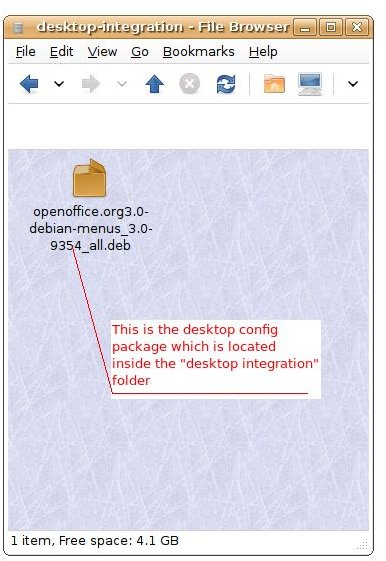
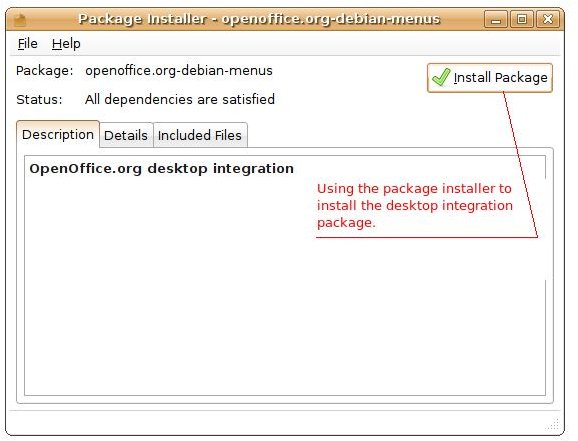
The core files should all be in place. Now, we’re now going to install a few tweaks to make Open Office better fit your Gnome or KDE desktop. Either enter the “desktop-integration” folder from the terminal or use the file manager. To install using the terminal, type “sudo -dpkg -i openoffice.org3.0-debian-menus_3.0-9354_all.deb” (Replace with your specific file name.) To install from the file manager, click on the .deb file. The package installer will open up. It should say “all dependencies OK’ed” in the status. Click the Install button.
Setting Up File Associations in Gnome
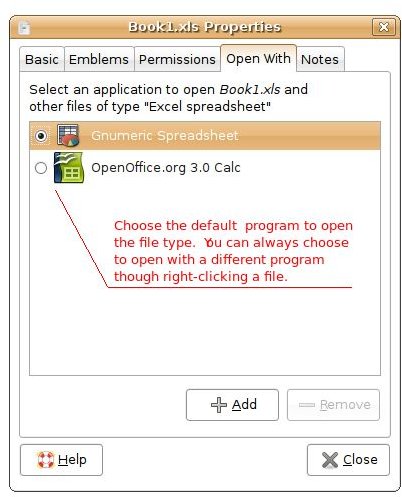
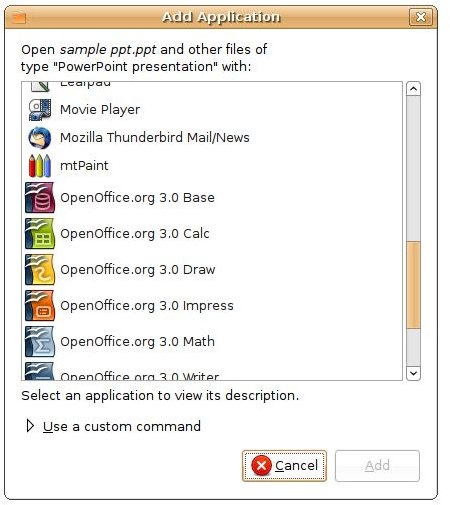
The installation may have already set up file associations for you. If not you’ll have to do it yourself to have Open Office launch files by clicking on them. In Gnome, right click on the type of file you want to have open up in OOO. Select Properties, then click on the Open With tab. If the correct Open Office program is there, choose it then hit Close. If it isn’t, click Add and choose it from the list. Click Add and then select if from the Open With tab.
Setting Up File Associations in KDE
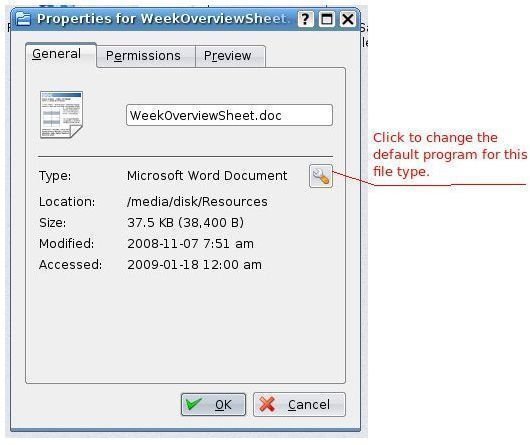
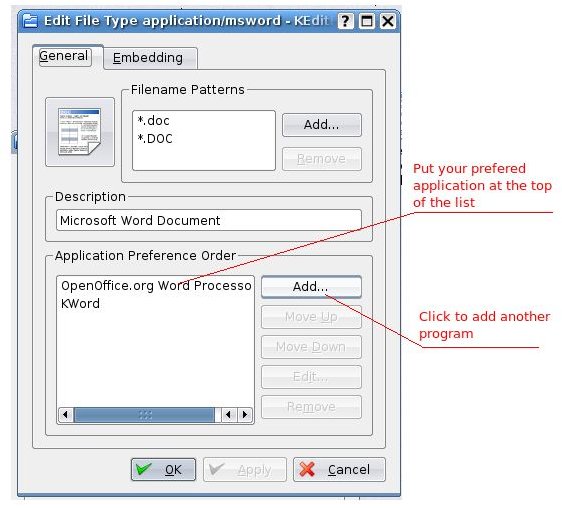
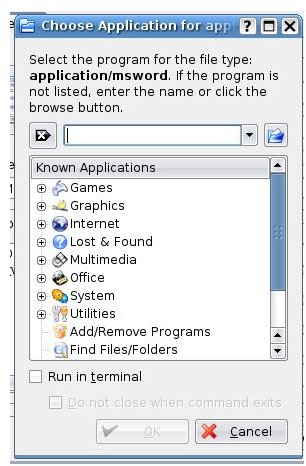
In KDE, again right-click a file and select properties. Click the wrench icon. In the General tab, highlight a program and use the Move Up and Move Down buttons to position your preferred program at the top of the list. If Open Office isn’t listed, click the Add button. In the new window, select the file from the list. (It should be under “Office.”) Click OK on both windows.
Initial Open Office Setup
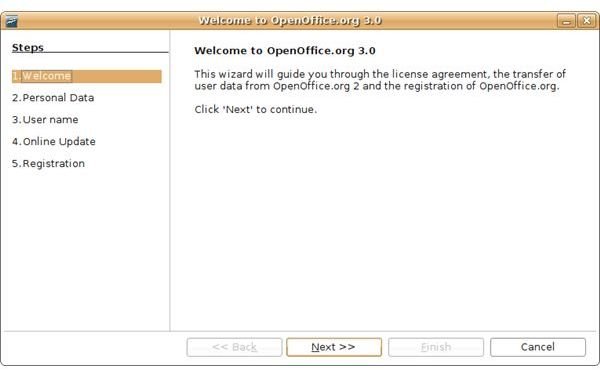
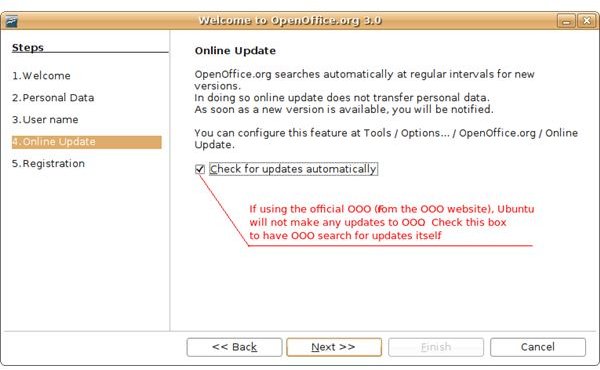
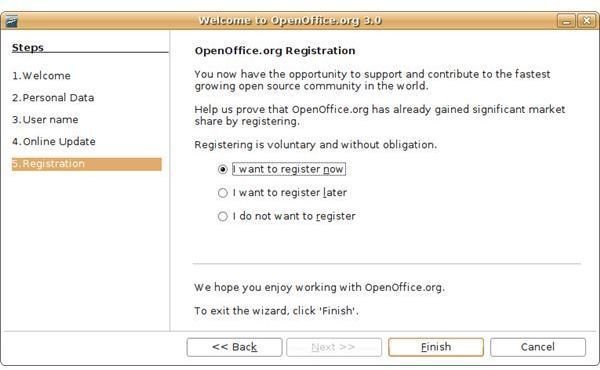
Almost there. Now open up one of the Open Office programs from your Applications menu. Fill in any fields and click Next. When you get to the on-line update option, you’ll probably want to leave the box checked. In Ubuntu and many other Linux distros, the distro itself pushes software updates to its users. However, because we are not using an official package that’s tied to a distro, we won’t get any updates except from Open Office themselves.
Finish
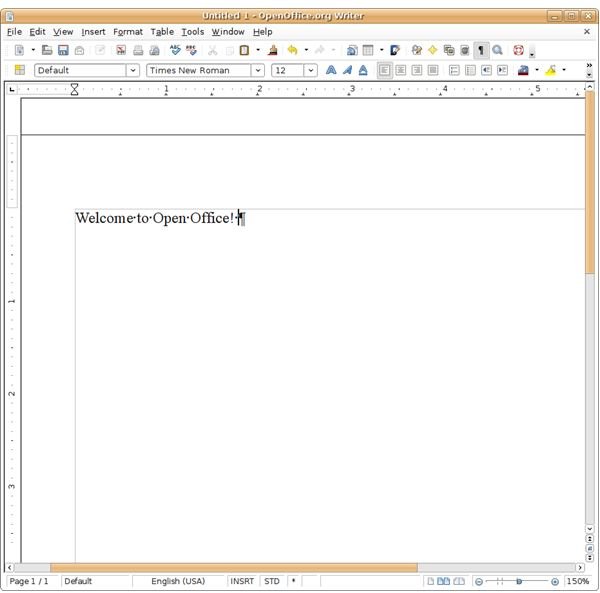
All done! Enjoy your fresh install of Open Office.
Resources
TomBuntu’s Open Office installation tips and steps
