So you have seen Spaces on a Mac and thought it’s a very cool feature and wondered why it’s not available for other systems. You’re wrong, Linux has used this for years. Let’s see why we have workspaces and how we can use them.
Workspaces
Speaking about workspaces, Apple shows this off very well in her operating system and seems to emphasize it. This only available with Macs. Don’t think that you do not have this feature in Linux. In Linux it has more power and flexibility. The other commercial operating system has a couple of light years to implement this productive feature natively.
Workspaces are basically your virtual desktop views. The logic behind is to group your relevant windows together and assign a space to avoid a cluttered desktop. Just imagine you are working on a report, where you are composing with your word processor. Making charts with your spreadsheet you need to open a webbrowser to find some images and another program to manipulate the images. Your personal information management (PIM) program is open behind to check your e-mails and tasks. Your favorite media player is playing music at a low and relaxing volume. Better yet, you also think that your computer can have the updates installed, when your internet connection is not so continuous. How many windows are open? Seven? On one desktop view?
This is a typical situation that we face everyday. With workspaces you can keep your wordprocessor and spreadsheet in one space, webbrowser and image manipulation program on the other. PIM updates and the music player on another. Now you continue to switch back and forth easily from your wordprocessor and spreadsheet, but not be distracted by the update situation of your computer. Also by the scrolling of song titles or with the new mail notifications. Let’s see how we can configure workspaces in Gnome, KDE and Fluxbox.
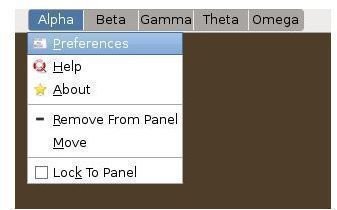
Gnome: After you log in to your Gnome desktop environment, you will see a couple of boxes next to eachother. These are your workspaces. Right clicking on them and selecting “Properties” takes you to the configuration options.
In the preferences dialog box you have some options. The first two options, Show only current workspace and Show all workspaces in 1 row and are self-explanatory. Under the Workspaces heading, you see the Number of workspaces that you want to have. I always use five. When you first open the dialog box, the workspaces are numbered starting from 1. You can click on them and change their names as you wish. Personally I always change their names to the letters in the Greek Alphabet as you see below.
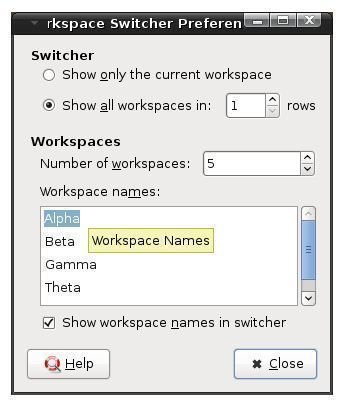
Before closing the window, make sure that Show workspace names in switcher option is checked. Otherwise naming the workspaces do not make sense, since they will not be shown.
KDE: Next comes managing workspaces within KDE. I have KDE 4.1 installed in my computer. If you are using the KDE 3 series the steps are almost the same.
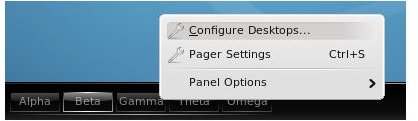
On KDE’s menu bar we see our workspaces in the same fashion that we see them in Gnome. Again right clicking on the workspaces and choosing Configure Desktops takes us to the configuration options:
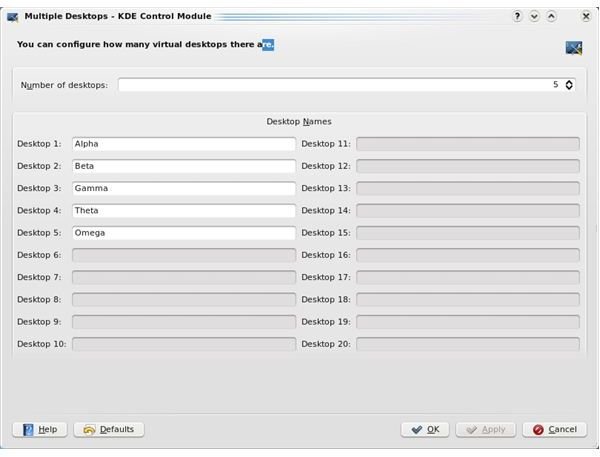
In the newly opened window we choose how many desktops we want to have and also their names. If you haven’t done this before KDE names workspaces starting from Desktop 1. My convention of naming desktops with the Greek Alphabet are the same:
However we’re not finished as in Gnome. There’s one more step ahead which is right clicking on an empty place on the menu bar, then selecting Task Manager Settings:
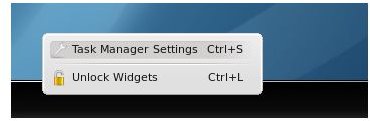
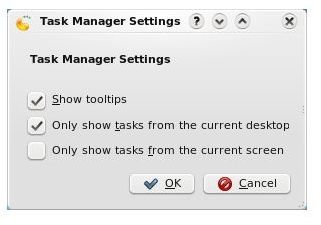
Choosing this option we are presented with a simple window that lets us make the final configuration. This only show tasks from the current desktop. If you do not check this option, the menu bar will show all open windows from all workspaces. This will make your menu bar cluttered and thus making no sense in using workspaces:
Fluxbox: Within Fluxbox you are just two clicks away from configuring your workspace. Right clicking on the desktop opens the menu and there you select Workspace. Then click New Workspace to add a new workspace or select Rename current workspace depending on what you want to do.
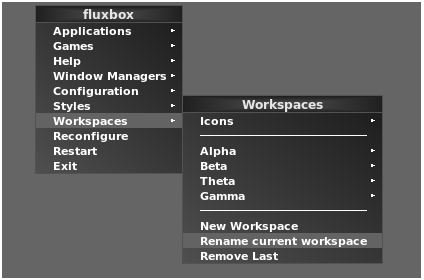
Switching between workspaces is as easy as clicking on the left and right arrows which are just right of your workspace name on the menu bar:

Working with workspaces are fairly easy in Linux desktop environments. Workspaces are the simple tools that have to do with productivity, at least by letting you arrange your desktop with the programs that you are using at that time and concentrating on what you are doing.
Until next article, happy tuxing!


