Zim Desktop Wiki: An indispensable Application
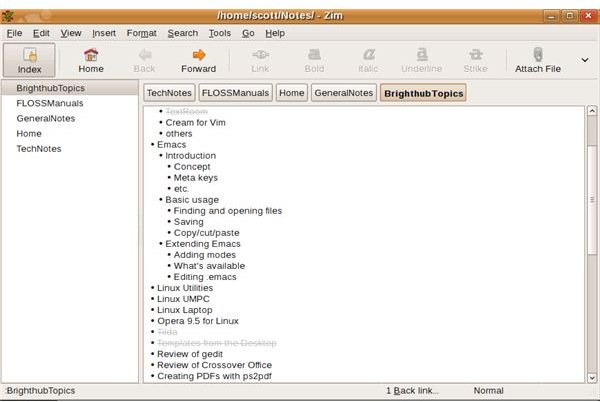
Introduction
The first part of this article discussed how to get up and running with Zim Desktop Wiki. In this part, I’ll look at how to add formatting to a wiki page in Zim and examine some of Zim’s other features
Formatting your pages
If you’re familiar with WikiText, which is the simple markup language used to format wiki entries, then you can literally add formatting to your wiki pages using keyboard symbols. The WikiText that Zim supports is similar to that used by a Web-based wiki called DokuWiki.
How do you use WikiText in Zim? To create a bullet list, for example, type an asterisk followed by a space. Surround a word or a phrase with two asterisks to make it bold. In Zim, WikiText becomes formatting that you can see immediately – once you press the space bar or press Enter, an asterisk (for example) becomes a bullet.
If you don’t want to learn the syntax, you can access formatting functions from the Format menu or, for basic formatting, from the toolbar.
Other features
Zim has a number of interesting features. In addition to the built-in plugins that enable you to insert a calendar or a screenshot into a page, create a to-do list, view a wiki page in a Web browser, and check spelling. A few other things, too. All of the plugins are available from Zim’s menus.
If you need to export your wiki pages to another format, you’re stuck with two formats. The first is HTML, the language used to format Web pages. The other is txt2tags, which uses wiki-like markup from which you can generate documents in such formats as HTML, XHTML, LaTeX (a powerful typesetting program), and more. To use this, you’ll need a program called txt2tags installed on your computer to do the conversions.
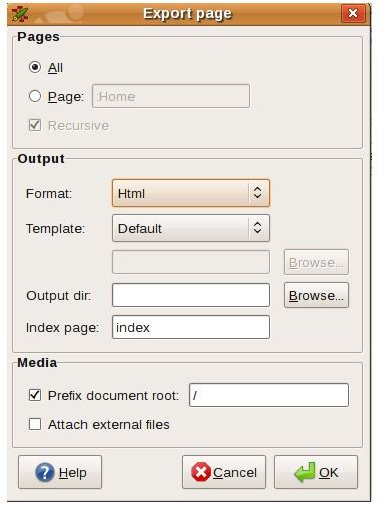
When exporting to HTML, you can choose to use one of these templates:
- Presentation, which creates a Web page with simple Javascript navigation
- Print, a plain page that you can send to directly to your printer
- Slide show, which turn your wiki pages into a slideshow using a format called S5
If you’re really adventurous you can try to create your own export template. You can find details here. I haven’t tried it, so I can’t tell you how well or badly it works.
Summing up
Zim Desktop Wiki is incredibly easy to use, and packs enough features to help you get whatever it is you want done with a wiki done.
This post is part of the series: Bringing Wikis to Your Desktop
Wikis (Web pages that anyone can edit) aren’t just for the Web anymore. With the right software, you can bring the wiki to your Linux desktop. And you can do it without worrying about installing and maintaining complex software, a Web server, and a database. This series shows you how.