This step-by-step article walks you through the process of resolving the Windows Vista update error: 8024419.
You may receive the Windows Vista update error: 8024419 when you attempt to update this operating system on your computer. It is displayed when there is a problem in trying to reach the update server. Read on to learn how to resolve this error message and successfully update your PC.
Troubleshoot Your Internet Connection
Launch your Internet browser. If you find that you have a dead network connection, then you should first troubleshoot your connection to restore your Internet connection. Here’s how:
1. Find out if the problem is with your router. Refer to the instruction manual for your particular router for instructions on how to reset the connection.
2. Check all of your Internet connections if there is no problem with your router. Ensure that you have the correct type of cables. It may be necessary to test different types of cables to ensure that the cable you’re using is working properly.
3. Examine your network card to ensure that it is correctly configured and in proper working order. Change the setting on your network card to 10Mbps of Full Duplex to determine whether this will solves the issue. Here’s how:
- Open your Control Panel and then double click on the System icon.
- Click on Device Manager and then go to your network card. Click on the Advanced tab.
- Locate the Link Speed and Duplex section.
- Change the option from Auto Detect to 10Mbps/Full Duplex.
4. Next, test your firewall. Re-install your firewall to ensure that it is not blocking your Internet connection. If this does not do the trick, you will need to re-set your TCP/IP stack. To do this, download and install WinsockXPFix.exe .
Check for the DNS Changer Trojan
If you continue to receive the 8024419 error in spite of ensuring a working Internet connection, the problem might be a Trojan called the DNS Changer Trojan. To recognize this Trojan horse, you will need to check your DNS server assignments. Here’s how:
1. Click on your Start button to open the Start menu. Next, type cmd into the Search text box. Hit Enter. This will open the Command Prompt.
2. Type ipconfig /all in the Command Prompt and then hit Enter.
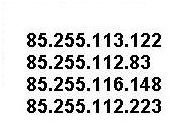
3. Locate the DNS Server section and then check the IP numbers. If you have an IP address that is similar to any of the ones listed below, then it is highly likely that your PC has the DNS Changer Trojan:
**
4. Run a competent antivirus program such as MalwareBytes to remove this Trojan horse. Perform a complete system scan to remove the DNS Changer Trojan.


