CyberPatrol 7.6 is a Web activity monitoring and controlling software that prevents your children from accessing objectionable material on the Interent with various filter settings. It’s a client-based, browser independent, Internet safety software solution for Windows-based standalone PCs.
Introduction
Are you a parent concerned about the web activity of your child or teenager? CyberPatrol 7.6 is an excellent tool that enables you to decide what your child should and should not be able to access on the Internet . In fact, the software enables you to create different settings for each child and for yourself. With CyberPatrol installed on your PC, you can be assured as far as Internet is concerned, misuse will not be possible.
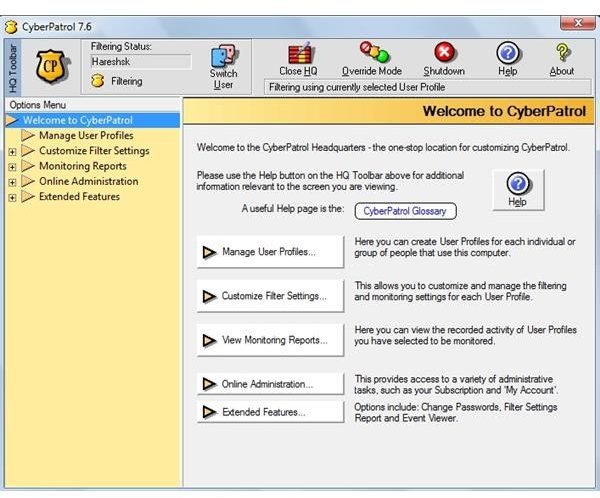
To create the individual settings within CyberPatrol, you can either create new profiles or those already created in your Windows login. For each of these profiles you can set filters, which are highly dynamic. The simplest way to set these filters is to choose the proper category (i.e. adult or child) depending on the 
For children making excessive use of chat or instant messaging programs, you can set up CyberPatrol so that offensive words are blocked. You can also set the chat and texting programs to which your child or you should be allowed access. The same facility is available for newsgroups.
With CyberPatrol, you can monitor the complete Internet activity on your computer . So, if you want to monitor exactly what it is your child is doing on Internet, you can use just the monitoring tool while keeping all websites
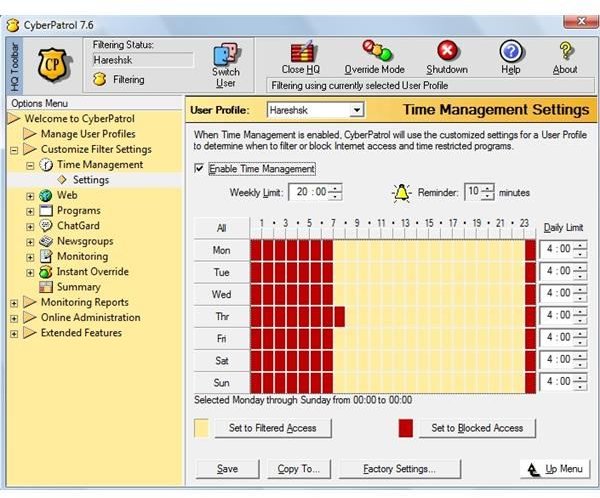
unblocked. There are time settings within CyberPatrol with which you can set the time-intervals during which the filter settings should be applicable. Alternatively, you can block all Internet accessibility during specific time-intervals.
Sometimes, we need access to blocked sites; in such cases, there is an override option that enables you to bypass all the settings and access the website of your choice.
CyberPatrol is not merely meant for your children or teenagers; it is equally useful for you to avoid offensive websites and words during chats. CyberPatrol has the additional function of even blocking programs that you feel a particular profile should not be allowed to use.
Price to Value (4 out of 5)
If you indeed wish to prevent your child or teenager from misusing the Internet, paying $39.95 a year for CyberPatrol is well worth it. Of course, I know there are many other ways in which your child or teenager can misuse the computer, but with CyberPatrol, great control can be achieved over their web activity. Additionally, if your child is playing offensive videos on the computer, the media playing programs can be blocked in their profile while your profile will still be able to use them. CyberPatrol can be effective in small business offices.
I personally found that it is worth paying for CyberPatrol only if you wish to filter or monitor web activity of your child or teenager. If there is no one else to misuse the Internet or computer programs, you hardly need such software.
Read on to page 2 of this article to learn about CyberPatrol 7.6’s installation and setup and the user interface.
Installation & Setup (2 out of 5)
When I opened my account to download and install CyberPatrol, I expected it to be simple, like any other popular software. But when I clicked on the download icon of the software, it never started, and to my surprise even the download icon vanished!
Somewhere within the site of CyberPatrol, I read that in such cases I should download the trial version and that is what I did and, I activated it afterwards. Though the installation was smooth, I was never asked where to install the software, as it happened automatically. I would hope for an easier process of downloading and installing the program. For an easier installation and setup process, you may wish to check out NetNanny 6.0 .
User Interface (4 out of 5)
The highlight of CyberPatrol is its highly intuitive and easy to understand user interface. All the settings of CyberPatrol are done from the “Head Quarter” which opens on entering the password. This protects unauthorized persons from making changes related to the filter and monitoring settings of CyberPatrol. The password needs to be chosen during the setup process, and it can be changed later.
There is a single main window within the “Head Quarter.” On the right side, it displays all the settings in the form of buttons, and their meanings are explained besides them. On the left side of the window, it names of all the settings open in the form of a tree. You can select any setting either from the left or right side.
When you select any option by clicking the button, a host of settings related with that option opens in the 
form of more buttons along with their meanings explained besides them. If you don’t understand meaning of any button, you can click on the “Help” button.
When you close the “Head Quarters” page, CyberPatrol is visible in the form of a strip. Here, one prominent feature is “Override,” which opens either with the “Head Quarters” password or on its own. From here, you can override all the settings made in the headquarters. From this strip, you can also shut down the software, or switch the user. If you shutdown the software, it will open only after restarting the computer. If you wish to keep the software running, just close it.
Though the user interface is easy to understand, a large number of sub-setting options makes the window look clumsy. You may feel as if too many options have been put into a small space. Undestanding all the settings of this monitoring software and their meanings is not easy and may take some time.
Read on to page 3 of this article to learn about CyberPatrol 7.6’s product features.
Product Features (4 out of 5)
CyberPatrol 7.6 has a number of features to offer in its small window. Most of the features of the software can be accessed from the “Head Quarters” when you open this monitoring software .
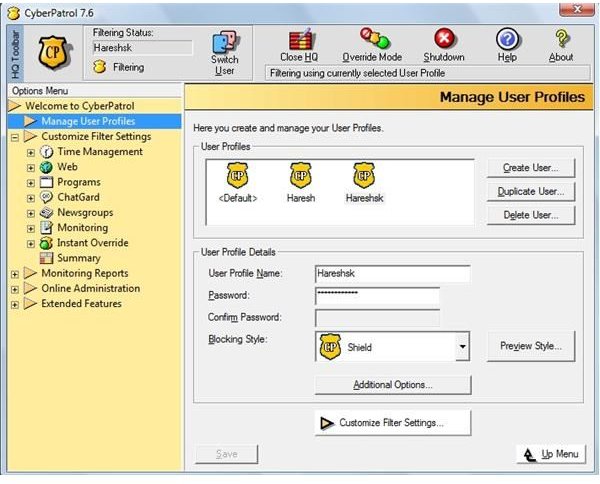
By clicking on the “Manage User Profiles” button, you can create as many user profiles as you need, each with different filter, monitoring and time-management settings. If your CyberPatrol and Windows profile have the same name, your CyberPatrol profile can be selected automatically when you open the Windows profile of that name. If the names are different, you can select the Windows profile of your choice say for your child, by entering the appropriate information.
In the “Customize Filter Setting” you can create the various filter settings for each profile. This button features different setting categories.
Within the “Time Management” category, you can set the time intervals during which the filter settings will be active, the Internet will be blocked, or programs will be restricted.
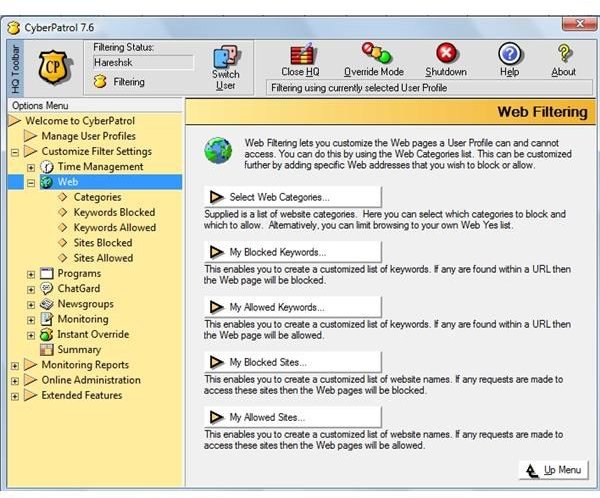
Most of CyberPatrol’s settings are created in the “Web” category. From here, you can select subcategories such as adult, chat, criminal activity, drugs, gambling, violence, etc. For each of these subcategories, you can select the strength of the filter meant for adult, teen, or child. You can select the pre-designed security
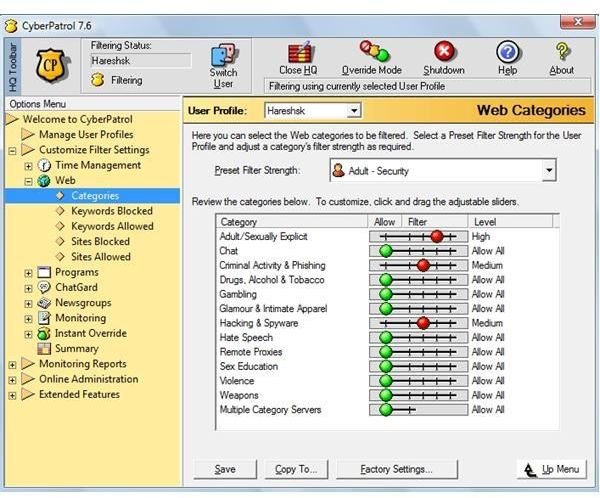
strengths or customize your own. You can also enter keywords, which if found in a website, will be either blocked or allowed that website. Similarly, you can enter the complete names of the websites to be blocked or allowed.
Within the “Programs” category you can select the programs which should be blocked all the time or during particular time intervals set under “Time Management."
If you want to guard the chatting of your child choose “ChatGard” option. You can enter the keywords that should be blocked when your child uses chat or instant messaging programs. You can also select a particular chat program which should be filtered. The same facility is available for the newsgroups under the “Newsgroups” category.
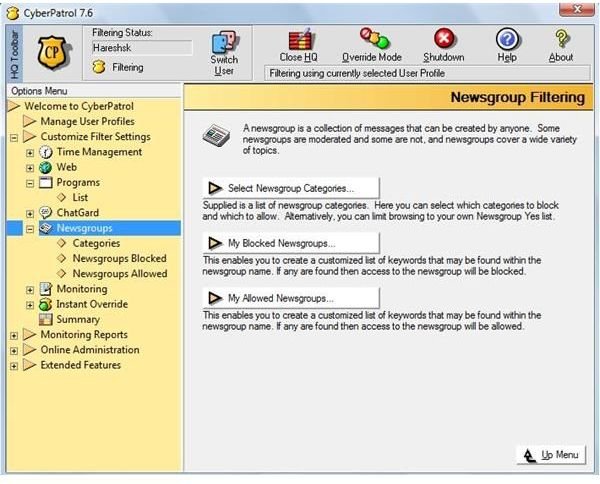

If you wish to set a new password for the override functions, you can select the “Instant Override” option.
Whatever the filter and the monitoring settings are that you have selected, you can always change them to “Factory Setting,” i.e. the original settings for the program, at anytime. You can also copy the settings of one profile to another.
In the beginning, you may feel as if too many features have been crowded in too small a space. You may get confused and tired of trying to understand the meaning of each and every function of this program. Soon, you may give up trying to know more and leave it to another time before you understand all the features thoroughly. These features could be compared to those of CyberSitter 9.0 and other monitoring software suites.
Learn more about CyberPatrol 7.6’s performance, and find out whether this program is for you by reading onto page 4.
Performance (4 out of 5)
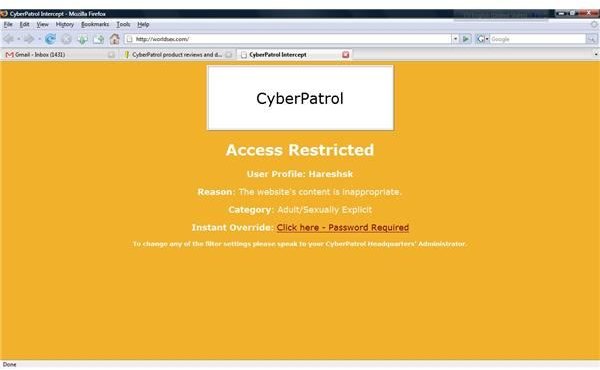
I tried using the software, making various filter and monitoring settings. With “Adult Security” settings, when I tried to open some adult sites I was told graciously that the site has been restricted by CyberPatrol 7.6. However, there was the option of “Instant Override,” which enabled me to open the site.
Then, within CyberPatrol, I entered the keywords, which if found in the website would mean it should be blocked, and it worked well. It also worked well for the specific websites that I had blocked. I also tried various time intervals during which filter settings should be active. When I blocked complete Internet activity, all websites were blocked.
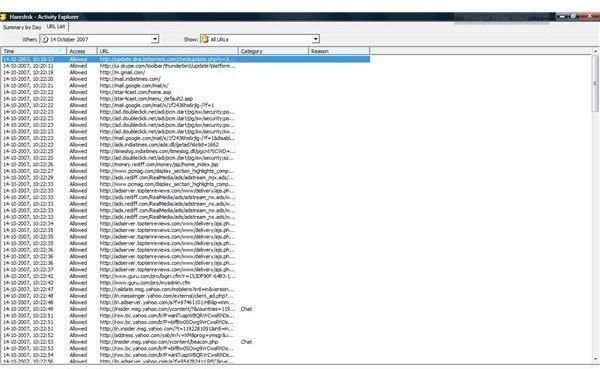
From the monitoring option, I could obtain a summary of the web activity during a given number of days and also the detailed activity for any particular day. This is very similar to the facility of “History” available in the web browser.
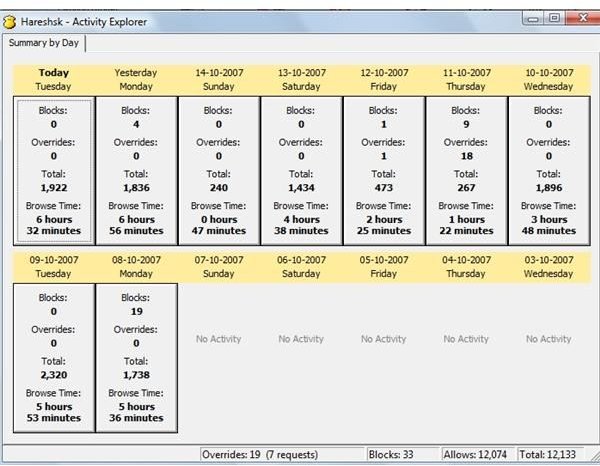
I was even successful in blocking the popular programs in my computer without having to study the procedure for blocking the program. The trials were performed on more than one profile and the things worked out well.
Overall, the password protected settings chosen by me were found to be very stable and effective. I shall soon be using the software for our children at home.
Sometimes, I found the software would block even the sites that are not offensive or ones I have been using regularly. This is frustrating. I had to use the override option to open the site. In fact, in some cases the software allowed opening websites it should have blocked. Later, I came to know such problems are common with this type of software. I hope CyberPatrol developers will come out with a solution for both these problems and make it more effective.
Conclusion
CyberPatrol is very good software for restricting the web activities of your child or teenager and for protecting your children online . You can apply various filters to allow access to only the websites that are useful for your child and block the offensive ones which carry adult content, violence, drugs, or other such materials. You can allow a set of websites that can be accessed or that should be blocked. With CyberPatrol 7.6, you can even filter the words used in the chat programs. All these settings can be made for a specific time-period of the day or throughout the day.
CyberPatrol can be very effective for parents who wish to monitor their children, though it cannot be 100% fool-proof since there are a number of other ways in which your child can misuse your PC. At least you will know of the web activity at home that your child will not access materials they are not supposed to have access to. But you never know what your child does when they are outside the home. You can also use the software at your offices to keep the x-rated employee activities at bay. In any case, in this world of advanced technology, the control that works best is “self-control.”
Related Products
Net Nanny, SafeEyes, ChildSafe, CyberSitter , BSafe, CyberSentinel, WebWatcher, iShield, McAfee


