Map System Configs with PsInfo
The Challenge
Both system administrators and security analysts frequently need information about Microsoft Windows patch levels, applications installed, and drivers used. It isn’t always easy to obtain this and other information. Either expensive enterprise inventory systems don’t fit into the budget, or the target systems are not part of the regularly scheduled scans for some reason. (Rogue systems often fall into this category.)
Simply accepting the inability to see into devices connected to the network is not an option for many reasons, including:
- Windows version, including service pack
- Kernel build
- Registered organization and owner
- Number of processors and type
- Amount of physical memory
- Install date of the system
- Applications installed
- Drivers installed
So while you’re trying to convince the check signer in your organization that knowledge of system configurations is a good thing from operational, business continuity, and security perspectives, you might want to consider PsInfo.
PsInfo
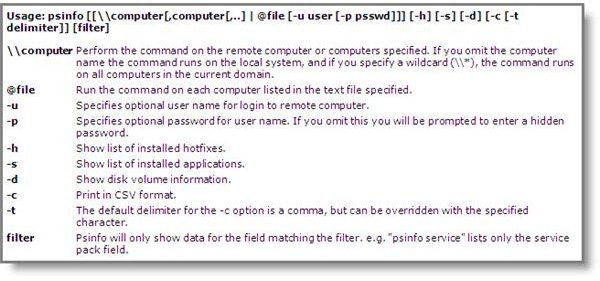
PsInfo is a free, downloadable utility in the Microsoft Sysinternals utilities suite. It is a command line utility with several parameters which add some flexibility to how you use it, as shown in Figure 1.
As you can see from the syntax shown at the left, you can use PsInfo to display information about the local computer or a list of remote computers. From a security perspective, the “\\*” syntax is a little scary. When used, PsTools will scan all systems in the current domain—not something you want a black hat running on a compromised company system.
The following are some examples run on a laptop I imaged for PsTools testing.
No Parameters
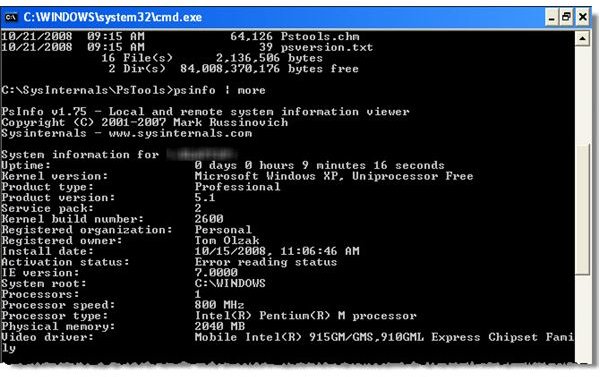
Running PsInfo with no parameters specified results in a listing of the overall system configuration, as shown in Figure 2.
Hot Fixes
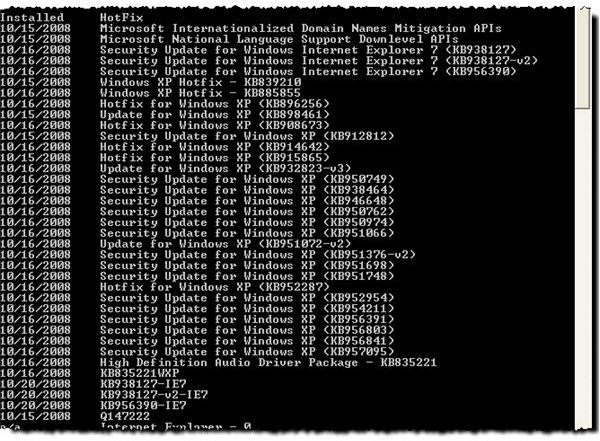
Using the following syntax, you can dig a little deeper and obtain a list of hot fixes and security updates applied to the target system, as shown in Figure 3:
PsInfo - h
Installed Applications and much more…
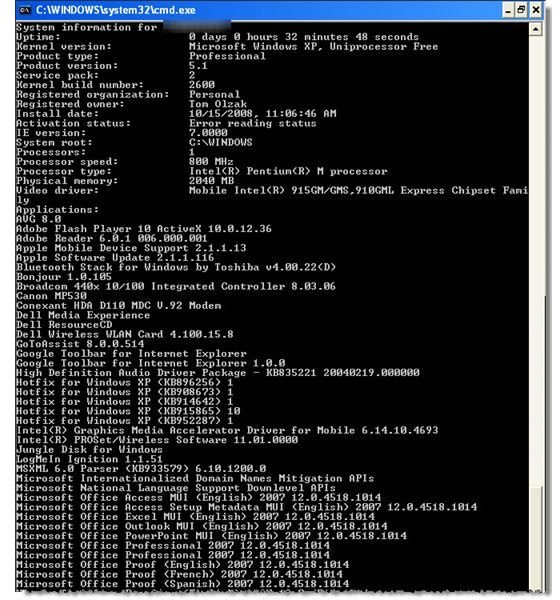
The intended use for the –s parameter, as shown in Figure 1, is to list all installed applications. When I used it, however, PsInfo -s provided a complete view into the inner state of my machine. See Figure 4. I not only received a list of applications and drivers, I also got the same information I received when using PsInfo with –h and no parameter. In other words, it acted like a “show all” flag.
Output
Feeding maintenance programs/utilities with this information is often useful. So help with this process, PsInfo provides a –c flag to produce delimited text files. In the following example, I used the syntax necessary to dump system state to a comma delimited text file, ExportText.txt. (A comma delimiter is used by default.)
PsInfo –s –c > ExportText.txt
I imported ExportText.txt into Excel as shown in Figure 5. (The computer name is provided in the first column, hidden in this graphic.) However, importing the information into a database for access by maintenance applications is probably more useful.
The Dark Side
Like all useful utilities which provide system mapping capability, PsInfo is not something you want run against enterprise devices by unauthorized personnel (i.e., bad guys). To ensure only authorized direct access to configuration information contained in the registry, only a small number of accounts, protected with strong passwords, should have access to HKLM\System. To completely shut down remote device registry access via PsInfo, disable the Remote Registry service.
Figures (Hover for caption, click to enlarge)

This post is part of the series: Use SysInternals security utilities to manage network and system security
SysInternals provides free security utilities for managing Microsoft Windows networks and systems. Available for download from Microsoft, they provide a powerful set of applications for oversight and protection of network assets.
- Validate System Access with AccessChk
- Streamline Kiosk Operation with Auto-logon
- Enumerate Windows File and Folder Access with AccessEnum
- LogonSessions and PsLoggedOn to Oversee and Manage System Access
- Use Autoruns to Improve Performance and Identify Malware
- Manage, Monitor, and Kill Windows Processes with Process Explorer
- PSExec: Free Security Testing and System Management Tool
- PsLogList: Free Utility to Parse and Review Windows Logs
- Map System Configs with PsInfo
- Use SigCheck to Validate System Files
